
When I ran my SEO masterclass at Wintec, one of the topics I taught was how to optimise a Google Business Profile.

I taught it because for a local business in New Zealand, that profile is usually the difference between the phone ringing and the phone sitting there dead — around 42% of clicks on a local search go to the map pack, not the results below it.
Afterwards I went hunting for a solid NZ-specific Google Business Profile Optimisation guide on the same thing — something I could point people to. What I found was AI slop: low-quality guides that read like they were copy-pasted straight out of ChatGPT.
So I wanted to fix that.
In this guide you’ll learn how to choose the category that decides which searches you show up for, write a description that ranks and converts, build a review system that actually produces reviews, and work through every other lever on the profile — step by step, the way I do it on real listings.
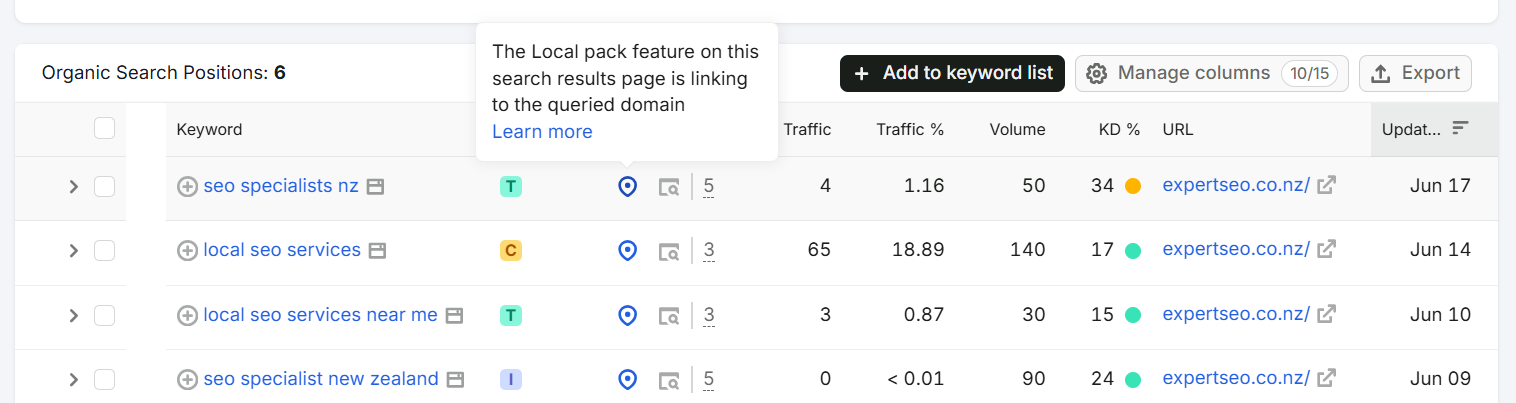
My own site ranks in local search for competitive terms like “local seo services” and “seo specialists nz,” with the map pack pointing straight back to my business — so this is the system I actually use, not theory off a blog.
Local SEO pays off for just about any business that serves an area — a law firm in Auckland, a website designer in Hamilton, a café, a builder.
One thing before we start: if your profile isn’t claimed and verified yet, do that first — setting up and verifying your profile is its own job, and I’ve covered it in full separately.
This guide picks up the moment the profile exists and you want it pulling its weight.
Step 1: Study the Profiles Already Winning Your Market
Before you change a single field on your own profile, copy the homework off the businesses already ranking — they’ve done the testing for you.
The logic is simple: the three businesses in the map pack for your main search are there because Google has already decided they’re the best match.
Their category, their reviews, their photo habits — that’s a working blueprint, handed to you for free. Skip this and you’re optimising blind. Do it, and every choice below is backed by what’s already winning.
Take “plumber Auckland.” The two at the top — Grace Plumbing and Auckland Plumbers Group — sit at 475 and 486 reviews.
Drop to the next pair, Fix & Flow and Ocean Plumbing, and you’re at 167 and 158. The pattern’s obvious: the front-runners are pushing 500 reviews while everyone else clusters around 150.
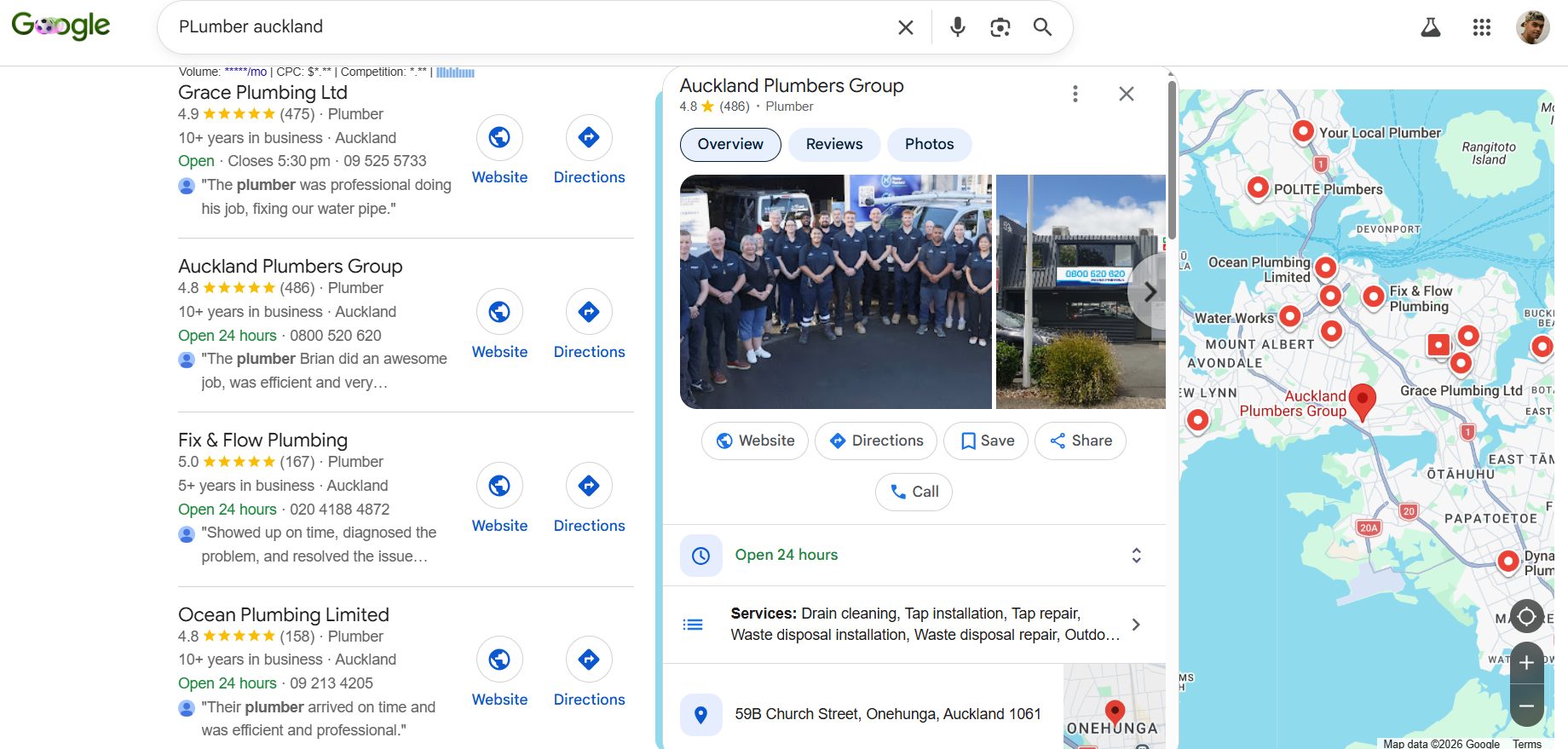
Those two leaders are the spots you have to beat — and the screenshot already shows you how.
You beat them on the levers you control: more and fresher reviews, a complete and consistent profile (category, services, NAP and hours all matching), better photos, consistent posts, and clean citations.
That list is exactly what the rest of this guide walks through.
So before you touch your own profile, run the recon properly:
- Add the free GMB Everywhere extension from the Chrome Web Store.
- Search your main keyword on Google — “plumber Auckland” — and open the map pack.
- Click each of the top three. GMB Everywhere shows their exact primary category right there.
- For each, note five things: primary category, total reviews, star rating, how recent their last few photos are, and the services they’ve listed.
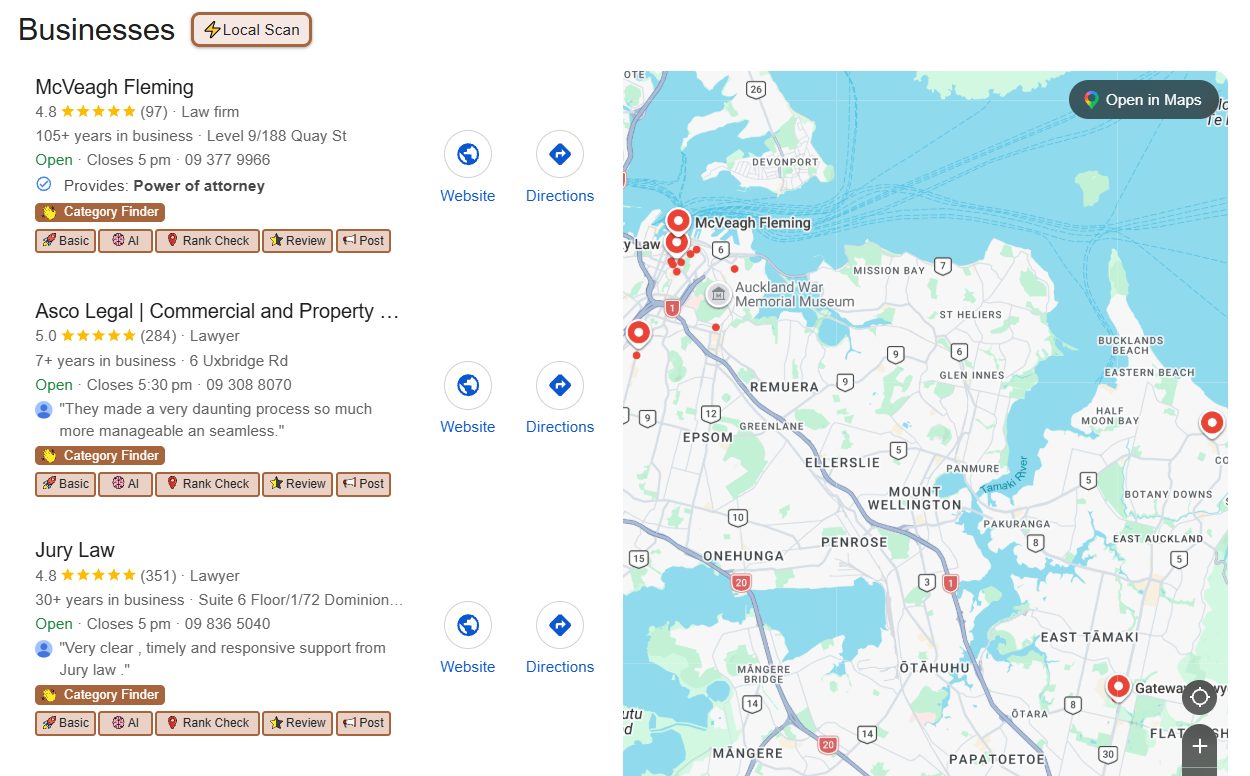
Drop it into a simple spreadsheet — one row per competitor, columns for category, reviews, rating, photo recency, and services.
After three businesses the pattern jumps out, the same way the review counts did above.
Now you’ve got a target instead of a guess. If the leaders sit near 500 reviews and you’ve got 12, reviews are your priority.
If they post photos weekly and your last one’s from 2024, that’s your gap.
This is the heart of local SEO: you’re not guessing what Google wants in your market — you’re reading it straight off the scoreboard, then beating it line by line in the steps below.
Step 2: Nail Your Primary and Secondary Categories
Your primary category is the single most important choice on the whole profile — it decides which searches you’re even allowed to appear for.
It’s not a small lever, either. When experts rank what moves the local pack, your primary category comes out on top, ahead of almost everything else you can control.
Pick the wrong one and you can do everything else perfectly and still never surface for the searches that matter.

How to choose it:
- Start with the most specific category that’s still accurate. “Emergency plumber” beats a plain “Plumber” if that’s your bread and butter, because it matches the exact search someone types at 11pm with a burst pipe.
- Cross-check against the winners. In your recon spreadsheet from Step 1, look at the primary the top three use. If all three are “Plumber,” that’s the one Google rewards for that search — match it, don’t get clever. If they differ, follow the closest, strongest competitor (most reviews, best ranked).
- Set it: open your profile, click Edit profile → Business category, and set your primary.
- Add your secondaries. Google lets you add up to nine more — use them for the related jobs you genuinely do. For the plumber: “Gasfitter,” “Drainage service,” “Hot water system supplier,” “Bathroom remodeler.” Each one opens up another set of searches.
The mistake that catches people out: a plumber who also does bathroom renos sets the primary to “Bathroom remodeler” because the jobs are bigger, then vanishes for “plumber Auckland.”
Your primary matches your highest-volume core search. Everything else goes in secondaries.
And never stuff keywords into your business name to fake relevance — “Joe’s Plumbing | Emergency Plumber Auckland 24/7.” Google catches it now, and it’s a fast track to a suspension (more on that below).
Step 3: Write a Description That Ranks and Converts
You get 750 characters in your description, and the job is to work in the words customers search and the reasons they’d pick you, with the first line doing the heavy lifting.
This field gets wasted constantly. People write a vague “we’re passionate about quality service” line and move on. That tells Google nothing and tells the customer less.
The fastest way to nail it is to let ChatGPT do the first draft, then tidy it. Paste in a prompt like this:
“Write a Google Business Profile description for my business, under 750 characters. Business: [emergency plumber] in [Auckland]. Main services: [blocked drains, burst pipes, hot water repairs, gas fitting]. What makes us different: [24/7 callouts, 30-minute response, family-owned, workmanship guarantee]. Lead with the main keyword and location in the first sentence, weave in the services and what makes us different, keep it natural with no keyword stuffing, and finish with a soft call to action.”
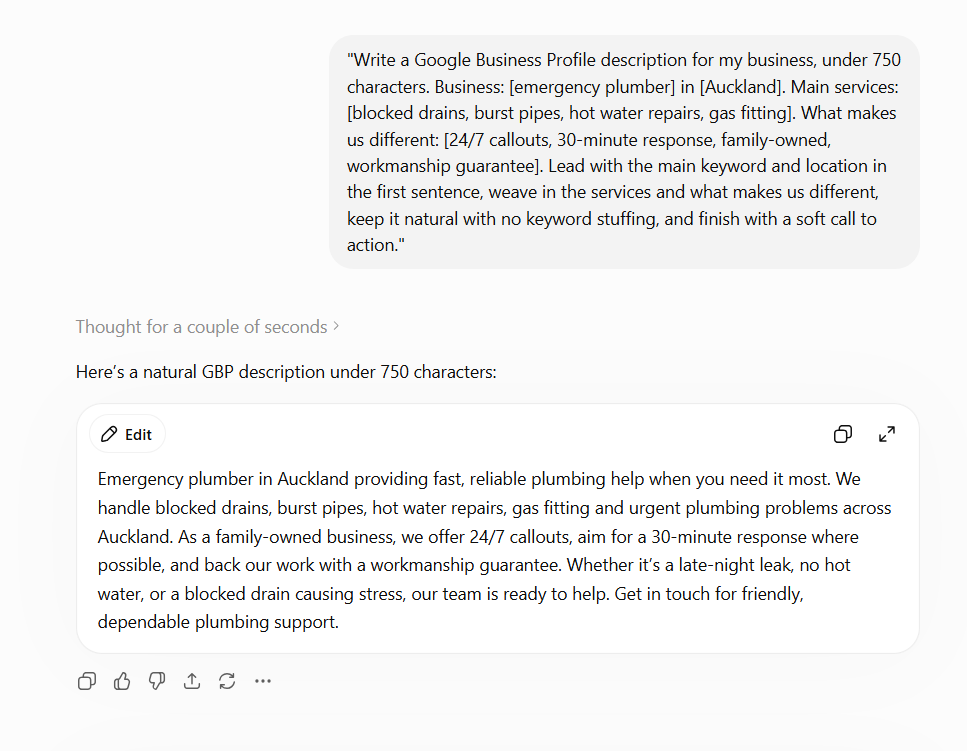
That gives you a solid first draft in seconds. Now tighten it — front-load the keyword, cut the filler, make every line true to your business — into something like this:
“Auckland’s 24/7 emergency plumbers. We fix blocked drains, burst pipes, hot water cylinders and gas faults across the wider Auckland region, with a 30-minute response on urgent callouts.
Read it back and the structure’s clear: keyword and location in the first line, the core services and the things that set you apart through the middle, a clear call to action at the end.
Natural enough that a human wrote it, deliberate enough that Google and the customer both get the point.
To set it: paste your tidied version into Edit profile → Description. Pull the exact phrasing your customers use from your keyword research, and front-load the first 250 characters — that’s all that shows before the “more” cut-off.
Step 4: Fill Out Every Service
Every service you list is another phrase Google can match you to — and most profiles leave half of them blank.
The Services section lets you list each thing you offer with its own description. It’s free real estate that quietly widens the searches you can appear for, and barely anyone fills it in properly.
Here’s a real Auckland plumber doing it right — a fully built-out list covering tap repair, leak detection, pipe repair, hot water cylinders and more:
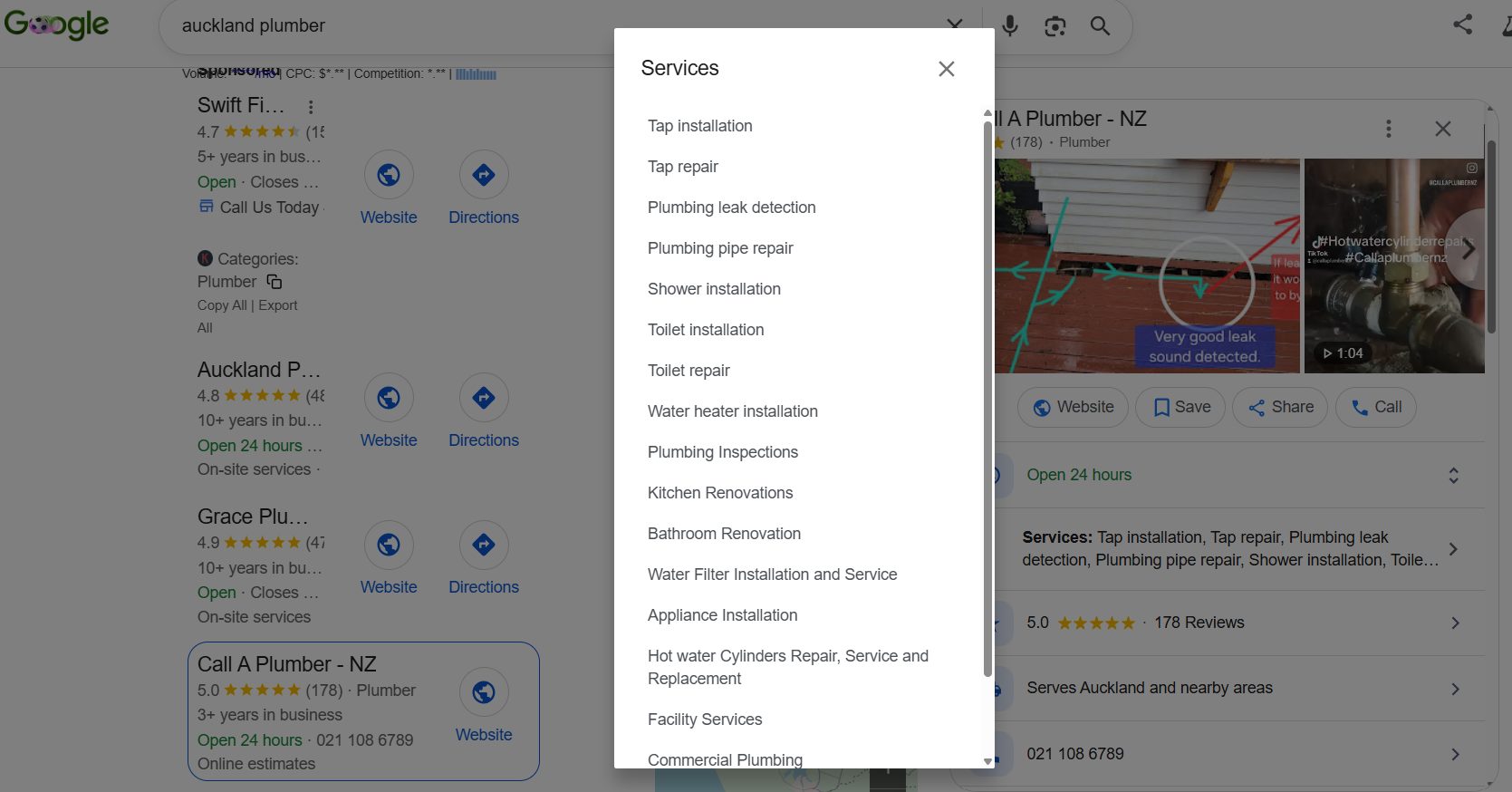
To build yours out properly:
- List every service, not just the big ones. Pull them from three places: your website’s services pages, the jobs you actually invoice for, and the services your competitors listed in your Step 1 recon. Between those three you’ll find services you forgot you offer.
- Name them the way customers search. “Hot Water Cylinder Repair,” not “HWC work.” “Blocked Drain Clearing,” not “Drainage.” If Aucklanders type it into Google, that’s how it reads on your profile.
- Write a short description for each. Two or three sentences in plain language, working in the service and the area. For “Blocked Drain Clearing”: “Fast blocked drain clearing across Auckland. We use CCTV drain cameras and hydro-jetting to find and clear the blockage properly — not just shift it — so it stays clear.”
- Add them: Edit profile → Services → add each one and its description.
The payoff compounds. Ten services with real descriptions is ten more ways to match a search than a profile that just says “Plumbing” — and most of your competitors are sitting on that one-word version.
Step 5: Add Products or Packages
The Products section puts visual cards on your profile — image, title, price, description, and a button to your site — and it’s an easy win, but only if you’ve got something genuine to put there.
The mistake is copying your Services list straight across as “products.” That’s duplication, and it doesn’t help. Use Products for things that actually suit a card:
- A real product you sell — water filters, hot water cylinders, tapware.
- A clearly packaged, fixed-scope offer — something with a name, a price, and a defined deliverable.
A good card for the plumber: title “Hot Water Cylinder Replacement,” price “From $1,850,” a photo of a freshly installed cylinder, and a two-line description — “Old cylinder failed?
We supply and install a new mains-pressure cylinder, usually same-day, fully compliant and guaranteed.” The button points to your hot water cylinder page, not your homepage.
To add one: Edit profile → Products → Add product, then fill in the photo, title, price or range, description, and button.
If nothing genuinely fits — you’re pure callout work with no packaged offers — skip it. An honest profile beats a padded one, and a Products tab full of recycled services helps no one.
Step 6: Add Photos and Videos That Earn Calls
A steady stream of real photos pulls noticeably more calls and direction requests — and Google reads fresh photos as a sign you’re an active, real business.
This is one of the easiest wins on the list, and it’s the one nearly everyone skips. They upload a logo once at setup and never touch it again, then wonder why the livelier-looking competitor gets the clicks.
Here’s an Auckland plumber with a proper gallery — completed jobs, interiors, owner shots, the lot:
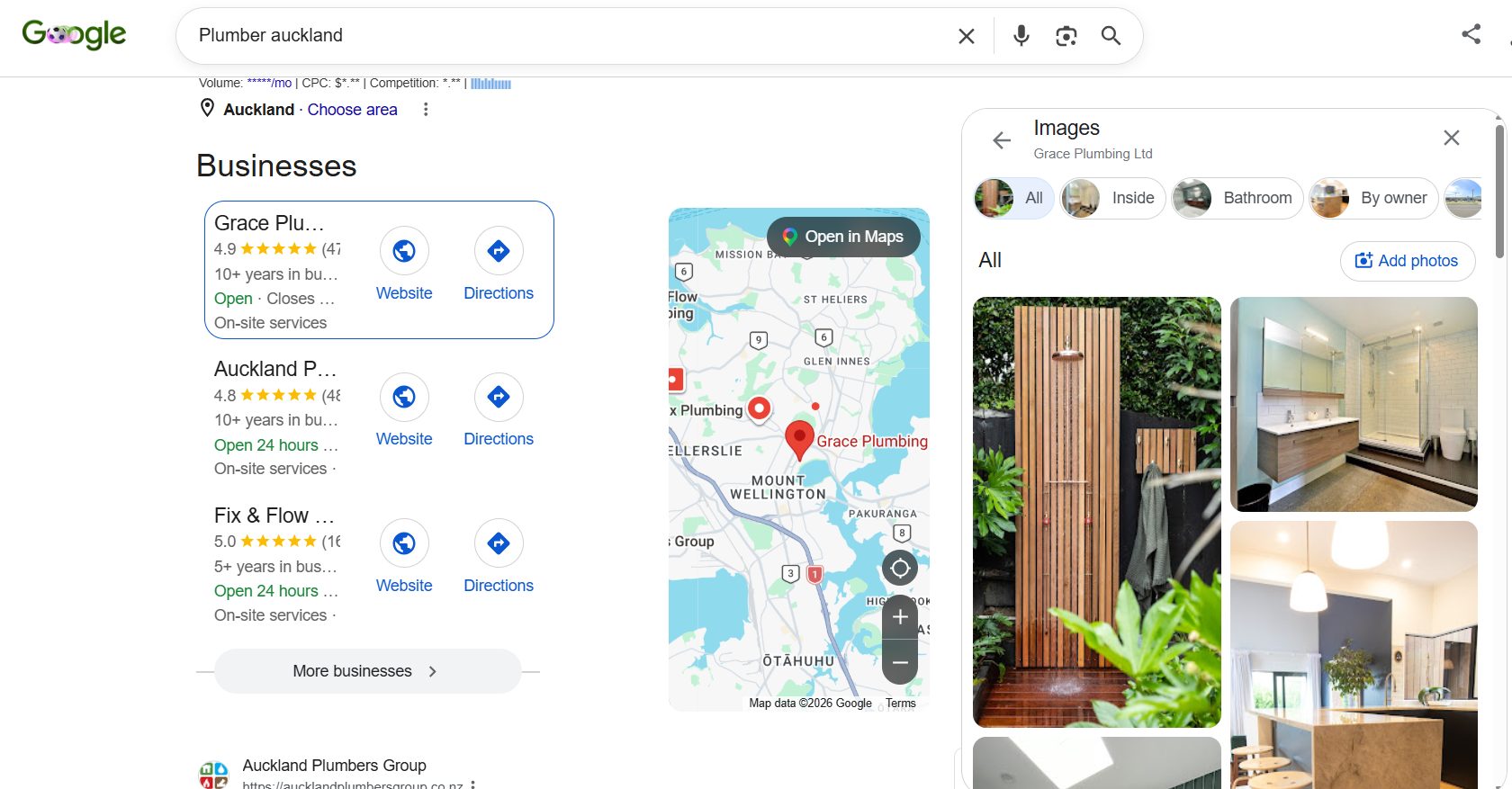
The plumber’s gallery covers the work. The businesses that really win at this go a step further: they shoot the people.
Here’s Noble Dental — a practice that’s nailed it. Warm, high-quality photos of the rooms, the team, and real patients, not a stock smile in sight.

It makes the profile feel homely, and it does something quietly powerful: you feel like you know them before you’ve even called.
Build that rapport before the first contact and you’ve got an edge over every competitor sitting on a logo and three blurry photos.
What to shoot, and why each one earns its place:
- Exterior and signage (if you have premises) — proves you’re real and where you say you are.
- Team and faces — puts a human on the business; people call people.
- The work — finished jobs, and before-and-afters especially. A grim blocked drain next to the cleared one sells harder than any tagline.
- Products you install — the cylinders, the tapware, the gear.
The how:
- Take photos on every job. Snap one or two on your phone before you pack up — it costs ten seconds and feeds you a year of content.
- Name the file before you upload. “hot-water-cylinder-install-auckland.jpg” beats “IMG_4471.jpg” — a small relevance signal that’s free to add.
- Upload them: in your profile, tap Add photo, pick the right category (interior, team, at work), and add a few at a time.
- Keep a cadence. Three to five photos a week beats fifty in one hit then silence — Google rewards the steady drip, not the dump.
One more job: watch your customer-uploaded photos.
A good one is free social proof. A bad or misleading one you can flag — tap the photo, hit the three dots, and report it for removal.
Step 7: Build a System That Gets You Reviews
Reviews are one of the strongest signals you actually control, so don’t treat them as a one-off favour to chase — build a repeatable system that produces a steady stream of them.
Review velocity is the part that gets missed.
A business with a fresh review landing every week reads as alive and trusted; a profile with 30 reviews that all stopped two years ago reads as stale.
Google leans on recency, and so do customers — most people trust a steady flow of recent reviews far more than an old pile of them.
Here’s the system, step by step:
- Grab your review link first. In your profile, click “Ask for reviews” (or “Get more reviews”) — Google hands you a short link that drops the customer straight onto the review screen. Copy it once and save it. Turn it into a QR code too (free QR generators do it in seconds) so you can print it on invoices, business cards, or a sticker for the van.
- Ask at the emotional high. The best moment is the second a job’s gone well and the customer’s happy — not three days later. Text or email them the link right then, while the good feeling’s fresh.
- Use a short, specific ask. Something like: “Thanks for having us out today, [name] — glad we got that hot water sorted. If you’ve got 30 seconds, a quick Google review helps our small team out massively: [link]. Cheers!”
- Follow up once. If they haven’t left one in a few days, a single polite nudge with the same link. Then leave it.
- Reply to every review — and this is where most go quiet. For a good one: “Thanks [name], glad we could get that burst pipe sorted fast — call us any time.” For a bad one, don’t argue: acknowledge it, apologise, and take it offline.
If you’d rather it ran hands-off, a review tool like BrightLocal’s reputation manager can fire the SMS or email automatically after each job and alert you to new reviews — useful once volume picks up.
But the manual version works fine; the system is what matters, not the software.
The businesses that win at reviews aren’t doing anything clever — they just ask, every single time, with a system that doesn’t rely on remembering.
I run exactly this on my own profile. Expert SEO sits at 4.9 stars across 17 Google reviews, all from asking consistently.
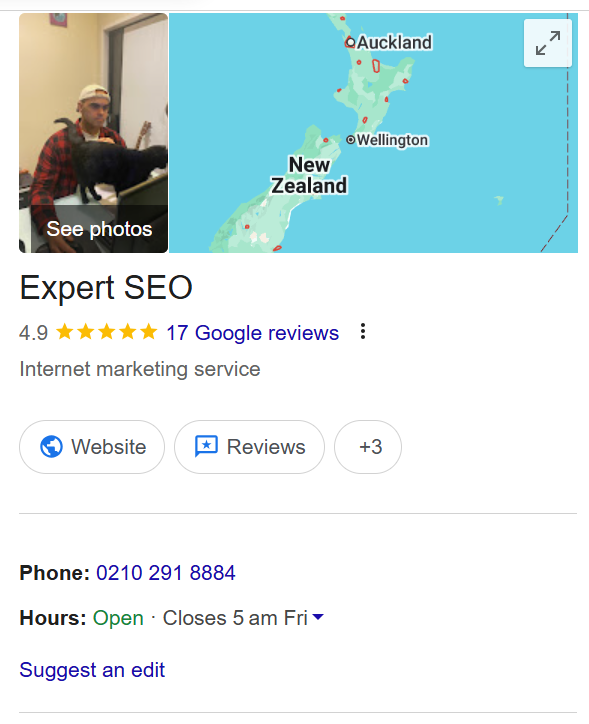
And it pays off beyond ranking: customers are 2.7 times more likely to consider a business reputable when the profile’s complete and active, with reviews doing a lot of that heavy lifting.

One line you must not cross: never gate reviews — funnelling happy customers to Google and unhappy ones to a private form — and never buy them. Both break Google’s policies, and both can get your profile actioned. Earn them properly.
Step 8: Post Updates and Seed Your Q&A
Google Posts and the Q&A section keep your profile looking active, and they double as real content customers read on your listing.
Posts are short updates that show on your profile in search and Maps. The three that work for a local service business:
- Update posts — a job you just finished, with a photo. “Sorted a full hot water cylinder swap in Mt Eden this morning — the old one had finally given out.” Shows you’re busy and real.
- Offer posts — a seasonal or limited deal. “Winter special: $0 callout on drain inspections through July.”
- Reminder posts — tied to the calendar. “Heading into winter: get your pipes and outdoor taps checked before the first freeze.”
To post: open your profile, click Add update, write a line or two, add a photo and a button, and publish.
Set a recurring weekly reminder and batch a few at once so it actually happens — once a week is plenty to keep the profile looking alive.
Q&A is the bit everyone forgets you control. You’re allowed to post questions to your own listing and answer them, so seed it with the ones you actually get asked:
- Open your public profile and find the Questions & answers section.
- Post a real question — “Do you charge a call-out fee?”, “Are you available after hours?”, “Do you service my area?”
- Answer it clearly from your business account.
- Repeat for your five or six most common questions.
You’re heading off objections before they cost you the call, and feeding Google more context about what you do — in one move.
Step 9: Get Your NAP and Key Citations Consistent
Your name, address, and phone number — your NAP — has to match exactly everywhere it appears online, because inconsistencies quietly erode the trust Google places in your listing.
It sounds trivial. It isn’t. Picture a dental clinic listed as “Queen St Dental, 12 Queen Street” on its profile, “Queen Street Dental, 12 Queen St” on its website, and something different again on an old directory.
Google sees three businesses where there’s one, and that confusion drags on local visibility.
Here’s how to sort it:
- Lock your NAP in one format. Write your business name, address and phone exactly one way — pick “Street” or “St,” a landline or a mobile, and commit — then make your profile, your website footer, and your contact page match it character for character.
- Get listed in the core NZ directories. For a service business the ones worth your time are Yellow (yellow.co.nz), Finda (finda.co.nz), Localist (localist.co.nz), Neighbourly, and — if you’re in the trades — NoCowboys (nocowboys.co.nz), which is built around reviews and carries real weight with homeowners. Use the identical NAP on every one.
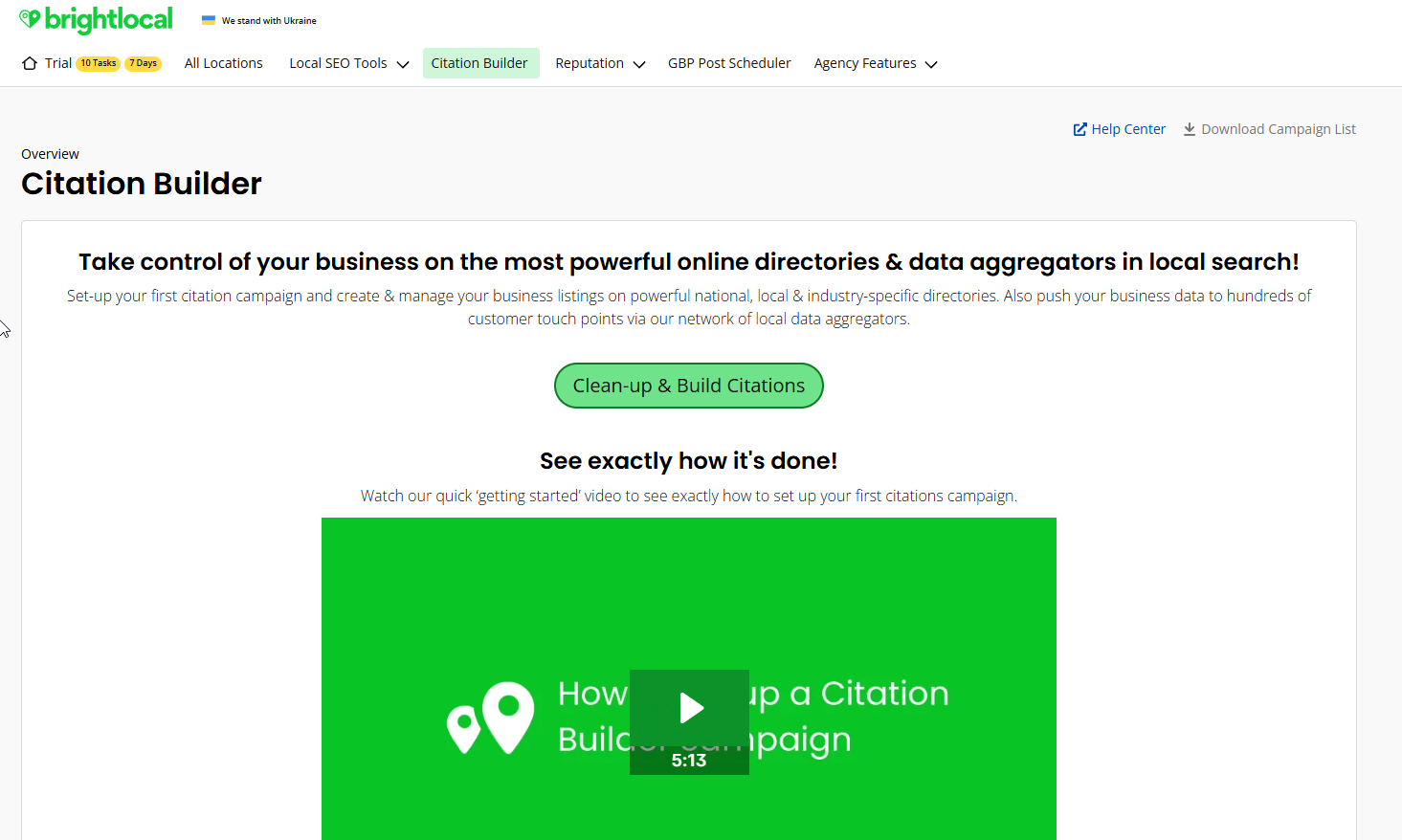
- Or do it with a tool. The fastest path is BrightLocal: sign up, open the Citation Builder, enter your details once, and it pushes a consistent listing out to the main NZ directories for you instead of you submitting to each by hand. Its Citation Tracker then flags existing listings where your details don’t match, so you can fix them.
- Clean up the strays. Search your business name, and claim or correct any old listings showing a former address, number, or name.
For most businesses that tool route is the one I’d take — one entry, consistent everywhere:
Keep this tight and on the profile’s behalf — the deeper work of building local citations and links across the web is its own job, and I’ve covered the full strategy separately.
Step 10: Track What’s Actually Working
Your profile keeps its own scorecard, and reading it tells you exactly what’s landing and what to do next.
Open your profile and click Performance. You’ll see the numbers that matter, and each one points to an action:
- The searches that triggered you — the actual phrases people used to find you. If “blocked drain Auckland” keeps appearing, that’s confirmed demand: make sure that service is listed, post about it, and build a page for it on your site.
- Calls, direction requests, and website clicks — what people did once they found you. Lots of views but few calls usually means the profile isn’t convincing yet: thin photos, few reviews, no offer.
- How they found you — “Discovery” searches (a category like “plumber near me”) versus “Direct” (your business name). Heavy on direct and light on discovery means your category and keywords aren’t pulling new people in yet.
To see your actual map-pack position across the city — not just whether you rank, but where — a tool like Local Falcon or BrightLocal’s local rank grid plots your ranking on a map of pins, so you can see how far out from your base you stay competitive.
Make it a monthly habit: first of the month, open Performance, check the trend against last month, note your top three search terms, and pick one thing to improve.
Watch the trend over months, not the daily wobble. If views, calls, and directions climb, the system’s working. If something suddenly drops, that’s your cue to dig in — and a full SEO audit can pinpoint whether it’s the profile or the website behind it.
How Long This Takes to Show
Some changes move fast, others compound slowly — so set your expectations honestly before you start.
Category and description changes can shift things within days, because you’re directly changing what Google understands about your business. Reviews and photos are a slower burn: the momentum builds over weeks and months as the velocity adds up.
The honest answer, though, is that it’s competition-dependent — and not just on your industry, but on your area. This is exactly why Step 1 matters.
If your recon showed the leaders sitting at 500 reviews, closing that gap is a long game. If the top of your pack is at 80 reviews in a quieter town, you’ll get there far quicker.
A plumber in central Auckland and a plumber in a small Waikato town are running two completely different timelines, even with the identical checklist.
There’s also a hard ceiling worth knowing: proximity. From one Auckland base you’ll dominate searches near you and fade the further out the searcher is — that’s how the map works, and no amount of optimisation fully overrides it.
Competing across a wider area is a separate job that goes beyond the profile, and it’s the heart of Google Maps SEO.
Generally, though: you’ll see early movement in the first few weeks, and with local SEO you can expect solid changes within about six months — faster in a quiet market, slower if you’re chasing down 500-review incumbents.
Optimisation Mistakes That Backfire
A few “optimisation” moves do more harm than good, and a couple can get your profile suspended outright — so know what not to do.
- Keyword-stuffing your business name — “Joe’s Plumbing | Emergency Plumber Auckland 24/7” instead of your real name. Google detects it and penalises it.
- Fake or virtual addresses — listing somewhere you don’t actually operate.
- Review gating or buying reviews — worth repeating, because it’s the one that bites hardest.
- Over-editing — sudden changes to your name, category, or address can trip a manual review.
Get suspended and your profile vanishes completely, and getting reinstated can take weeks. Avoiding the triggers is far cheaper than appealing — and if you do get hit, the full reinstatement process is in the setup guide.
When to Do It Yourself vs Hire Someone
Everything in this guide is doable yourself. The tool’s free, the steps are clear, and a focused afternoon plus a bit of weekly upkeep will get a profile properly optimised.
The case for help comes down to two things: time and strategy. If you’d rather not spend your week chasing reviews, writing posts, and reading performance data — or you want the profile tied into a wider local push across your whole website — that’s where done-for-you SEO earns its keep.
You can also bring in an SEO consultant to own the strategy while you stay focused on running the business.
We’re an NZ SEO team that manages profiles as one piece of full local campaigns, using the exact system you’ve just read.
If you’re happy to roll your sleeves up, work through these steps and you’ll have a profile that beats most of your competitors inside a few months. If you’d rather have it done properly and done faster — that’s where we come in.
Google Business Profile Optimisation: FAQ
What is Google Business Profile optimisation?
Google Business Profile optimisation is the process of completing and fine-tuning every part of your free Google listing — category, description, services, photos, reviews and posts — so it ranks higher in Google's map pack and turns more local searches into calls.
Is Google Business Profile optimisation free?
Yes. The profile and every feature on it — categories, services, products, photos, posts and reviews — are completely free. The only cost is your time, or paying someone to manage it for you.
How long does Google Business Profile optimisation take to work?
Category and description changes can move things within days. Reviews and photos are a slower burn that builds over weeks. In most New Zealand markets you'll see solid changes within about six months — though it depends heavily on how competitive your industry and area are. Chasing down a competitor with 500 reviews takes far longer than getting ahead in a quieter town.
How many categories can I add to my Google Business Profile?
One primary category plus up to nine secondary categories — ten in total. Your primary is the single biggest ranking lever, so make it the most specific accurate match for your core service, and use the secondaries for the other jobs you genuinely do.
How often should I update my Google Business Profile?
Post an update roughly once a week, add fresh photos as you finish jobs, and ask happy customers for reviews continuously. Check your Performance insights once a month to see which searches are bringing people in and what to lean into next.
Can I optimise my Google Business Profile myself, or do I need an expert?
You can absolutely do it yourself — the tool is free and the steps are straightforward. Bringing in help makes sense when you'd rather not spend the time on reviews, posts and performance data, or you want the profile tied into a wider local SEO campaign across your whole website.