

For most local searches in New Zealand, your Google Business Profile is the first thing a customer sees — before they ever reach your website.
It’s the listing with your reviews, hours, photos and phone number that shows up on Google Maps and in the search results when someone looks for a business like yours.
Plenty of NZ business owners set it up once, fill in half the fields, and never touch it again. Some have never claimed theirs at all. Either way, they’re handing visibility to the competitor down the road who has.
This guide fixes that. You’ll learn how to set up, verify, manage and protect your Google Business Profile properly — built around New Zealand businesses, with real examples from a profile I manage myself.
What Is a Google Business Profile?
A Google Business Profile is a free listing that controls how your business appears on Google Search and Google Maps.
It holds your business name, location, hours, phone number, website, photos and customer reviews, and it’s what powers the map results and the panel that shows up when someone searches for your business by name.
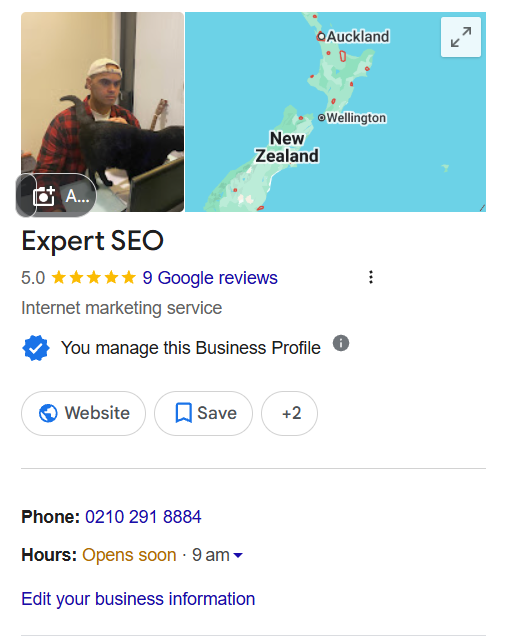
It’s built for businesses that deal with customers in a place or a service area — cafés, dentists, plumbers, electricians, lawyers, mobile tradies. If you serve people locally, this is the single most valuable free tool Google gives you.
Why Your Google Business Profile Matters
For an NZ local business, a complete and active profile is often the difference between getting found and being invisible.
Google runs almost 90% of all searches in New Zealand, so when someone nearby is looking for what you sell, Google is almost always where they look first.
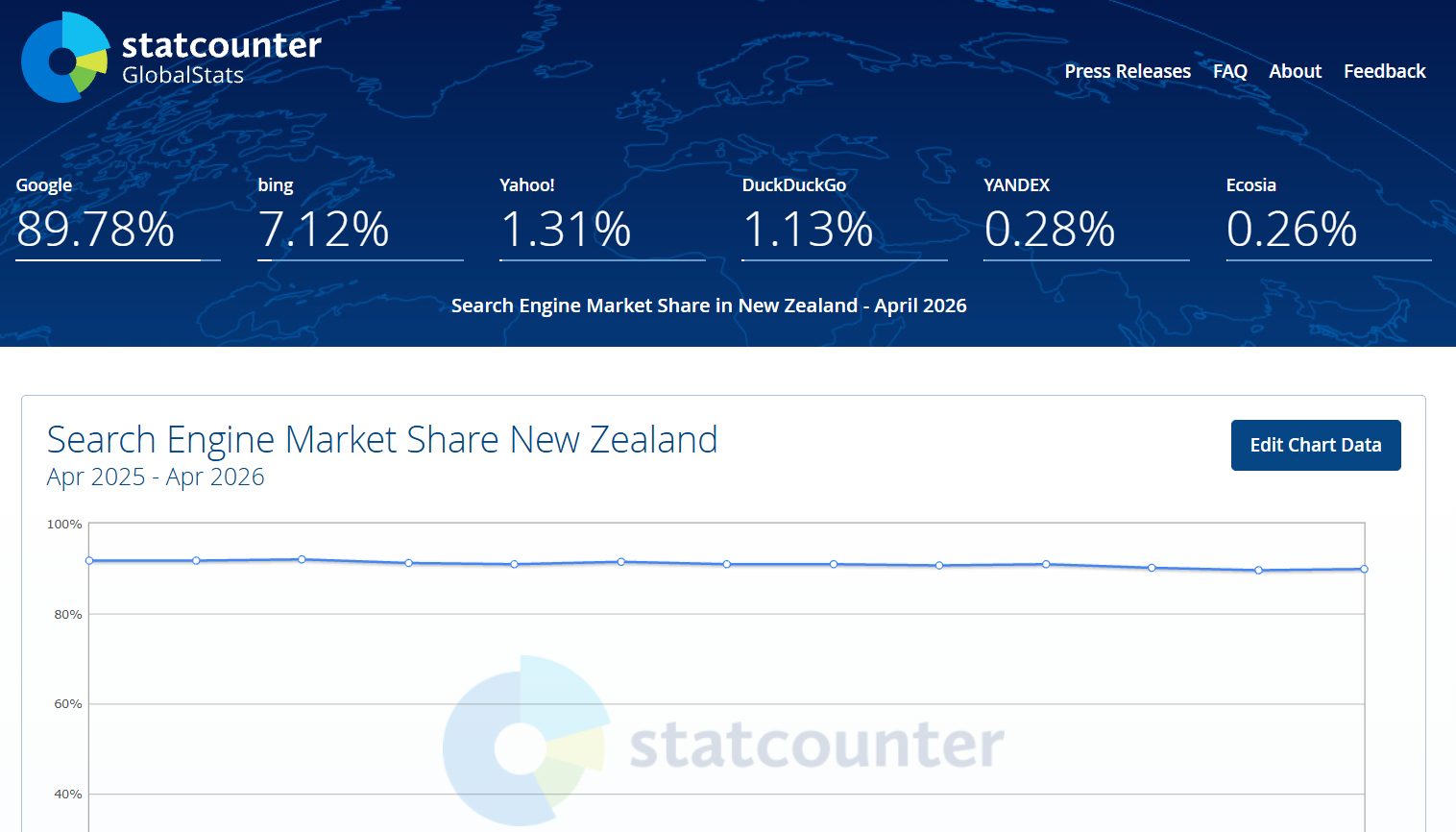
The profile does three jobs. It gets you into the map pack — the cluster of three businesses that sits above the normal results for local searches.
It builds trust through reviews. And it makes the first impression before anyone clicks through to your site.
The numbers back it up. Customers are 2.7 times more likely to consider a business reputable when it has a complete profile, 70% more likely to visit, and 50% more likely to buy.

Profiles signal heavily to Google too: GBP signals are the single biggest factor in how the local map pack is ranked, ahead of on-page content and review signals.
Picture a plumber in Auckland.
Someone’s hot water cylinder fails on a Sunday, they search “plumber Auckland,” and three businesses show up on the map with reviews and a call button.
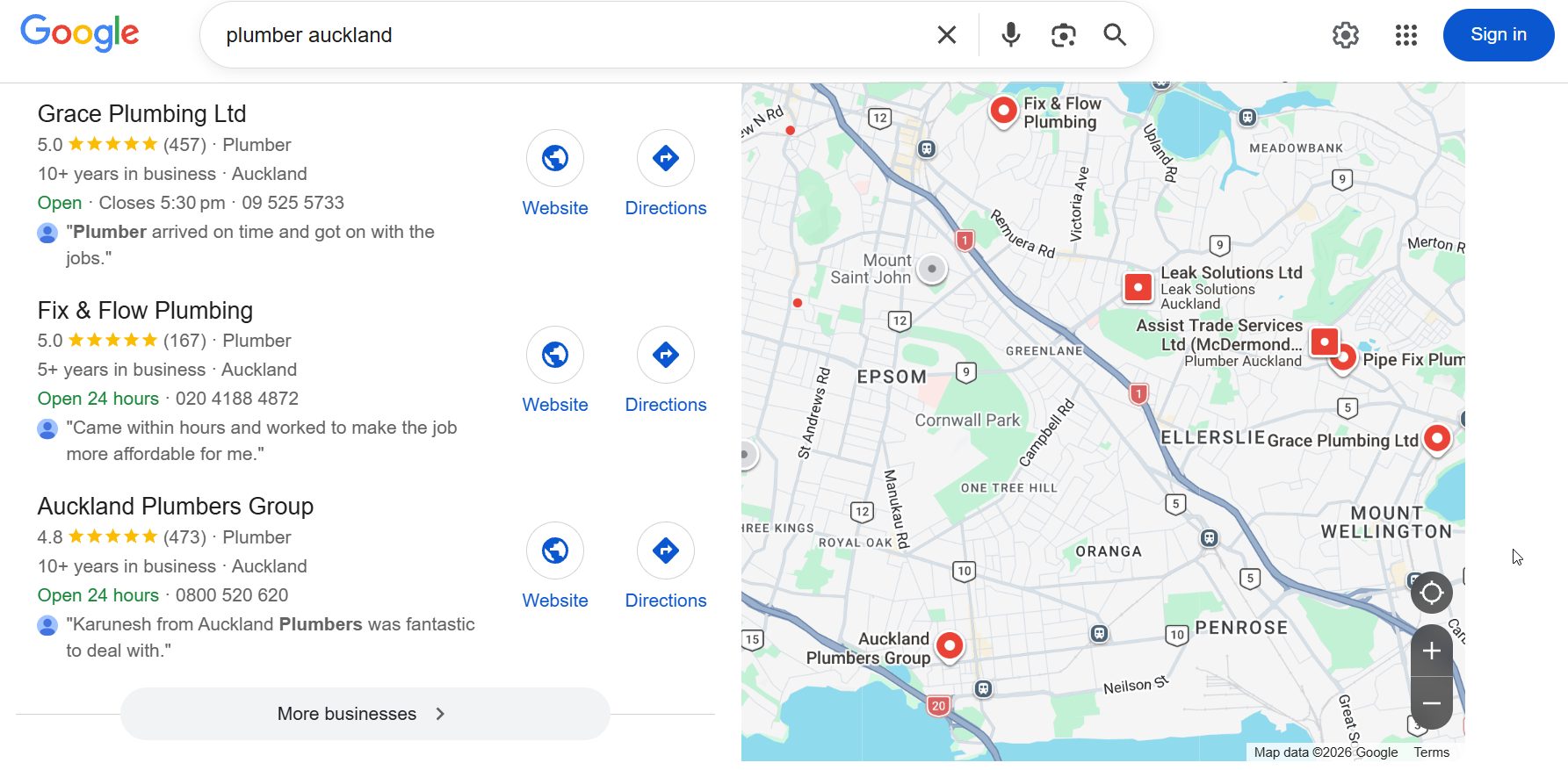
If you’re one of the three, you get the job. If your profile is half-built or unverified, you don’t exist in that moment.
The same logic applies to a local SEO push for a Hamilton dentist or a café chasing the lunch crowd.
Is It the Same as Google My Business?
Yes. Google Business Profile is the current name for what used to be called Google My Business, or GMB. Google renamed it in late 2021.
It’s the same tool and the same listing.
What changed was the management side. The standalone Google My Business app was retired, and you now manage your profile directly through Google Search and Google Maps instead of a separate dashboard.
A lot of people still call it GMB out of habit, and you’ll see both names used across business optimization advice for years yet. They mean the same thing.
Is a Google Business Profile Free?
Yes, completely. Creating, verifying and managing your profile costs nothing, and Google never charges you for it.
The only paid part is Google Ads, which is a separate product you can run alongside your profile but don’t need.
Be careful of third-party companies that cold-call or email offering to “register” or “verify” your business on Google for a fee. You can do all of it yourself for free, and Google doesn’t authorise anyone to charge for basic listing setup.
How to Set Up a Google Business Profile
Setting up takes about 15 minutes. Here’s the process from scratch.
Sign in with the right Google account. Use a Google account tied to your business, not a personal one you might lose access to. If you don’t have one, create one first.
Find or add your business. Go to google.com/business and click Manage now. Start typing your business name. If Google already has a listing for you, it’ll appear in the dropdown — claim it instead of creating a duplicate (more on claiming below). If nothing shows, add it as a new business.
Choose your primary category carefully. This is one of the most important decisions you’ll make, because your category tells Google what searches you should appear for. Pick the most specific match — “Emergency plumber” beats a generic “Plumber” if that’s what you do. You can add secondary categories later.
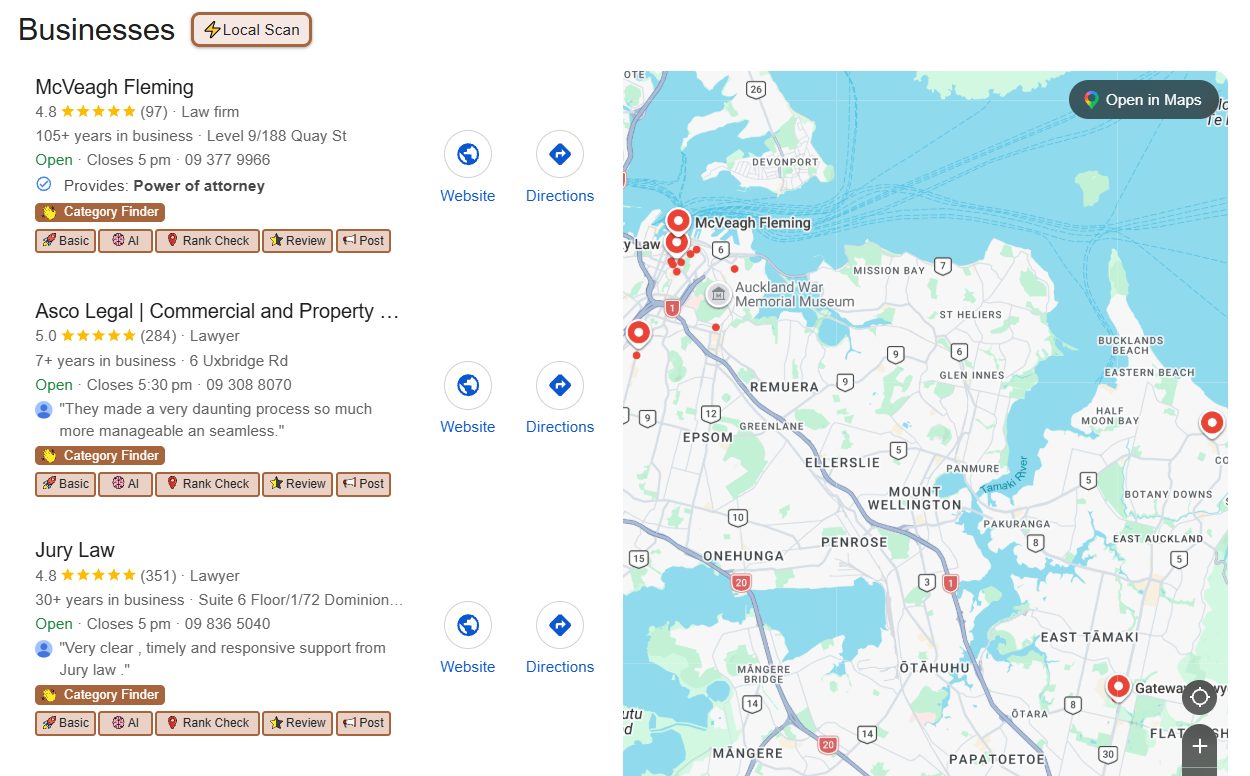
A practitioner trick most guides skip: don’t guess your category, copy what’s already working. Install the free Chrome extension GMB Everywhere, then search your main keyword on Google and look at the businesses ranking in the map pack.
The extension shows you the exact primary category each of them has chosen.
If the top three results for “lawyer Auckland” are all using the same category, that’s the one Google is rewarding for that search — so match it rather than picking something close-but-different.
Add your address or service area. If customers come to you, add your street address. If you go to them, set it up as a service area instead (covered in the next section).
Add your phone number and website. Make sure these match exactly what’s on your website and anywhere else you’re listed online. Consistency matters to Google.
Set your hours, write a description, add photos. Fill in regular and holiday hours, write a clear description (up to 750 characters, no keyword stuffing), and upload real photos of your premises, team and work.
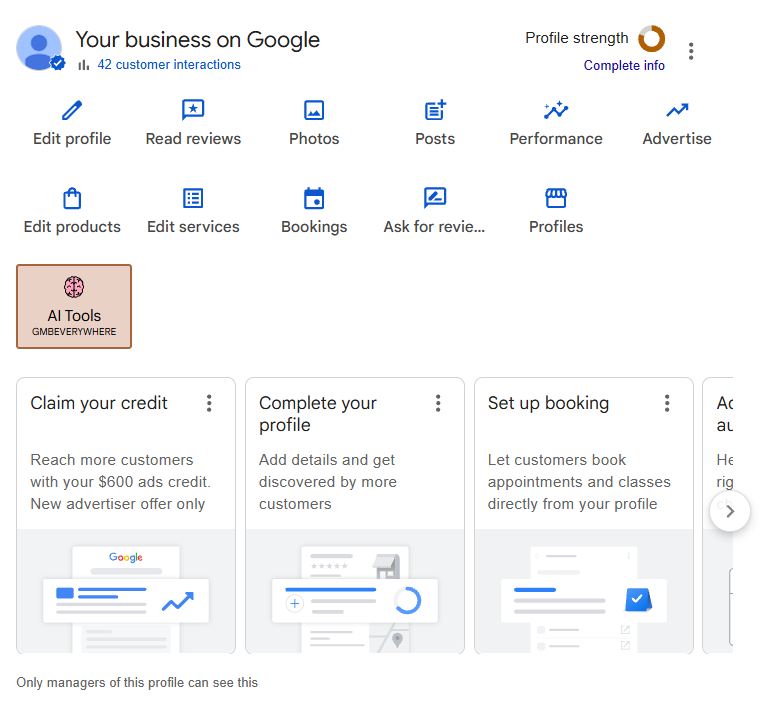
Once it’s filled in, you manage everything from this dashboard — straight from Google Search when you’re signed in.
Setting Up a Profile With No Physical Address
If you go to your customers rather than having them come to you, you set up as a service-area business and don’t display a street address at all.
This matters for a big chunk of NZ businesses — plumbers, electricians, mobile mechanics, cleaners, and consultants who work remotely or visit clients.
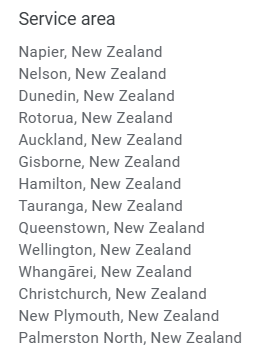
During setup, when Google asks whether customers visit your location, choose no, then define the areas you serve (suburbs, cities, or regions).
I run exactly this kind of profile for Expert SEO. There’s no shopfront — the profile is set up as a service-area business covering New Zealand, which is why the map shows nationwide coverage rather than a single pin.
The trade-off: service-area businesses sometimes find local ranking harder than businesses with a verified physical address in the exact suburb someone’s searching.
That’s normal, and it’s where the rest of your SEO for tradies and local content does the heavy lifting alongside the profile.
How to Claim a Profile That Already Exists
If Google already has a listing for your business, you claim it rather than create a new one. Google often auto-generates listings from public data, so yours may exist even if you’ve never set it up.
Search for your business on Google Maps. If a listing appears with a “Claim this business” or “Own this business?” link, click it and follow the verification steps.
If someone else already manages it — a former staff member, an old agency, or a previous owner — you can submit an ownership request through Google, and the current manager has a set window to respond before you can escalate.
If you find duplicate listings for the same business, claim them and either merge or remove the extras. Duplicates split your reviews and confuse Google about which listing to show.
How to Verify Your Profile
Your profile won’t show publicly until it’s verified, so this is the step that actually switches your visibility on. Google offers several methods, and which ones you’re offered depends on your business type and history.
The common methods are phone or text (a code sent to your number), email, and postcard (a code mailed to your address, which takes a week or two).
For a growing number of businesses, especially newer ones and service-area businesses, the only option offered is video verification — and this is where NZ businesses most often get stuck.
Video verification means recording a single continuous video, in one take with no edits, that proves your business is real and operating. You’ll need to show:
- Your location and any exterior signage, if you have premises
- Access to your workspace — unlocking the door, walking through
- Proof you’re operating — branded equipment, your team, a bookings calendar, a POS system or business cards
Record it on your phone through the Business Profile in Chrome, keep it under five minutes, and avoid filming faces or sensitive documents like bank statements. Google reviews it within about five business days.
If it fails, you’ll get feedback and can resubmit.
My own profile is verified, which is what unlocks full management and the “You manage this Business Profile” status.
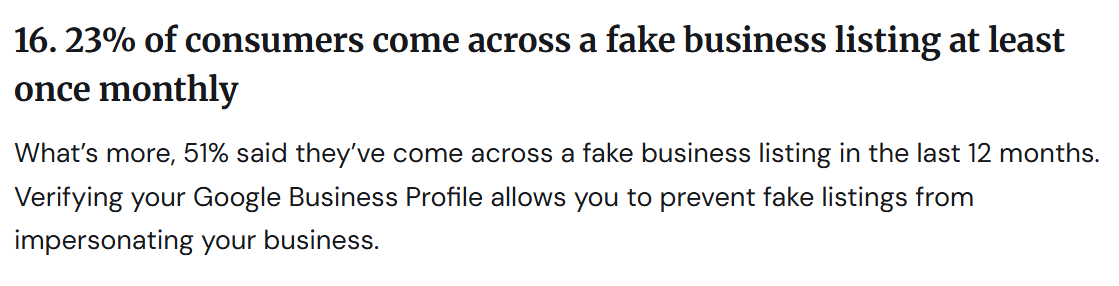
Until you hit that point, your listing has limited functionality and can be edited by the public — and with 51% of people having come across a fake listing in the past year, verification is also what protects your business from being impersonated.
How to Optimise Your Profile
A complete, active profile beats a half-finished one every time. Verified profiles with full information appear in search far more often and earn more clicks than incomplete ones.
Here are the levers that matter most:
- Complete every field. Hours, services, products, attributes, description — fill it all in.
- Get the categories right. Your primary category does the most work; add relevant secondary ones.
- Add photos regularly. Profiles loaded with photos earn dramatically more calls, direction requests and website clicks than those without.
- Build reviews and respond to them. A steady flow of genuine reviews is one of the strongest local signals, and replying to them shows Google and customers you’re active.
- Use Google posts and the Q&A section to keep the profile fresh.
Even a managed profile usually has room to improve — Google’s “Profile strength” meter will keep nudging you to complete more.
That’s the quick-win checklist.
Optimising the profile is only part of ranking in the map pack — the full ranking playbook (proximity, relevance, trust signals, citations and competitive tactics) sits in the Google Maps SEO guide, which picks up where this leaves off.
How to Manage Your Profile Day to Day
Once you’re verified, you manage everything directly from Google Search or Maps — no separate app needed. Sign in with your business Google account and search your business name, and the management controls appear above the results.
From there you can edit your information, add photos and posts, and read and reply to reviews.

To respond to a review, open Reviews, find the one you want, and hit reply — replying to both good and bad reviews matters, since a fair chunk of users expect a response from the owner.
You can also add other people to manage the profile. If you bring on staff or work with an outside SEO specialist, add them as a manager rather than handing over your login — that way access can be removed cleanly later.
Set the right role: owners control everything including who else has access, while managers can edit but can’t remove owners.
How to Delete or Remove a Profile
These are three different actions, and people mix them up. Choose the one that matches what you actually want.
Remove a profile you manage. If you want to stop managing a listing, you can remove your access or remove the business profile from your account through the management dashboard.
Mark a business as permanently closed. If the business has shut down, don’t delete the listing — mark it as permanently closed. This keeps the history and reviews intact while telling customers you’re no longer trading. Deleting outright can leave a Google-generated listing floating around with no owner.
Remove a duplicate. If two listings exist for the same business, report the duplicate so Google can merge or remove it.
One thing to know: removing a profile doesn’t instantly wipe everything from Google, and reviews attached to a genuine listing generally stay with it. If your goal is just to fix wrong information, edit it rather than delete.
Why Google Suspends Profiles (and How to Get Reinstated)
Google suspends profiles for breaking its guidelines, and enforcement has tightened — so the smart move is avoiding the triggers in the first place. A suspension hides your profile completely, and reinstatement can take weeks.
The most common triggers:
- Keyword-stuffed business names. Using “Joe’s Plumbing | Emergency Plumber Auckland 24/7” instead of your real registered name. Google’s systems now detect this and penalise it.
- Inaccurate hours or address. Listing 24/7 when you’re not, or using a fake or virtual address.
- Address issues for service-area businesses. Showing an address you don’t actually operate from.
- Major edits that look suspicious — sudden changes to name, category or address can trip a review.
If you’re suspended, don’t repeatedly resubmit — that slows things down. Fix whatever broke the guidelines first, then file a single reinstatement request through Google with proof your business is legitimate.
If you suspect deeper issues are dragging your visibility down, a proper site audit can pinpoint what needs fixing before you appeal.
When to DIY vs Hire an Expert
You can do everything in this guide yourself. The steps are clear, the tool is free, and an afternoon of focused work will get a profile set up, verified and optimised properly.
The case for help comes down to time and results. If you’d rather not spend hours on verification, ongoing reviews, posts and optimisation — or you want it tied into a wider local strategy — that’s where done-for-you SEO makes sense. You can also bring in an SEO consultant to handle the strategy while you stay focused on running the business. We’re an NZ SEO team that manages profiles as part of full local campaigns, including:
- SEO Services in Auckland
- SEO Services in Hamilton
- SEO Services in Tauranga
- SEO Services in Wellington
- SEO Services in Christchurch
- SEO Services in Queenstown
If you’re happy to DIY, work through this guide and you’ll be in good shape. If you’d rather have it done properly and done faster, that’s where we come in.