

You searched “h1 tag,” clicked the top result, and landed on a 4,000-word guide with a table of contents longer than a Warrant of Fitness checklist.
So now you reckon optimising your H1 is some big SEO project.
It isn’t.
The H1 is one of the simplest things on your page to get right, and one of the least likely to change your rankings on its own.
Worth doing? Yes. Worth more than five minutes a page? No.
Here’s the honest version: what an H1 actually is, how much it really matters (less than you’ve been told), and the one move that makes it worth doing at all — matching it to a click-worthy meta title, so the person who clicks in Google feels like they’ve landed exactly where they meant to.
I’ve been doing SEO for over a decade, and my SEO company competes in a market full of agencies that have been around since before Google Maps had Street View.
We rank, and we get cited in Google’s AI answers doing it. And I still spend all of about five minutes on any single H1. That should tell you something.
What Is an H1 Tag?
An H1 tag is the main heading on a webpage — the HTML element that marks the page’s primary title.
In the code, it looks like this:
<h1>Emergency Plumber — Auckland</h1>
That’s it. The <h1> opens it, your heading text sits in the middle, and </h1> closes it. Whatever’s inside becomes the biggest, most prominent heading on the page — the line that tells a visitor (and Google) what they’re looking at.
It sits at the top of a family. HTML gives you six heading levels, H1 down to H6. The H1 is the main title; H2s are your major sections; H3s are sub-points beneath those.
Think of it like a book’s contents page: H1 is the book title, H2s are the chapters, H3s are the headings within each chapter. You get one H1 per page, and everything below it is there to support it.
One thing to clear up early, because it trips up nearly everyone: the H1 is not your title tag. The H1 is the heading on the page itself. The title tag is the clickable blue headline in Google’s search results.
Two different things, two different spots — and getting them working together is the whole game (more on that shortly).
Wait — Don’t I Already Have an H1?
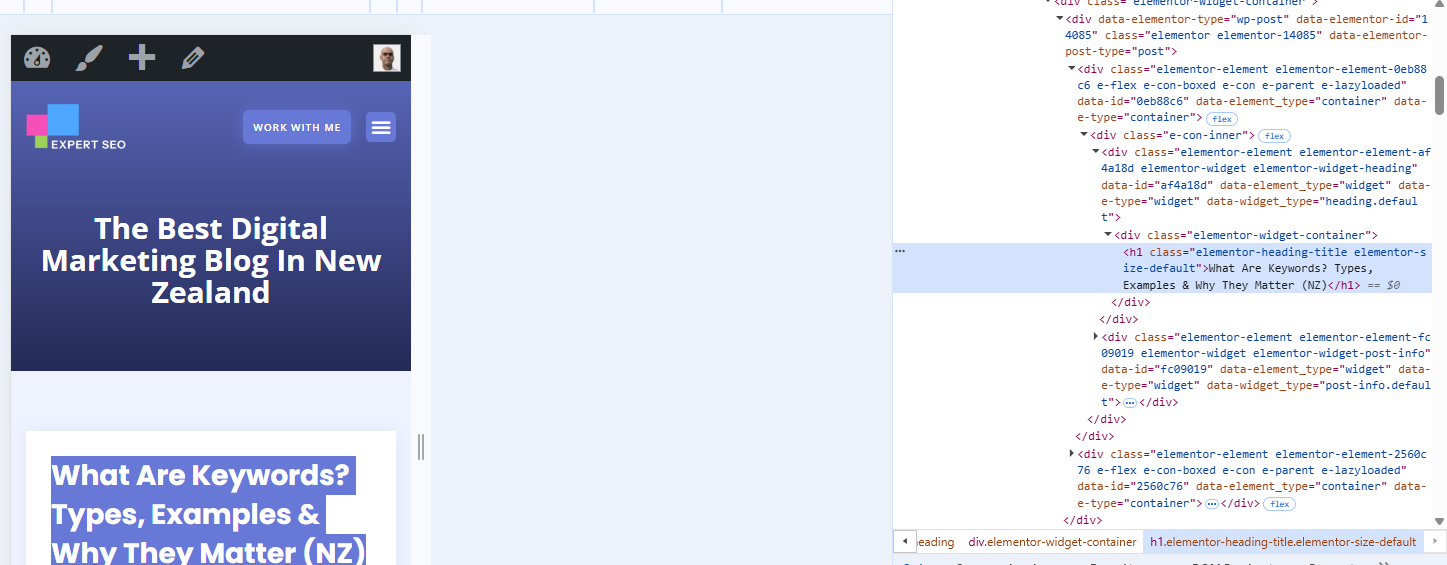
Probably, yeah. If you built your site on WordPress, Elementor, Shopify, Wix or Squarespace, your page title is almost certainly already wrapped in an H1 — you just haven’t looked.
Most website builders do this automatically. You type your title into the box, hit publish, and behind the scenes the platform sets that title as the H1.
So for most people this isn’t a job of adding an H1 from scratch. It’s a job of checking the one you’ve already got and making it better.
Where it goes sideways is when a theme gets it wrong. Some templates accidentally wrap your logo in an H1, so now you’ve got two.
Others style the title as an H2 and leave the page with no H1 at all. Both are common, both are quick fixes, and I’ll show you how to check yours in a minute.
Why H1 Tags Matter for SEO — and How Much They Actually Do
H1 tags matter, but not the way most guides make out. They give Google a clean signal about your topic and give readers instant orientation. On their own, though, they barely move rankings.
Let me give you the “why” first, because it’s real. Three things.
Google reads your H1 to help work out what the page is about. One signal among hundreds, but a clear one.
Your reader scans it in about half a second to decide whether they’re in the right place. Vague H1, they bounce; clear H1, they stay.
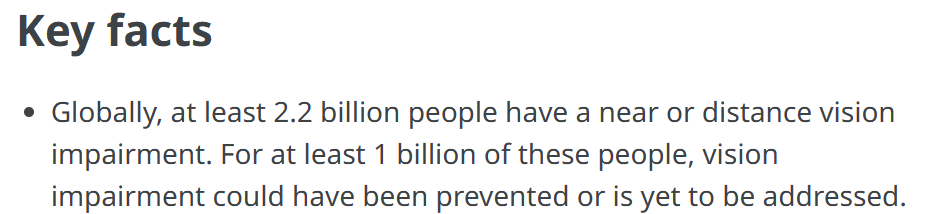
And screen readers use headings to navigate the page for people who can’t see it — around 2.2 billion people worldwide have a vision impairment, so clear headings genuinely matter.
Now the part nobody wants to say out loud: as a ranking lever, the H1 is weak.
The proof comes from SearchPilot, an SEO platform that runs controlled split tests.
They tried adding an H1 to a travel client’s pages that had none — the exact fix every audit tool nags you about. The first run, on a small batch of pages, moved traffic so little the result was statistically inconclusive.
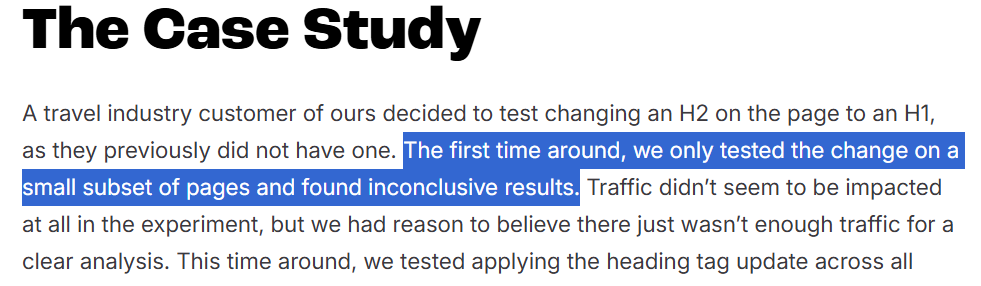
A second run across four times as many pages finally produced a lift — but only 4.5%. And that’s the payoff for adding a missing H1 outright; nudging one you already have moves the needle far less than that.

Google’s own John Mueller backs this up — he’s said you can use H1 tags as often as you like, with no upper or lower limit, and that a page ranks perfectly fine with no H1 or with five of them.
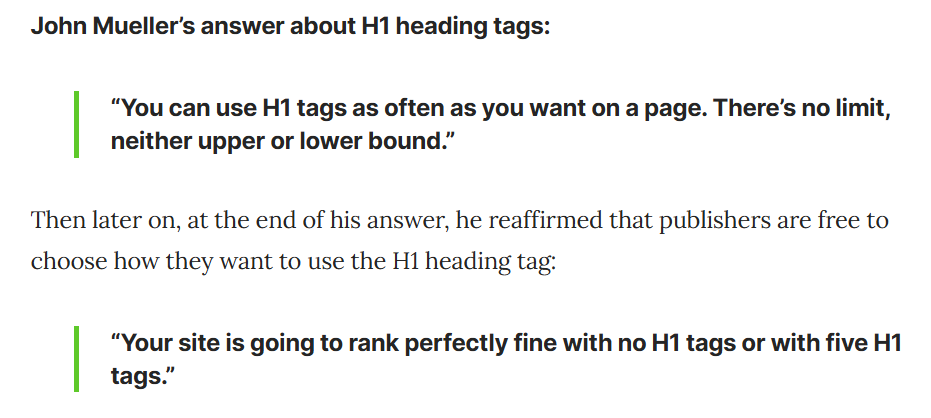
So the lesson isn’t “ignore your H1.” It’s that a clear, descriptive main heading beats a vague one or none at all — and whether it’s technically an H1 or an H2 barely registers.
For the decade I’ve been doing this, the pattern hasn’t shifted: the H1 is table stakes, not a growth lever.
Get it clear, get it done, and spend your real time on the work that actually moves rankings — your content, your keywords, your links.
There’s a simple reason every SEO tool flags a missing H1 and every guide runs four thousand words on it: it’s easy to measure and easy to sell. A tool can spot a missing H1 in a millisecond, and “fix your H1” makes for a tidy audit line item.
Convenient isn’t the same as important.
H1 Tag vs Title Tag vs Meta Title
The H1 is the heading on your page. The title tag — also called the meta title — is the clickable headline in Google’s results. Different spots, different jobs, and they should tell the same story.
Here’s the difference at a glance:
| Where it shows | Main job | |
|---|---|---|
| H1 tag | At the top of the page itself | Tells the visitor and Google what the page is about once they’ve arrived |
| Title tag (meta title) | The blue clickable link in Google’s results, and the browser tab | Wins the click from the search results |
| Meta description | The grey text under the title in results | Supports the click; not a ranking factor |
They don’t have to be word-for-word identical. But they do need to match in intent — because the gap between what someone clicks and what they land on is where you lose people. Which brings us to the only part of this that’s really worth your time.
How to Write a Good H1 Tag (the 5-Minute ChatGPT Method)
The fastest way to a good H1: write a click-worthy meta title first, then match your H1 to it — so what someone clicks in Google is what greets them on the page. Then let ChatGPT do the heavy lifting.
Here’s why the match matters, because this is the actual point of the whole article. Someone searches emergency plumber Auckland.
They see your title in the results, it promises exactly that, they click. If the top of your page then says “Welcome to Our Website” or “Residential Services,” there’s a half-second where they think did I click the right thing?
That hesitation costs you. Match the H1 to the title and there’s no hesitation — they clicked a promise, and the promise is right there waiting for them.
It’s not just a feel-good thing, either. Zyppy studied nearly 81,000 URLs and found that when your H1 matches your title tag, Google is less likely to rewrite your title in the results — meaning the click-worthy headline you wrote is the one people actually see.
And since the number one result earns around 27.6% of clicks, that headline is worth getting right.

So here’s the five-minute process.
First, write the click-worthy meta title. Keyword near the front, a benefit or a differentiator, kept under about 60 characters so Google doesn’t chop it off.
For SEO for an Auckland business — say a plumber targeting emergency plumber Auckland — that’s “Emergency Plumber Auckland — 30 Min Response.”
After that, match your H1 to it. Not necessarily identical — the title often carries your brand (“| Smith Plumbing”) which the H1 can drop — but the same promise. H1: “Emergency Plumber in Auckland — 30-Minute Response.”
Then, if you want it done in seconds, hand it to ChatGPT. This is one of the spots where AI actually earns its keep in SEO. A prompt like:
“Write 5 options for a meta title and matching H1 for a page targeting ’emergency plumber Auckland’. Keep the meta title under 60 characters, put the keyword near the front, and make it click-worthy. Use NZ English.”
You’ll get a page of options in about ten seconds. Pick the strongest, tweak it so it reads like a human wrote it (not a keyword robot), and you’re done.
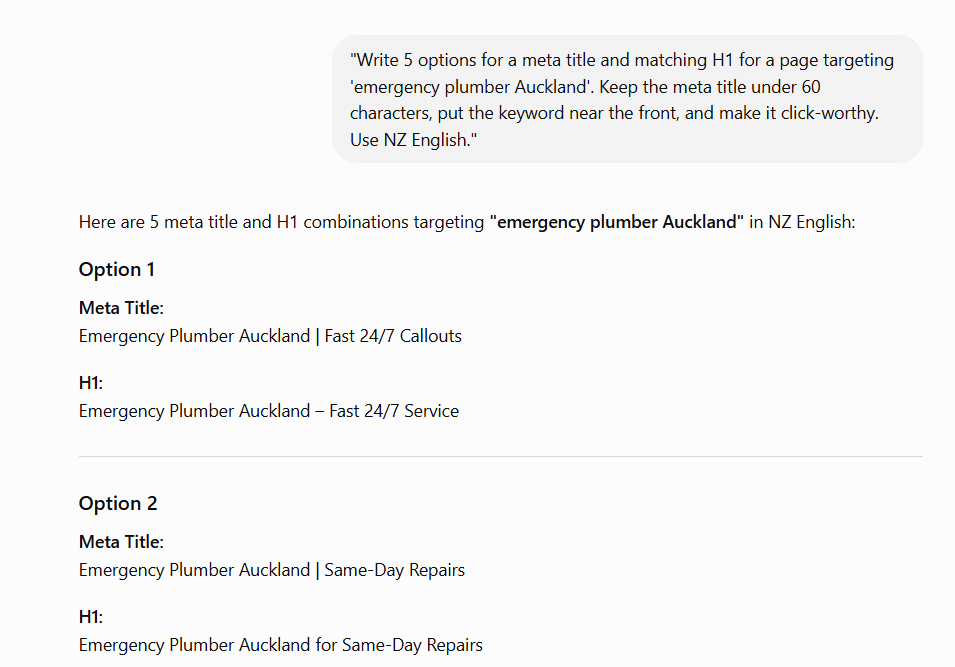
The same move works for any page. A Hamilton dentist chasing dentist Hamilton writes “Dentist in Hamilton — Same-Week Appointments” and mirrors it in the H1; the win from ranking a Hamilton business comes from that clarity, not the tag.
A Wellington café after best brunch Wellington does the same, and getting found in Wellington follows the promise, not the <h1> wrapper it’s sitting in.
How to Add or Check Your H1 Tag
You can check any page’s H1 in about ten seconds, and set it in your CMS in about a minute.
To check it: right-click your main heading and choose Inspect. The browser’s dev tools open with that heading highlighted, and you’ll see the tag it’s wrapped in — <h1>, or an <h2> if your theme got it wrong.
(Don’t fancy poking around in code? Right-click anywhere and choose View Page Source, then Ctrl+F for <h1> — or install the free Detailed or H-tag Chrome extensions, which just list your headings for you.)
Two things to check: is there exactly one H1, and does it match your title?
To set it in WordPress with Elementor: click the heading you want as your H1, and in the left panel set the HTML Tag to H1. That’s it — one dropdown.
(Elementor lets you set any tag on any text block, which is exactly how sites end up with three H1s and no structure, so use it deliberately.)
On Shopify, Wix and Squarespace, your page or post title is set as the H1 automatically; to change the heading level of other text, you select it and pick the heading style from the formatting toolbar.
If your H1 looks broken — missing, or showing up as an H2 — it’s almost always the theme. Either the template styled the title as the wrong tag, or it wrapped something else (usually the logo) in an H1.
That’s part of the technical side of SEO, and it’s worth a look across your whole site, which is exactly the kind of thing a site audit catches in one pass.
H1 Best Practices (the Short Version)
Five rules cover almost everything.
Use one H1 per page. One clear main heading, so Google and screen readers know what the page is about.
Include your primary keyword, naturally. Once, in plain language — not stuffed.
Keep it clear and under about 60 characters. Long enough to describe the page, short enough to read at a glance.
Match it to your meta title’s intent. The whole point from the section above.
Structure everything below it properly — H2s for your sections, H3s for sub-points. It’s basic on-page hygiene, and it slots into your wider on-page SEO checklist alongside everything else that matters.
That’s the lot. There isn’t a secret sixth rule the 4,000-word guides are hiding.
Final Thoughts
The H1 is worth five minutes and not a second more. The real skill isn’t optimising it — it’s knowing it only deserves five minutes, so you can put the rest of your time where the needle actually moves.
If someone tells you that fixing your H1 tags will transform your SEO, be a little suspicious. They’re selling you the easy, visible, tick-the-box stuff over the hard work — genuinely useful content, the right keywords, real links — that actually gets you ranked.
You can absolutely do this yourself; it’s five minutes a page, and now you’ve got the method.
If you’d rather hand the whole on-page picture to someone who does it every day — H1s included, but everything around them too — that’s where done-for-you SEO comes in.
Do your H1s in five minutes. Then go do the SEO that counts.
H1 Tag: FAQ
What is an H1 tag?
An H1 tag is the HTML element that marks a page's main heading — the biggest, most prominent line of text at the top of the page, wrapped in <h1></h1>. It's different from the title tag, which is the clickable headline that shows in Google's search results.
Does the H1 tag affect SEO rankings?
Barely. SearchPilot's controlled tests found adding a missing H1 lifted organic traffic by just 4.5%, and Google's John Mueller has confirmed a page ranks fine with no H1 or several. Treat it as basic hygiene, not a ranking lever.
Should my H1 match my meta title?
They don't need to be word-for-word identical, but they should carry the same promise. Matching intent avoids the moment of hesitation when someone clicks your title in Google and lands on a page that says something different — and it also makes Google less likely to rewrite your title tag.
Can a page have more than one H1?
Yes — Google's John Mueller has said there's no upper or lower limit on H1 tags, and a page ranks fine with none or several. One clear H1 is still the cleanest habit for readers and screen readers, but it won't break your rankings if a theme accidentally adds a second one.
How do I check or set my H1 tag?
Right-click your main heading and choose Inspect to see which tag wraps it, or View Page Source and search for <h1>. In Elementor, select the heading and set its HTML Tag to H1 in the left panel; on Shopify, Wix and Squarespace, your page title is set as the H1 automatically.
Recommended Reading
 Header Tags: How to Use H1–H6 for SEO
The full heading hierarchy — how H1 fits alongside H2, H3 and the rest.
 Title Tags: A NZ Guide To Writing Ones That Rank
The clickable headline your H1 needs to match — and how to write one that earns the click.
 Meta Descriptions: How to Write Ones That Get Clicks
The other small on-page job worth five minutes, not five hours.