

Pick up a good nonfiction book and read only two things: the title on the cover, and the chapter names in the contents.
You already know roughly what you’re going to learn. The outcome of reading it — all before page one.
Header tags do that exact job for a web page.
They’re the headings and subheadings that give a reader, and Google, a glance at what’s inside and what they’ll get out of it.
Get them right and people can see the value of your page in seconds. Get them wrong, or skip them entirely, and your content is just a wall of text nobody can navigate.
Businesses get this wrong constantly. So do plenty of SEO agencies in New Zealand, which is the part that surprises people.
By the end of this guide you’ll know what header tags are, the difference between the three terms everyone mixes up, why they matter (it’s not the reason most people think), and how to set them and check them on your own site.
What Are Header Tags?
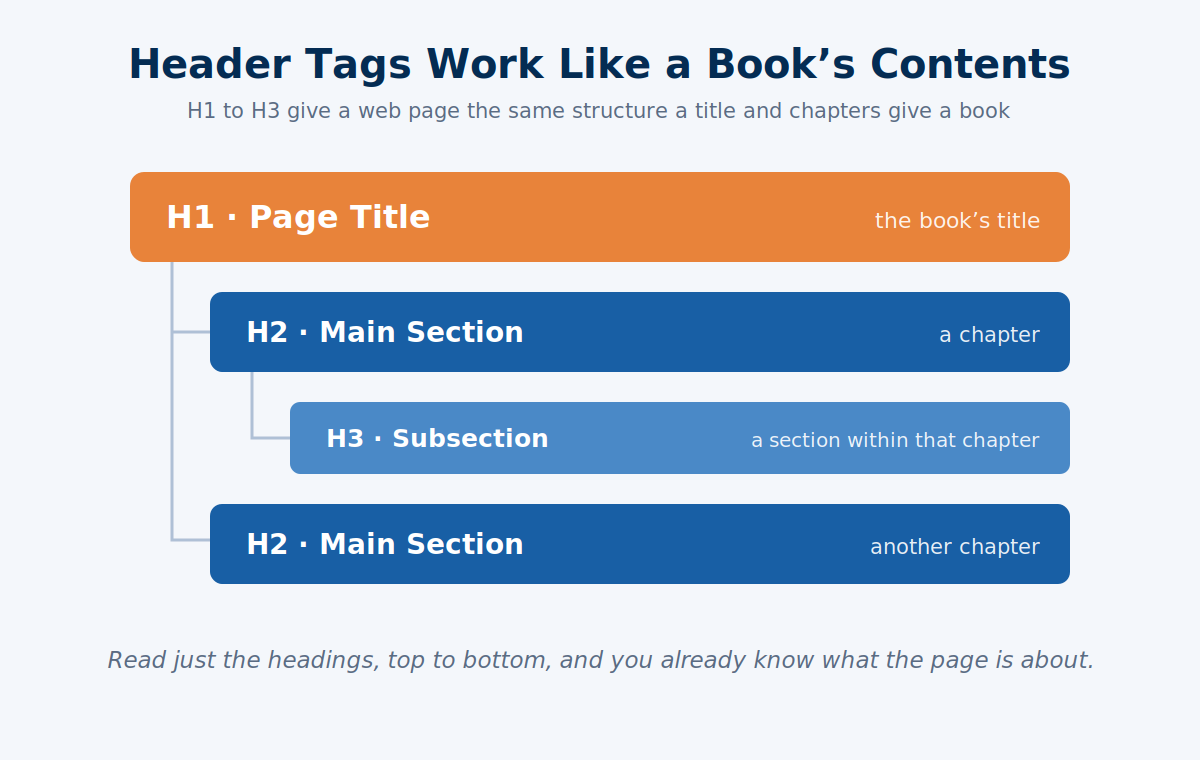
Header tags (also called heading tags) are the HTML elements that mark the headings and subheadings on a page. There are six of them, H1 down to H6, ranked by importance — H1 is the main title, and each number down is a smaller subsection beneath it.
In the code, they look like this:
<h1>Dental Implants in Auckland</h1>
  <h2>How Much Do Dental Implants Cost?</h2>
  <h2>How the Procedure Works</h2>
    <h3>Step 1: The Consultation</h3>
The tag wraps the heading text and tells the browser — and Google — “this is a heading, and this is how important it is.”
Back to the book:
- Your H1 is the title on the cover.
- Your H2s are the chapter names.
- Your H3s are the subsections inside each chapter.
Read just those, in order, and you should understand what the whole page is about.
That’s the real test: read only the headings, and you should still know exactly what you’ll learn.
Headings are one piece of on-page SEO — the parts of a page you control to help Google understand what it’s about.
Header Tags vs <header> vs <head>: Clearing Up the Confusion
Three terms, almost identical spelling, completely different jobs. This trips up beginners and even some developers, so let’s kill the confusion fast:
- Header tags (H1–H6) are the visible headings in your content. The ones this guide is about.
- The
<header>element is the container at the very top of a page that holds your logo and main navigation menu. - The
<head>element is invisible. It sits in the code and holds your page’s behind-the-scenes information — the title tag, meta description, and scripts. Readers never see it.
Easy way to remember it: header tags are what you read, the <header> is what you click, and the <head> is what you never see.
When this guide says “header tags,” it means H1–H6. The heading elements.
The Six Heading Levels (H1 to H6) and What Each One Does
There are six heading levels, and each has a specific job. Here’s what each is for, and where you’d use it:
| Tag | What it’s for | Example on a page |
|---|---|---|
| H1 | The main title of the page. One per page. | “Dental Implants in Auckland” |
| H2 | Your main sections — the “chapters.” | “How Much Do Implants Cost?” |
| H3 | Subsections that break down an H2. | “Cost With vs Without a Subsidy” |
| H4 | A further breakdown under an H3 (rare). | “ACC-Funded Cases” |
| H5–H6 | Deep sub-levels. Most pages never need these. | — |
Here’s the honest version: most pages only ever need H1, H2, and H3. If you’re reaching for H5 and H6, your content is either genuinely complex or you’ve over-nested it. For a normal service page or blog post, three levels is plenty.
The hierarchy is the whole point. An H3 sits under an H2, which sits under the H1 — like subsections under chapters under a title.
That structure is what tells Google, and your reader, how the ideas relate.
This is exactly how we’d lay out a treatment page when doing SEO for dentists: the H1 names the treatment and city, the H2s answer the questions patients actually ask, and the H3s break those answers down.
And if you’re going to put your main keyword anywhere, the H1 is the spot — done naturally, which is where solid keyword research pays off, because you already know the exact phrase your market types into Google.
Do Header Tags Actually Matter for SEO?
Short answer: yes, but not for the reason you’ve probably been told. Header tags are far more of a user-experience and structure tool than a direct ranking lever.
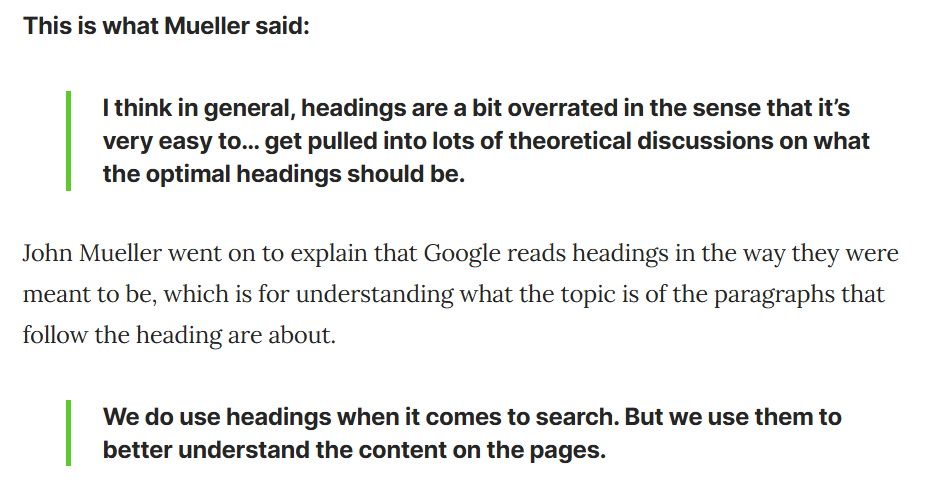
Google has said as much. Its own John Mueller has called heading tags “a bit overrated”, and confirmed the old belief — that an H1 outranks an H2, which outranks an H3 — is out of date.
Google doesn’t hand you rankings because you crammed keywords into headings.
They still do real work:
- They show the reader what they’ll learn. A glance at your headings tells someone the outcome of reading the page — what they’ll walk away knowing — before they commit. That’s the book-contents test again.
- They let people jump straight to what they want. A reader can scan the headings and skip to the exact section they need, instead of scrolling through everything.
- They help Google understand structure. Google uses headings to work out which chunk of text sits under which topic. Context, not keyword-counting.
- They help accessibility. Screen readers use headings to move around a page. In one WebAIM survey, 69% of screen reader users said they navigate by headings — so clean structure isn’t optional for a big slice of your audience.
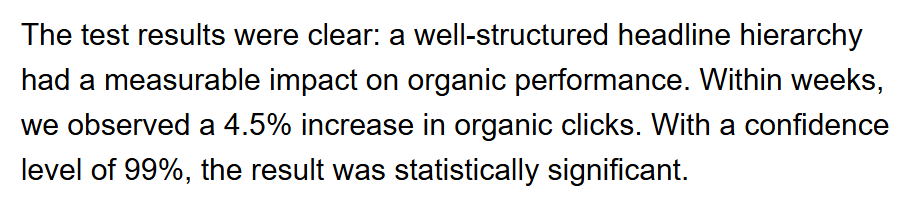
And structure isn’t just theory. In one controlled Semrush test, restructuring a page’s heading hierarchy lifted organic clicks by 4.5% at 99% confidence — purely from making the H1/H2/H3 relationships clearer.
So: helps SEO, yes. But treat it as a clarity and user-experience tool first, and a ranking factor a distant second.
How Header Tags Help AI Search Engines Cite Your Content
This is the benefit that’s quietly become the most valuable of all, and it’s barely covered anywhere:
When someone asks an AI search engine a question, the AI doesn’t want to read your entire page to find the answer.
That costs time and processing. Instead, it scans your headings, finds the one that matches the question, and pulls the answer from the section underneath.
Your headings tell the AI exactly where the answer lives.
Say someone asks an AI engine about the average cost of SEO in Auckland.
If you’ve got an H2 that reads “How Much Does SEO Cost in Auckland?” with a clear answer right beneath it, you’ve handed the AI the exact section to quote — instead of making it scour 2,000 words and guess.
That’s the same job your headings do for a human reader, who jumps to that section the same way. The AI just does it at scale.
It’s the same idea behind passage indexing, where Google pulls one relevant section of a page to answer a specific search. Clear headings make those sections easy to find.
This is the heart of AI SEO: structure your content so a question maps to a heading, and the answer sits right below it. Clean structure is how you get extracted and cited.
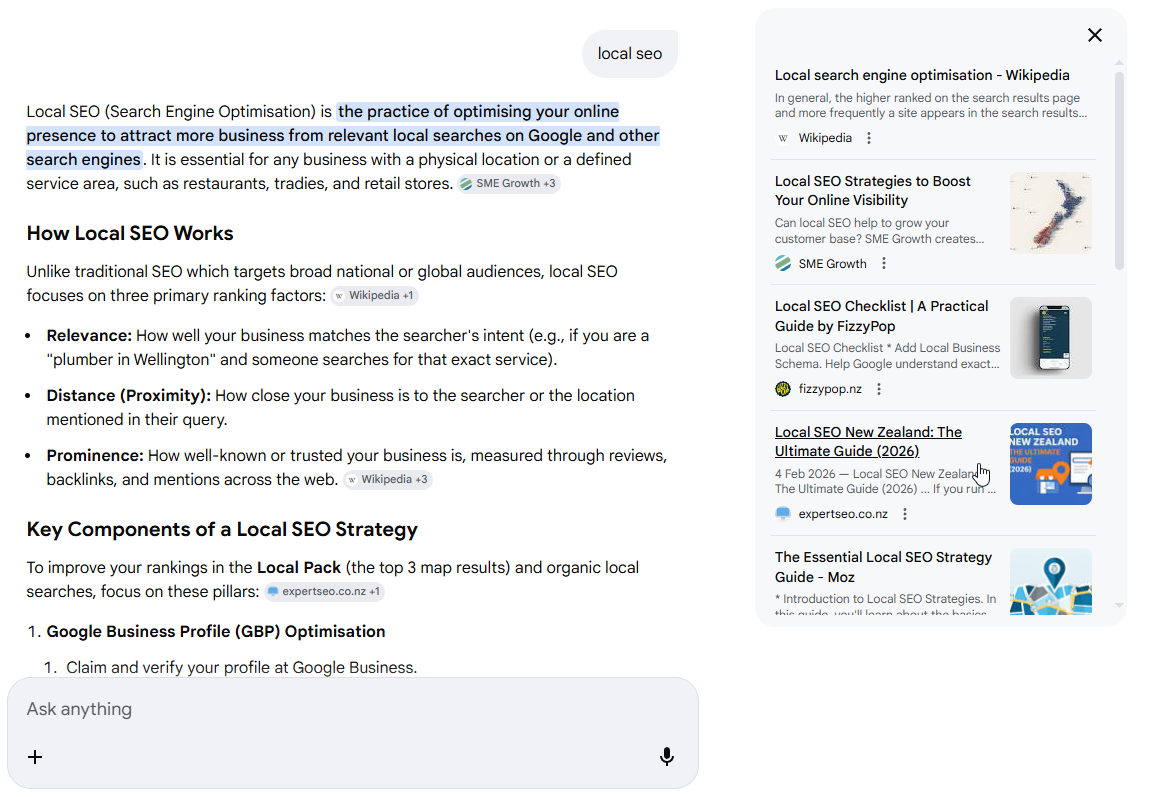
And it works. A local SEO guide we published at Expert SEO gets pulled into Google’s AI Mode as a cited source — and a big part of that is question-shaped headings with direct answers underneath.
Header Tag Best Practices
You don’t need a rulebook. Five rules cover almost every page you’ll ever build:
- Use one H1 per page. It’s your title — the one big idea. (Google says multiple H1s won’t break anything, but one keeps it clean for readers, and that’s the point.)
- Don’t skip levels. Go H1 → H2 → H3 in order. Jumping from an H1 straight to an H3 breaks the outline for both screen readers and crawlers.
- Put your keyword in the H1 — naturally. Lead with it where it fits the way a human would write it. Don’t force it.
- Make headings descriptive, not clever. “How Much Do Dental Implants Cost?” beats “The Price of a Smile.” Tell the reader exactly what’s coming.
- Don’t keyword-stuff. Cramming the same phrase into every heading reads as spam and helps no one.
One quick note on the most common mix-up: your title tag is what shows in Google’s results and the browser tab. Your H1 is the heading people see on the page itself. Related, often similar, but not the same thing.
Common Header Tag Mistakes NZ Sites Make
Most heading problems come down to a handful of repeat offenders. I see these constantly on New Zealand websites.
No header tags at all. This is the big one. Businesses — and, embarrassingly, some NZ agencies — publish pages with no real headings, just large bold text where a heading should be. Google’s left to guess the structure, and your reader gets a wall of text.
Looks right, coded wrong. The sneaky version of the above, and it’s everywhere on page-builder sites. Someone makes a line big and bold so it looks like a heading — but it’s styled body text, not an actual H tag. To you it looks structured.
To Google and a screen reader, it’s just text. Google has confirmed it’ll try to work with styled text that has no heading tags underneath — but why make it guess?
Multiple H1s by accident. Some themes drop an H1 into the logo or banner, then your page title adds another. Usually harmless, but worth knowing about.
Skipped levels. H1 straight to H3, no H2. Breaks the outline.
Keyword-stuffed headings. The same phrase jammed into every heading. Reads as spam.
The fix for nearly all of these is the same: check your headings before you publish. Which brings us to the last bit.
How to Create Your Header Tags
Your headings aren’t something you bolt on at the end. They come straight out of what your content covers.
Map out the topics your piece needs to cover, and those topics become your H2s. The smaller points sitting under each one become your H3s.
That outline is your header structure — write the content underneath each heading, and the headings are already done.
Here’s what that looks like for a dental implants page in Auckland:
- H1: Dental Implants in Auckland
- H2: How Much Do Dental Implants Cost?
- H3: Cost With vs Without a Subsidy
- H2: What the Procedure Involves
- H2: How to Choose the Right Dentist
Every topic the reader cares about gets a heading. String them together and you’ve got the contents page of your article — the book test again.
You don’t have to word them all from scratch, either. Drop your topic into ChatGPT and let it draft a structure for you. A prompt like this works well:
I’m writing a page about [your topic] for a New Zealand [type of business]. Give me a clear H1, plus H2 and H3 headings that cover what someone searching this would actually want to know. Keep them descriptive and natural — not keyword-stuffed.
Then take what it gives you and make it yours: tweak the wording so it sounds like how your customers actually talk, and cut anything that doesn’t earn its place.
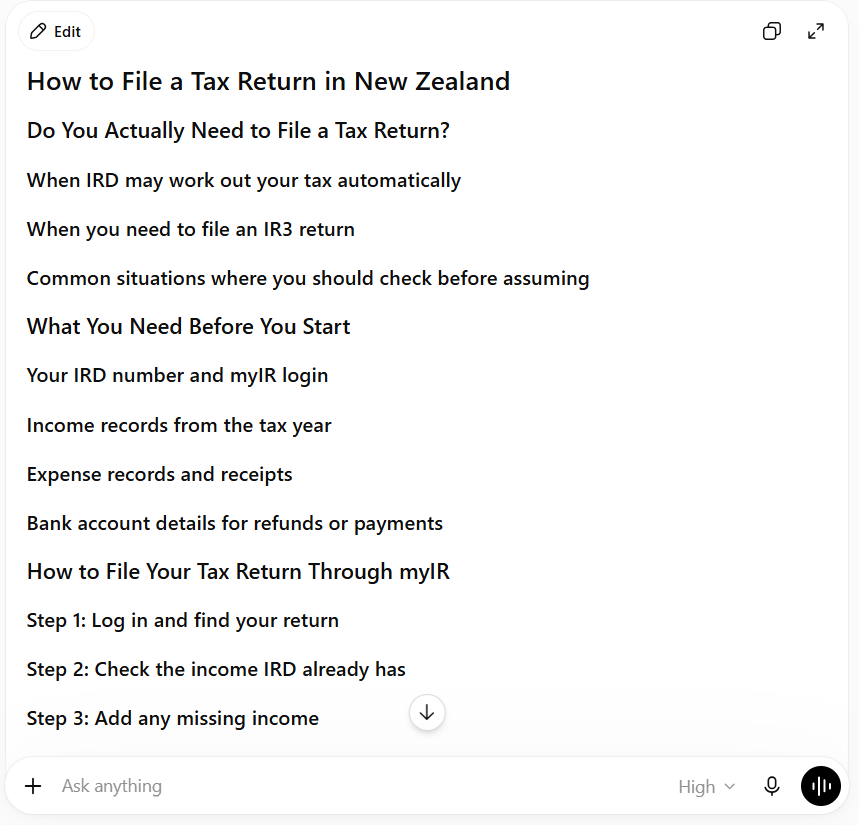
Once your headings are mapped out, the next step is setting them properly in your website builder.
How to Set Header Tags in WordPress and Elementor
Setting headings is genuinely easy once you know where to click.
In the WordPress block editor: click into a block, and in the toolbar change it from Paragraph to Heading, then pick the level — H2, H3, and so on. Your page title is already your H1 automatically, so don’t add a second H1 in the body.
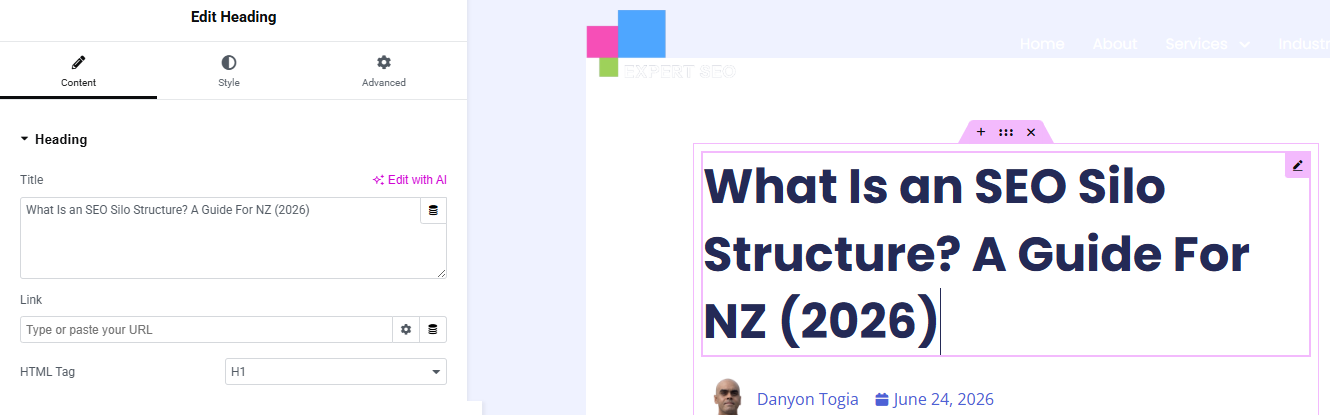
In Elementor: drop in a Heading widget, type your text, then under Content set the “HTML Tag” to H1, H2, H3, and so on. Same rule — the page title is usually already the H1, so your in-content headings start at H2.
That’s the whole trick. The level you pick is what gets written into the HTML, which is what Google reads.
How to Check Your Header Tags Are Right
Once your content’s written, take two minutes to check the headings before it goes live. Two quick ways:
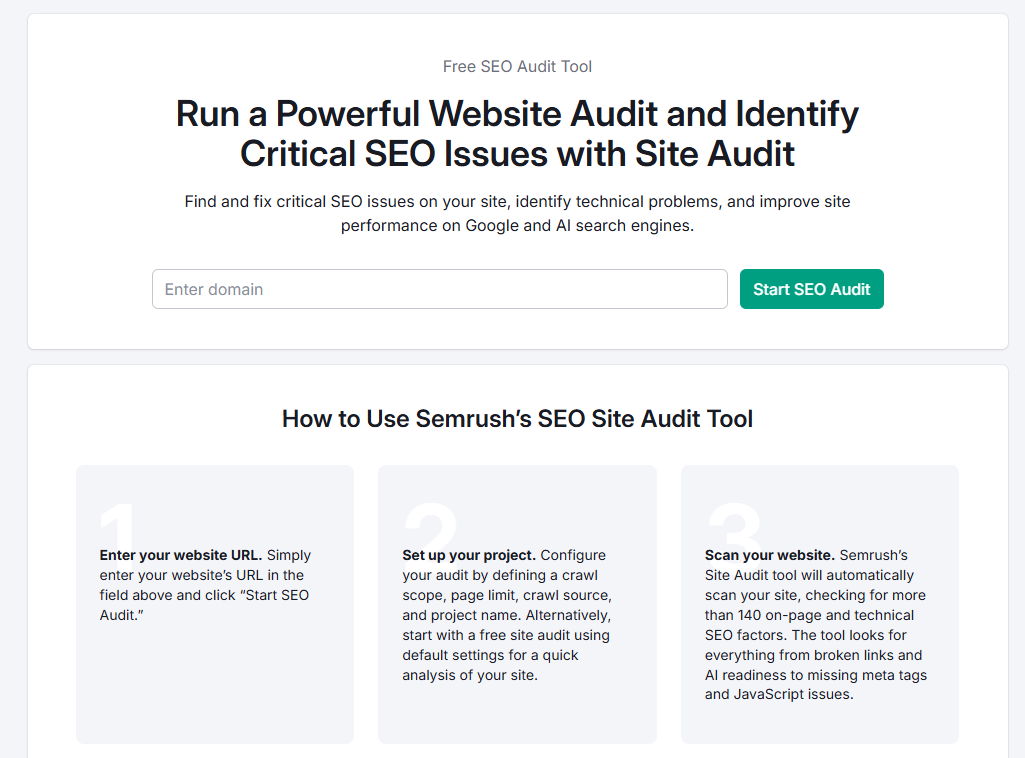
Run a Semrush Site Audit. Point it at your site and it’ll flag heading problems automatically — missing H1s, multiple H1s, pages with no headings at all.
I do this on most NZ sites I take on, usually as part of a broader SEO audit, and there’s almost always a list of issues to iron out.
It’s part of the wider technical SEO check, so you catch heading problems in the same pass as broken links and indexing issues.
Or just inspect the page. Right-click any heading, hit Inspect, and the code panel shows you exactly what tag it is — <h2>, <h3>, or (the moment of truth) a plain styled <div> that isn’t a heading at all. Fastest way to check a single page.
Checking your headings is one line on a complete SEO checklist you’d run before any page goes live. Either way, the goal is the same: make sure the headings you can see are real heading tags underneath, in a clean order.
When to DIY Your Headings vs Hire an SEO Expert
Fixing the headings on one page is a ten-minute job you can absolutely do yourself. Read this guide, follow the rules, check your work — sorted.
Getting structure right across a whole site, tied to a proper keyword strategy and the rest of your on-page setup, is a bigger job. That’s where it pays to bring in professional SEO help — someone who’ll audit every page, fix the structure, and make sure it’s all pulling in the same direction.
Headings are simple. Doing them well, everywhere, consistently, is where most sites fall down. If you’d rather have that handled, that’s where we come in.
Header Tags: FAQ
Can I use more than one H1 on a page?
Yes — Google has confirmed that multiple H1s won't break your rankings. But one H1 per page is still the cleaner habit: it gives readers a single, obvious title and keeps your structure easy to follow.
How many header tags are there in HTML?
Six — H1 through H6, ranked from most important (H1, the page title) down to least important (H6). In practice, most pages only ever need H1, H2 and H3.
What's the difference between a header tag and a title tag?
A title tag is what shows in Google's search results and the browser tab — it lives in the page's code and isn't visible on the page itself. An H1 header tag is the main heading people actually see when they land on the page. They're often similar, but they're not the same element.
Do header tags affect SEO rankings?
Indirectly. Google has said heading tags aren't a major ranking factor, but they help search engines and AI tools understand your page's structure, improve readability, and make your content easier to extract and cite — all of which support rankings.
What does a header tag look like?
In the code, a heading is wrapped in tags like <h1>Your Title</h1> or <h2>A Section Heading</h2>. On the page it usually appears as larger, bolder text — the bigger the heading, the lower the number (H1 is the biggest).
Recommended Reading
How to Do SEO: Step by Step
The full step-by-step process your headings slot into — from keyword to ranking.

13 Best SEO Tools for NZ Businesses
The tools that flag heading problems for you — Screaming Frog, Semrush and more.

What Is SEO? A Plain-English Guide
New to all this? Start here for the foundation behind header tags and on-page SEO.