
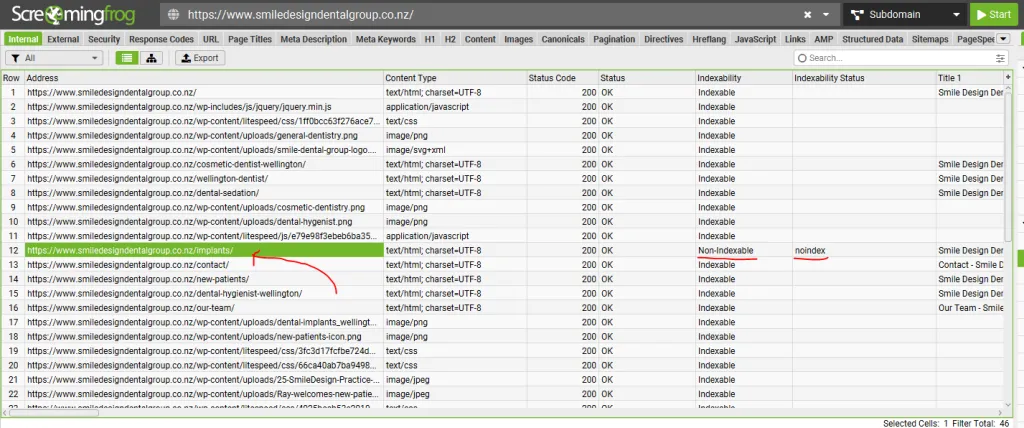
A couple of years back I audited a dental practice in Wellington.
Nice website, decent content, paying for SEO, wondering why the phone wasn’t ringing.
One of their highest-ROI services was dental implants. So that page was the first thing I checked.
It wasn’t in Google’s index.
Not ranking badly, not sitting on page four — Google had no copy of the page at all. There was no search, anywhere, where it could have shown up. Nobody at the practice knew, because from the inside everything looked fine.
Every person in Wellington searching for implants was landing on a competitor. For months.
That’s what makes indexing different from every other SEO problem: it’s binary, and it’s silent. A page that ranks badly still picks up the odd visit. A page that isn’t indexed gets nothing, forever, and never complains about it.
This guide covers what the Google index is, how to check whether your pages are in it, how to get the missing ones in, and how to read the reason Google gives you when it says no.
Key Takeaways
- What it is: the Google index is the database where Google stores every page it has crawled and understood. When you search, you’re searching that stored copy — not the live web.
- If a page isn’t in the index, it cannot rank, cannot be cited, and cannot be found. There is no partial credit.
- Check one page with Search Console’s URL Inspection tool. Check your whole site with the Page Indexing report. The
site:search is a quick yes/no, and its result count is unreliable. - Google documents that crawling a new page “can take anywhere from a few days to a few weeks” — and that indexing is never instant, even when you request it directly.
- “Crawled – currently not indexed” is not a technical fault. Google read the page and decided it wasn’t worth storing.
- Blocking a page in robots.txt does not remove it from the index. Google says so directly, and it’s the single most common piece of bad advice on this topic.
- Check your money pages individually. A site can be 95% indexed and still be missing the one page that brings in the work.
What Is the Google Index?
The Google index is the database where Google stores every page it has crawled and understood well enough to keep.
When you search for something, Google isn’t running out to the live internet and reading websites in real time. It’s searching its own stored copy. That copy is the index.
Google’s own Search Console documentation puts it about as plainly as it can be put: a page is indexed if it has been visited by the Google crawler, analysed for content and meaning, and stored in the Google index.
Think of it like a library catalogue.
The catalogue is a record of what the library holds and where to find it, kept separately from the books themselves. So if a book gets shelved but never catalogued, nobody can look it up — no matter how good the book is.
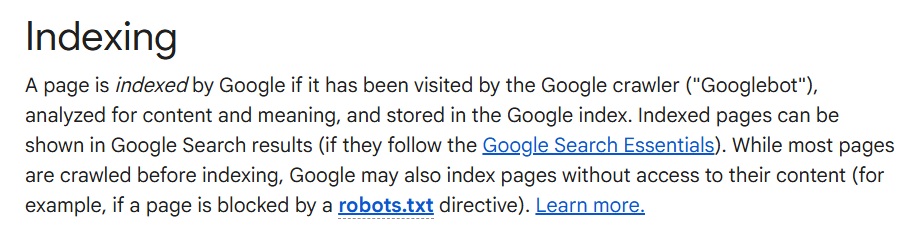
There’s one wrinkle in that definition worth flagging early, because it trips up a lot of people later: Google can index a page without having access to its content.
If a URL is blocked in your robots.txt file but other sites link to it, Google can still put that URL in the index.
It just won’t have anything to say about what’s on it. We’ll come back to that in a bit, because it’s the reason a very popular piece of advice does the opposite of what people think.
The bigger point: being in the index is the entry fee, not the achievement.
Getting indexed means Google has agreed to let your page compete. What happens after that is SEO — a completely separate fight.
The Difference Between Indexed, Ranking and Found
Indexed means Google has stored your page. Ranking means it’s competing for a search. Found means an actual human sees it.
Three different states. Most people treat them as one, and that’s why they misdiagnose their own websites.
Here’s how it plays out:
Indexed but not ranking. Google has your page, it’s just losing to better pages. Totally normal. This is a relevance or authority problem, and more content or more links is usually the answer.
Ranking but not found. You’re at position 12 where nobody scrolls, or you’re on a search where the AI Overview answers the question and nobody clicks anything. That’s a zero-click search problem, and it needs a different fix entirely.
Not indexed. Nothing else is happening. No ranking, no impressions, no clicks, no AI citation. This is the only one of the three that’s a hard stop.
The distinction matters because the Wellington practice was about to spend money on the wrong problem.
They’d concluded their SEO wasn’t working and were lining up a content package — more blog posts, more pages, more spend.
If they’d done it, they’d have added a pile of new content to a site whose most valuable page still wasn’t in the index. The implants page would have stayed invisible and they’d have paid for the privilege.
The fix took about ten minutes once we found it.
That’s why indexing gets checked first, before anything else. Everything downstream — keywords, content, links, the lot — is built on the assumption that Google has the page. If it doesn’t, you’re optimising something that doesn’t exist as far as Google is concerned.
Get indexed, then compete. In that order.
How Google Indexes a Page
Google finds your page, loads it the way a browser would, decides whether it’s worth storing, then works out where it belongs for a given search. Four stages, and a page can drop out at any one of them.
Crawling. Googlebot discovers URLs by following links, reading sitemaps, and revisiting pages it already knows about. No discovery, no anything else.
Rendering. Google loads the page in a headless browser and runs its JavaScript, so it can see the page the way a visitor would. Google’s JavaScript SEO documentation confirms every page returning a 200 status gets queued for rendering, JavaScript or not.
Indexing. Google analyses the content, works out what it’s about, consolidates duplicates, and then makes the call everyone forgets about: whether this page is worth keeping at all. Google is under no obligation to store your page.
Ranking. A separate process entirely, and only relevant once the three above have gone your way.
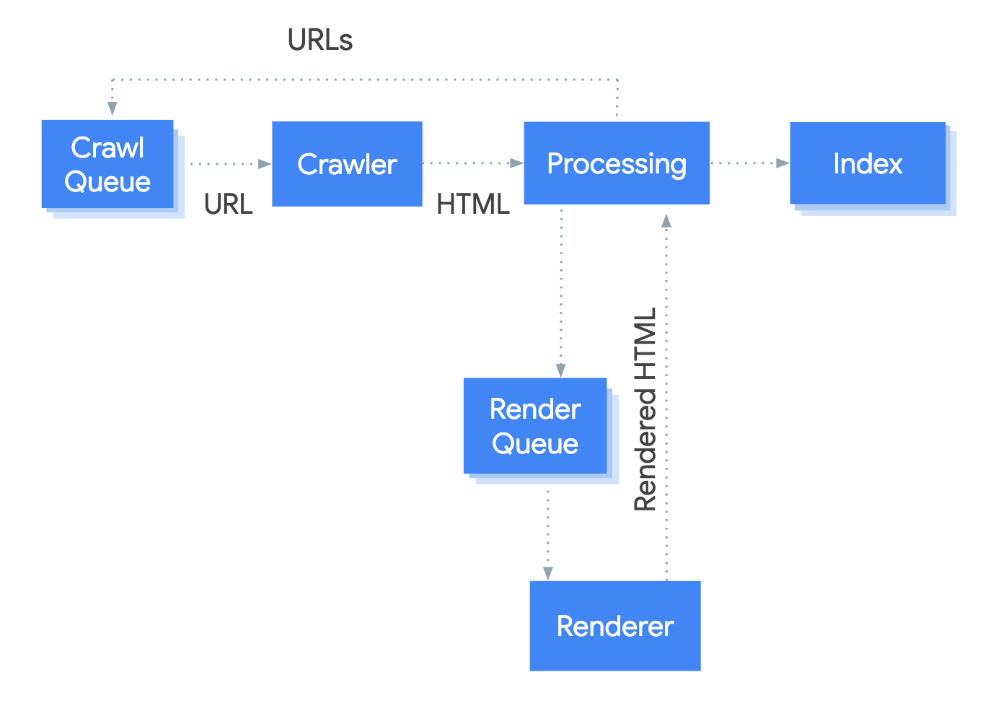
Worth knowing: the old “second wave of indexing” line you’ll still see quoted in SEO blogs is gone from Google’s documentation. The current model is crawl, render, index — with a queue in the middle that Google says a page “may stay on for a few seconds, but it can take longer than that.”
That matters for the technical side of a site, and it matters a lot if your site is built on JavaScript. More on that further down.
How to Check If Your Site Is in the Google Index
Three checks, in increasing order of how much you can trust them. Start with the fast one, finish with the true one.
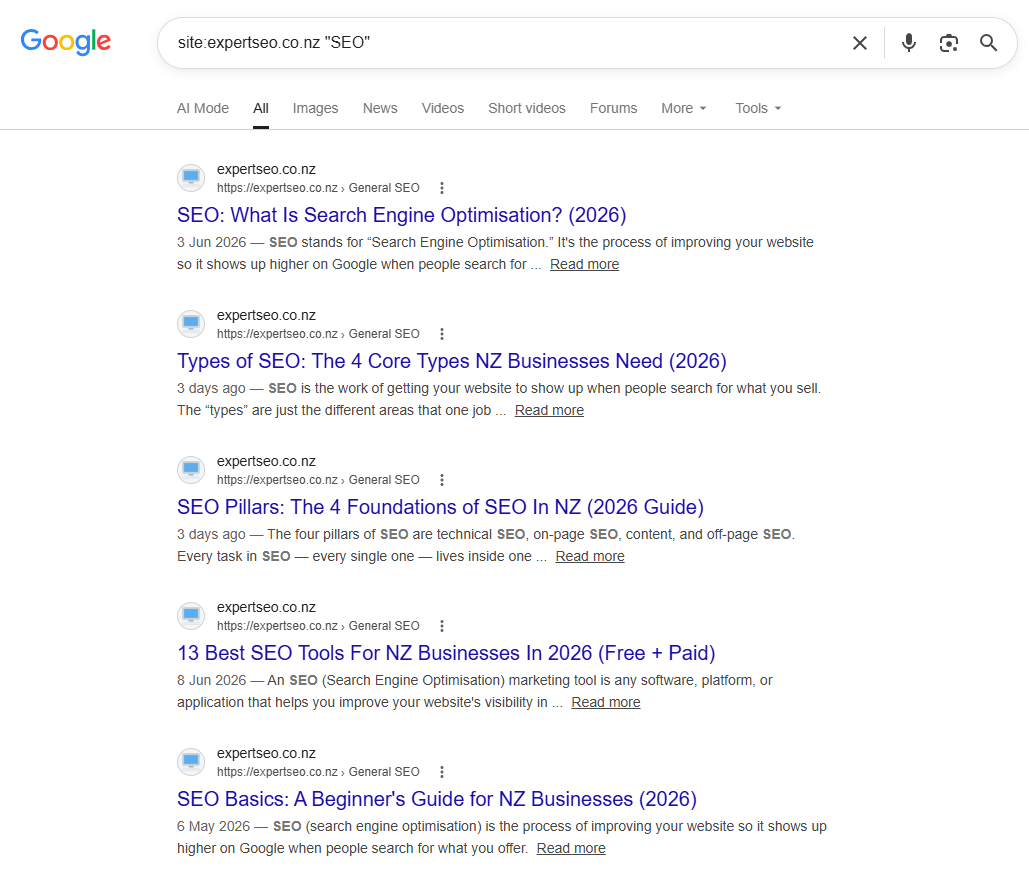
The 30-second site: check
Go to Google and type site: followed by your domain, no space:
site:yourbusiness.co.nzResults means Google has some of your site. No results at all means you’ve got a serious problem and you should keep reading.
One warning nobody gives you, and it matters: the number of results this returns is an estimate, and it’s frequently wrong by a huge margin. I’ve seen it report 400 pages for a site with 60, and 12 for a site with 300.
Use it as a yes/no signal. Never use it as a page count, and never panic because the number moved.
While we’re here, two things you’ll find recommended on pages currently ranking for this exact topic, both of which are dead:
- The
info:operator stopped working around 2017 and isn’t in Google’s search operator documentation any more. - The public “Add URL” submission form — the one where you pasted a URL and filled in a CAPTCHA — was retired in July 2018.
If a guide tells you to use either, it hasn’t been genuinely updated in eight years regardless of what the date on it says.
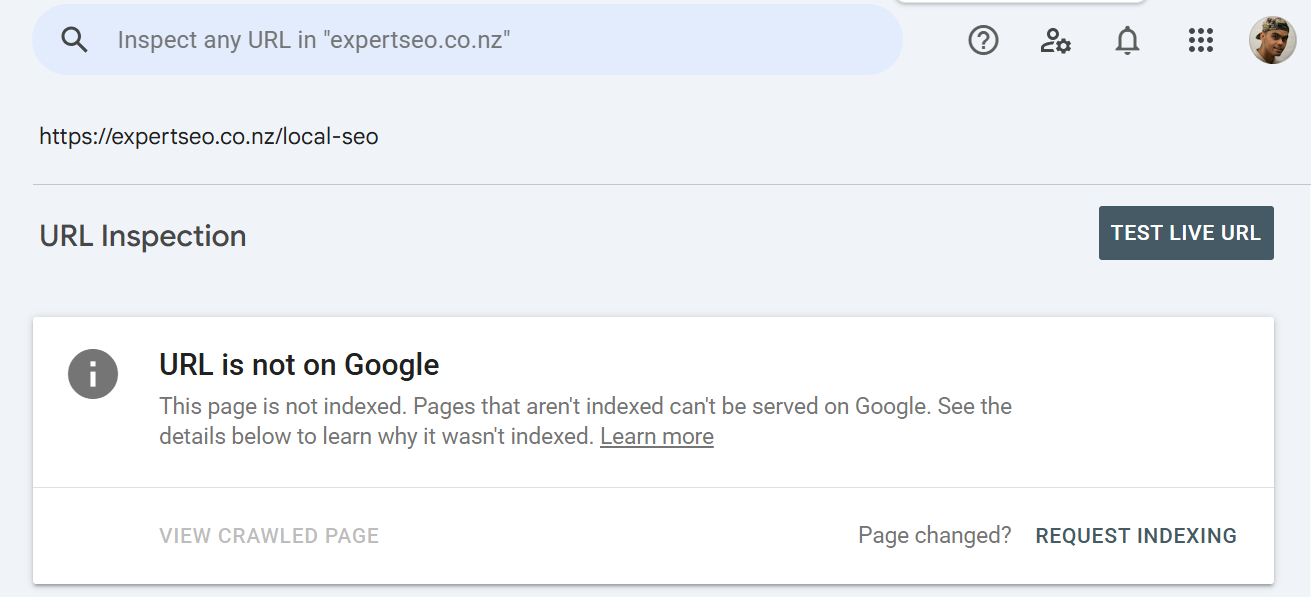
URL Inspection for one page
This is the definitive answer for a single page.
Open Search Console, paste the full URL into the search bar at the very top of the screen, and hit enter. Give it a few seconds.
You’ll get one of two answers: “URL is on Google” or “URL is not on Google.” No ambiguity.
If it’s not on Google, the panel underneath tells you why — and that reason is the whole game, which is why there’s a section on it below.
The Page Indexing report for the whole site
This is the source of truth.
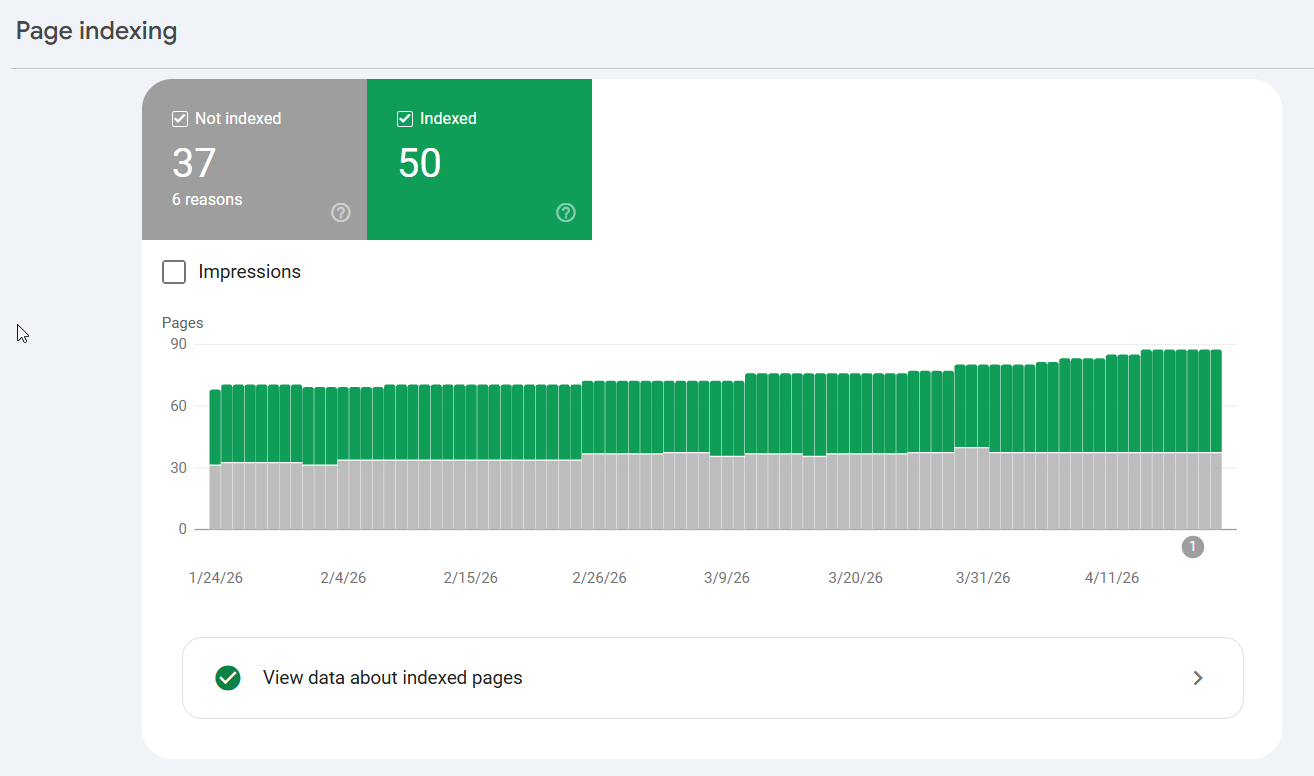
In Search Console, go to Indexing → Pages. You’ll see your site split into indexed and not indexed, with a table underneath breaking the not-indexed pages down by reason.
Most people open this once, see a scary number, and close it again. Don’t. That table is Google handing you a diagnosis for free, page by page, and it’s what the rest of this guide is built around.
How to Check If Your Money Pages Are Indexed
A site can be 95% indexed and still be missing the one page that brings in the work.
This is the check almost nobody runs, and it’s the one that would have caught the Wellington practice on day one.
Here’s why the site-wide number lies to you. A typical small business site has a homepage, a handful of service pages, some location pages, and then dozens of blog posts.
If every blog post is indexed and one service page isn’t, your site looks 97% healthy — and you’ve lost your best page. Search Console has no idea which of your pages make money, so it can’t sort the list that way for you.
You have to do it yourself. It takes about ten minutes.
1. Write down your five to ten most valuable pages. Not your blog. The services you most want to sell, your main location pages, the products with the best margin. For a dental practice: implants, Invisalign, cosmetic, emergency. For a builder: new builds, renovations, the main city page.
2. Run each one through URL Inspection. Paste the full URL, hit enter, read the answer. One at a time. It’s boring and it’s fast.
3. Sort what you find by money, not by count. One unindexed service page beats forty unindexed tag archives every single time. Fix in that order.
4. Diarise it. Once a quarter, plus any time you launch a new page, restructure the site, migrate hosts, or change your CMS. Those four events are when pages quietly fall out.
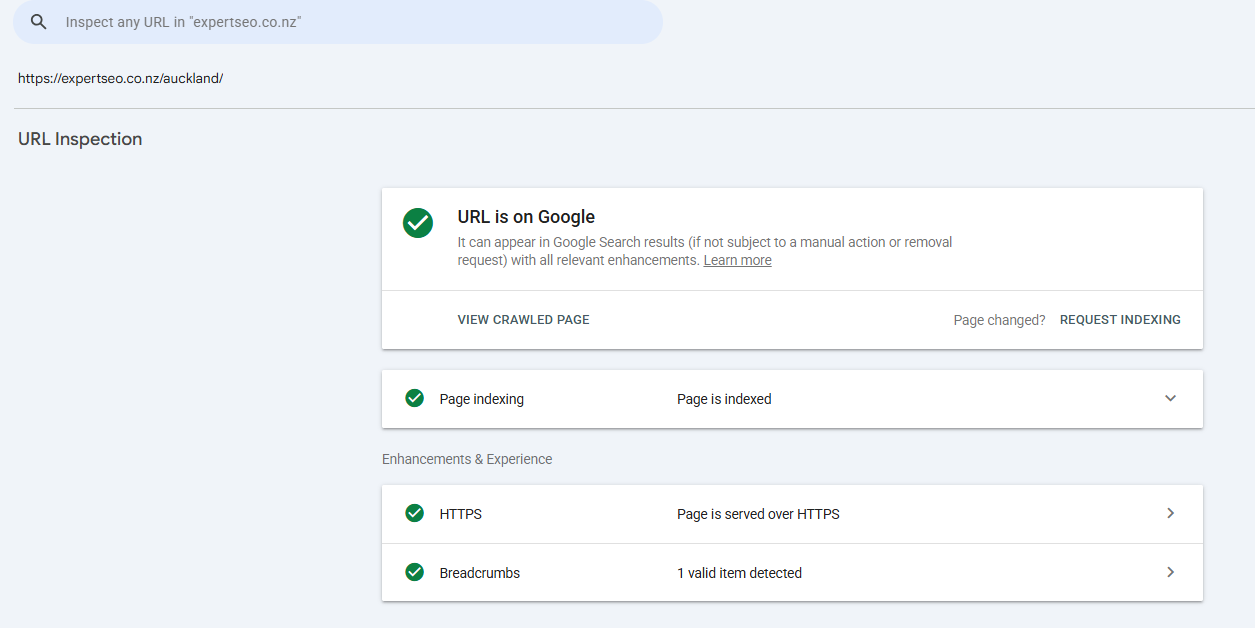
This is the first thing I run on any SEO audit, before keywords, before backlinks, before a single technical fix. It’s the cheapest check in SEO and it has the highest hit rate of anything I do — because when it finds something, it’s never a small thing.
It’s always a page someone was counting on.
The implants page was worth more to that practice than everything else I found in the audit put together, and it took ten minutes to find.
How to Get Your Site Indexed by Google
You can’t force Google to index a page. What you can do is make it easy to find and obviously worth keeping — and those are two different problems with two different fixes.
Get that order right and you’ll save yourself a lot of thrashing. Discovery problems are quick. Quality problems aren’t.
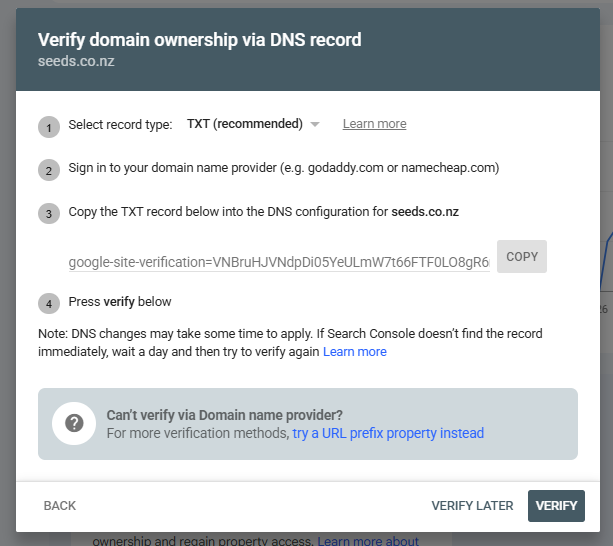
Set up Google Search Console
Everything else here depends on it, and it’s free.
Go to Search Console, add your property, and verify ownership. The DNS method is the most reliable if you can get into your domain registrar. If you can’t, the HTML file upload or the meta tag will do the job.
Do this even if you never look at it again. It’s the only place Google tells you what it thinks of your site.
Submit a sitemap
Your sitemap is a list of every URL you want Google to know about. Most platforms generate one automatically:
- WordPress — Rank Math or Yoast creates it, usually at
/sitemap_index.xml - Shopify — automatic, at
/sitemap.xml - Squarespace and Wix — automatic, at
/sitemap.xml
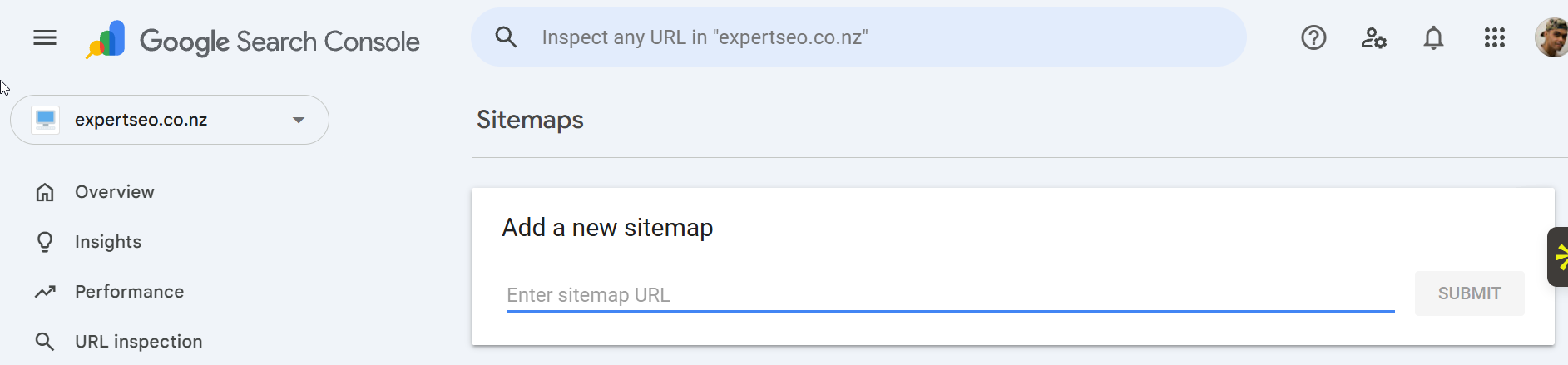
Find yours, then in Search Console go to Indexing → Sitemaps, paste the path, and hit submit. Google will report back how many URLs it found.
Request indexing for the important ones
In URL Inspection, once you’ve inspected a URL, there’s a Request Indexing link. Click it.
Now the honest caveats, because the plugin marketing on this is rubbish:
Google documents that there’s a quota on submitting individual URLs — but it has never published the number, so anyone quoting you “10 per day” as official is repeating folklore.
Google also states plainly that “requesting a recrawl multiple times for the same URL won’t get it crawled any faster,” and that requesting a crawl “does not guarantee that inclusion in search results will happen instantly or even at all.”

Request once. Move on. Hammering the button does nothing except make you feel busy.
Link to it from a page that’s already indexed
This is the most underrated fix on the list, and it’s usually the actual problem.
An orphan page — one with no internal links pointing at it — is genuinely hard for Google to find. It’s not in the navigation, nothing links to it, and the only reason you know it exists is that you built it.
Add a link from your homepage, your services page, or any page Google crawls regularly. Two minutes of work, and it fixes more indexing problems than anything else here.
Earn a link or two from elsewhere
A link from another site does two jobs: it gives Google a new path to your page, and it’s a small vote that the page is worth keeping. Slow lever, but real.
The platform gotchas
Most guides on this topic are written by WordPress plugin companies, so they only cover WordPress. Here’s the rest:
- WordPress — Settings → Reading → the “Discourage search engines from indexing this site” checkbox. Developers tick it during a build and forget to untick it at launch. I have found this on live, trading websites more than once, and it silently blocks the entire site.
- Shopify — collection filter URLs and duplicate product URLs generate huge numbers of near-identical pages that eat crawl attention. The store pages themselves index fine.
- Squarespace and Wix — both have a per-page SEO toggle that hides a page from search. It’s buried in the page settings panel, and it’s easy to flick by accident.
- Custom and headless builds — check that your content is in the initial HTML, not assembled by JavaScript afterwards. See the JavaScript section below.
A word on “instant indexing” plugins
You’ll see plugins promising instant indexing. Here’s what’s actually happening under the hood.
Most of them use IndexNow, which is a protocol Bing, Yandex and a few others support. Google has never confirmed adopting it, and no Google documentation references it. So for Google specifically, that button does nothing.
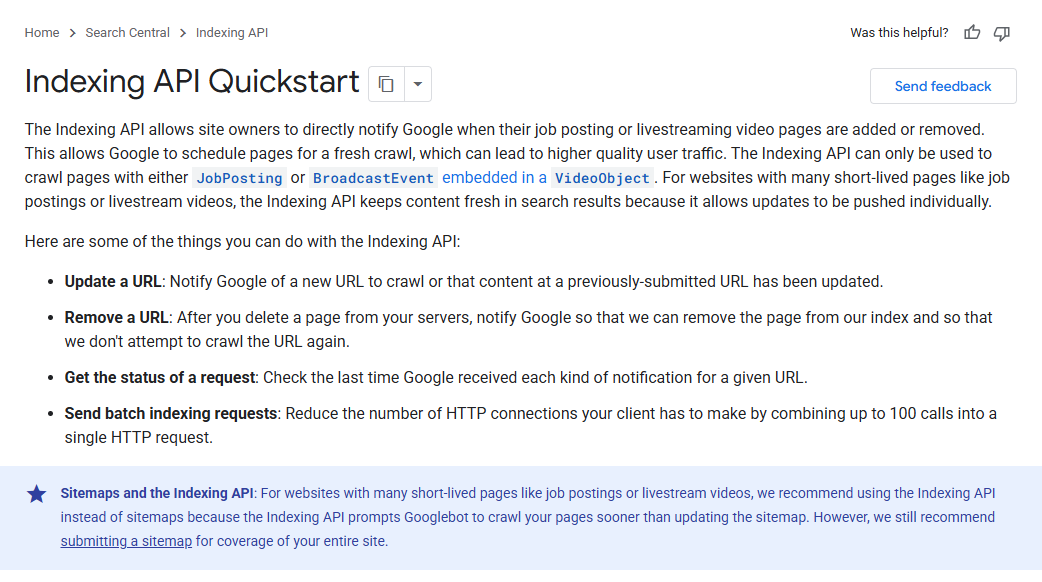
Some plugins instead call Google’s Indexing API — but Google’s own documentation states that API “can only be used to crawl pages with either JobPosting or BroadcastEvent embedded in a VideoObject.”
Unless you’re publishing job listings or livestreams, your blog post isn’t eligible.
None of this makes the plugins useless — the Bing submission is real. It just isn’t the Google shortcut the marketing implies, and there isn’t one.
How Long Google Takes to Index a Page
For an established site that publishes regularly, new pages usually get picked up within a few days. For a brand-new site, expect days to a few weeks. Past a month with nothing, it’s a signal rather than bad luck.
Those aren’t my numbers, they’re Google’s. The recrawl documentation states that “crawling can take anywhere from a few days to a few weeks,” and the Page Indexing documentation adds that “it can take a week or so for Google to start crawling and indexing a new page or site.”
The line worth tattooing somewhere:
Indexing is never instant, even when you submit a crawl request directly.
Why the gap between a new site and an established one? Google allocates crawl attention based on history. A site that has published consistently for three years has taught Google that checking back is worth it. A site that went live last Tuesday hasn’t taught it anything yet.
What genuinely speeds it up:
- Internal links from pages Google already crawls often
- A submitted sitemap, so nothing depends on discovery by luck
- Publishing consistently, which raises how often Google comes back
What doesn’t:
- Resubmitting the same URL daily
- Paid “indexer” services and link-pinging tools
- Any of the plugins from the section above
If you’re past four weeks on a page that should be simple, stop waiting. Go and read what Google is actually telling you.
Why Google Won’t Index Your Page
Open the Page Indexing report and Google will tell you exactly why. The status strings are the diagnosis — they just need translating.
Here’s what each one means, what causes it, what to do, and — the bit everyone skips — when to leave it alone. These are the reasons as listed in Google’s Page Indexing report documentation.
URL marked ‘noindex’
What it means: your page is carrying a noindex instruction and Google is obeying it.
What causes it: an SEO plugin setting, a page-level toggle, or a staging configuration that shipped to production. It’s almost always accidental.
What to do: find and remove the tag. In WordPress, check the page’s Rank Math or Yoast panel first. Then check the site-wide setting.
When to ignore it: when you meant it. Thank-you pages, cart pages and internal search results should carry noindex.
URL blocked by robots.txt
What it means: your robots.txt file is telling Google not to crawl the URL.
What causes it: an over-broad disallow rule. Disallow: /services/ blocks every service page, and someone wrote it years ago to hide one thing.
What to do: open yourdomain.co.nz/robots.txt and read it. Remove the rule that’s catching pages you want indexed.
When to ignore it: admin URLs, cart and checkout paths, internal search — all fine to block from crawling.
The trap: blocking a page here does not remove it from the index. More on this below, because it’s the biggest misconception on this topic.
Discovered – currently not indexed
What it means: Google knows the URL exists but hasn’t come to look yet.
What causes it: usually crawl priority. Google has decided your site doesn’t warrant the visit right now — often because there are a lot of similar URLs, or because the site is new and hasn’t earned frequent crawling.
What to do: link to the page from something Google crawls often. Make sure it’s in your sitemap. Then wait, because this one genuinely does resolve on its own a lot of the time.
When to ignore it: if it’s affecting a handful of low-value pages, leave it. If it’s affecting your service pages, treat it as urgent.
Crawled – currently not indexed
What it means: Google came, read the page, and chose not to store it.
This one gets its own section below, because it’s the most common and the most misdiagnosed status on the entire report.
Duplicate without user-selected canonical
What it means: Google found several near-identical pages, you didn’t tell it which one counts, so it picked one for you.
What causes it: URL parameters, print versions, http and https variants both live, or genuinely near-identical location pages.
What to do: set a canonical tag on each duplicate pointing at the version you want. If the pages are meant to be different, make them actually different.
When to ignore it: rarely. This one usually means Google is consolidating pages you wanted separate.
Alternate page with proper canonical tag
What it means: this page points at another page as the canonical, and Google is respecting that.
When to ignore it: almost always. This is the single most over-fixed status in Search Console. It’s usually the system working exactly as designed — people see a big number under “not indexed” and start ripping out canonicals that were doing their job.
Soft 404
What it means: the page returns a success code but looks empty or error-like to Google.
What causes it: thin pages, “no results found” pages, or a category page with nothing in it.
What to do: either add real content, or return a proper 404 if the page genuinely shouldn’t exist.
Page with redirect and Not found (404)
What it means: exactly what they say.
When to ignore it: usually. Old URLs that redirect, and deleted pages that 404, are both normal and healthy. Only worth investigating if it’s a page you expected to be live — which happens after migrations more than anyone admits.
One more, worth knowing about: “Crawl anomaly” was retired back in January 2021. If you find a guide still listing it, that’s a guide that hasn’t been updated in five years.
And the framing that saves you a lot of wasted effort: not every excluded page is a problem. Sort the report by whether the affected URLs are pages you actually want ranking. Half of what sits in there is meant to be there — which is the point of the section below on what to deliberately keep out.
What “Crawled – Currently Not Indexed” Means
Googlebot came, read your page, and decided it wasn’t worth storing.
That’s it. There’s nothing broken. No tag to remove, no file to fix, no setting to flip. Google made a judgement call and the page lost.
This is the most misdiagnosed status in Search Console, and I understand why. Every other status has a technical cause with a technical fix, so people assume this one does too. They go hunting for a fault that doesn’t exist, find nothing, and conclude Search Console is broken.
Search Console is working fine. It’s handing you a verdict, and a verdict needs a different response than a bug does.
What actually causes it:
- Thin pages — a service page with 150 words and a phone number
- Near-duplicates, especially templated location pages where only the city name changes
- Pages that add nothing the index doesn’t already have twenty better versions of
- Publishing a lot at once with nothing distinguishing any of it
That third one is the one people struggle with. A page can be well-written, technically perfect, and still get this status, because “fine” isn’t the bar.
Google already has the answer. It needs a reason to store yours as well.
I see this most on location pages. A law firm builds twelve suburb pages by copying one template and swapping the suburb name, and eight of them land here.
The pages built for law firms that do get indexed are the ones with genuinely different content on them — different local detail, different cases, different photos.
What actually works, in this order:
- Make the page substantively better and genuinely different. Not a reword. Add the thing only you can add — real examples, real numbers, real photos, real local specifics.
- Link to it from a page Google crawls often. Give the recrawl a reason to happen sooner.
- Request indexing once. Not repeatedly — you’ll just get the same verdict re-served.
Then give it a few weeks. Google has to come back, re-read the page, and change its mind, and that’s not a fast process.
What doesn’t work: minor rewrites, resubmitting daily, indexing services, or adding schema markup. That last one comes up a lot because a page currently ranking for this keyword claims schema improves indexing. Google has never said structured data affects whether a page gets indexed. It affects how a result can display once it’s already in.
Will Google index AI content?
Same mechanism, so let’s answer it here.
Google’s position, from its guidance on AI-generated content, is that it doesn’t care how content was produced — it cares whether it’s useful.
What it targets is “using generative AI tools or other similar tools to generate many pages without adding value for users,” which it treats as scaled content abuse.

So AI content isn’t banned and it isn’t blocked from the index.
But mass-published thin AI content is the fastest route into “Crawled – currently not indexed” I’ve seen in the last two years. Forty pages generated in an afternoon, all technically fine, none of them adding anything. Google reads them, shrugs, and stores none of them.
The verdict is the same as it’s always been. It just gets reached faster now, because it’s never been easier to produce a lot of content that says nothing.
Can Google Index JavaScript and React Sites?
Yes — but it happens in a queue after the initial crawl, and that queue is where sites lose pages.
Google’s JavaScript SEO documentation spells out the process. Every page returning a 200 status goes into the render queue. A headless Chromium then loads it and executes the JavaScript. Only then does Google see what’s actually on the page.

Google says a page “may stay on this queue for a few seconds, but it can take longer than that.”
Which is worth knowing, because half the SEO internet still repeats a “second wave of indexing takes up to a week” line that isn’t in Google’s documentation any more and hasn’t been for years.
How to check what Google actually sees:
Run the page through URL Inspection, click View Crawled Page, and read the rendered HTML. If your headings, body copy and internal links are in there, you’re fine. If you’re looking at an empty <div id="root">, you have a problem.
Which builds get bitten: single-page apps, React and Vue sites without server-side rendering, content that only loads on scroll or after a click, and any build where the navigation is assembled by JavaScript — because if the links aren’t in the HTML, Google has fewer paths to your other pages.
What fixes it: server-side rendering or static generation, so the content arrives as HTML. If that’s a big job, the minimum viable fix is getting your critical content and your internal links into the initial HTML response, even if the rest of the page stays dynamic.
PDFs, while we’re here. Google indexes them fine, and they’ll show up in results. They’re just poor pages to rely on — no proper internal links, no real design control, and they’re awkward on a phone. If a PDF is ranking for something you care about, that content deserves a real page.
Which Pages Should Stay Out of the Google Index
Every guide on this topic assumes you want everything indexed. You don’t.
Some pages actively work against you by being in there. They dilute what Google understands your site to be about, and they spend crawl attention that should be going to the pages that matter.
What genuinely shouldn’t be in the index:
- Tag and author archives (WordPress generates these by the dozen)
- Internal search result pages
- Filtered and faceted URLs — the ones with
?colour=blue&size=mediumon the end - Cart, checkout and thank-you pages
- Staging and development environments
- Old PDFs, price lists and terms documents nobody should land on cold
An Auckland ecommerce store I looked at had roughly 4,000 URLs in Google, and about 300 were real products.
The rest were filter combinations. Google was spending its crawl on colour variants while genuinely new product pages sat in “Discovered – currently not indexed” for weeks.
The three tools, and what each is actually for
This is where most of the confusion on this topic lives, so let’s be exact:
| Tool | What it does | Use it for |
|---|---|---|
noindex | Keeps a page out of the index | Removing a page from search results |
robots.txt | Stops Google crawling a URL | Saving crawl budget on junk URLs |
| Canonical tag | Consolidates duplicates | Telling Google which version counts |
Three different jobs. Constantly used interchangeably, which is where things go wrong. It’s the same category of mix-up as confusing on-page and technical SEO — related, but not the same lever.
The robots.txt trap
Here’s the one that catches almost everybody.
Blocking a page in robots.txt does not remove it from Google’s index.
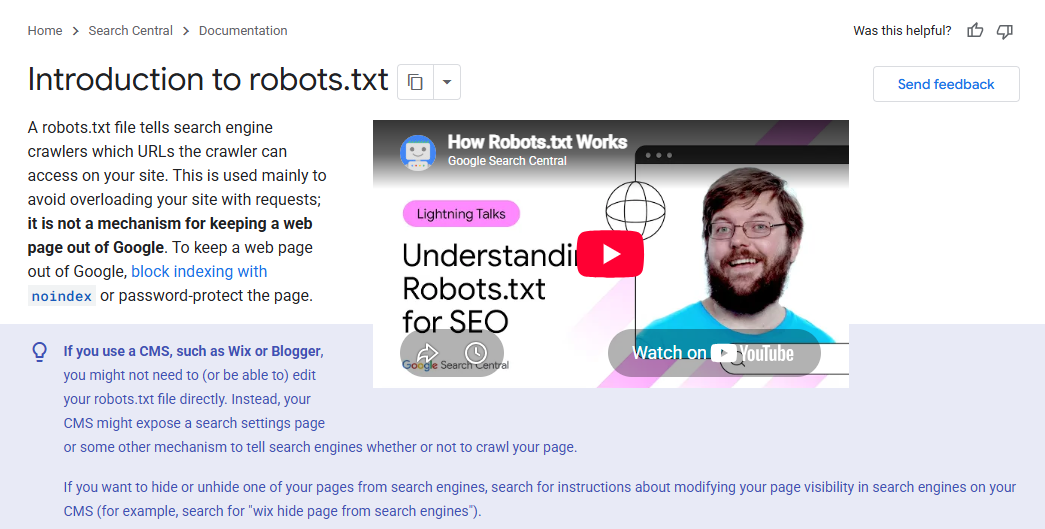
This isn’t my opinion. Google’s robots.txt documentation opens with it: robots.txt “is not a mechanism for keeping a web page out of Google. To keep a web page out of Google, block indexing with noindex or password-protect the page.”
It goes further: “a page that’s disallowed in robots.txt can still be indexed if linked to from other sites.”
You end up with the URL sitting in search results with no description underneath it, because Google was never allowed to read the page it’s showing.
And it gets worse if you use both at once. Google’s own documentation notes that using a robots.txt rule to block a page “will actually prevent noindex from being seen by Google.” You’ve locked the door on the instruction telling Google to leave.
So the order is: noindex first, and let Google crawl the page so it can see the tag. Once it’s dropped out of the index, then block it in robots.txt if you want to save the crawl.
For anything urgent — a page with private information on it — use the Removals tool in Search Console for the fast temporary hide, then fix it properly underneath.
The simple test: if you wouldn’t want someone landing on it cold from a Google search, it probably shouldn’t be in the index.
Why the Google Index Matters More in AI Search
The index now feeds two systems, and being out of it costs you both.
AI Overviews, AI Mode, ChatGPT’s browsing, Perplexity — none of them are reading the live web from scratch when they answer a question. They’re working from indexed content. Which means a page that isn’t in the index can’t rank, can’t be cited, and can’t be summarised into someone’s answer.
Invisible twice over, on the same missing page.
This is what changed. The index used to feed ten blue links. Now it feeds ten blue links and the answer sitting above them, and AI Overviews take a good share of the attention that used to go to the results underneath.
So the Wellington practice’s implants page wasn’t just missing from the rankings. On today’s search results it would be missing from the answer box too — the one that gets read by people who never scroll.
For NZ businesses this cuts sharper than it does overseas, because our search volumes are small.
A keyword with 30 searches a month doesn’t give you many chances. Being the source that gets cited in the answer can matter more than sitting at position three underneath it — but you can’t be cited from outside the index.
Expert SEO was getting cited in Google’s AI Mode and in ChatGPT responses inside its first year, against competitors with a decade’s head start. None of that is possible without being in the index first.
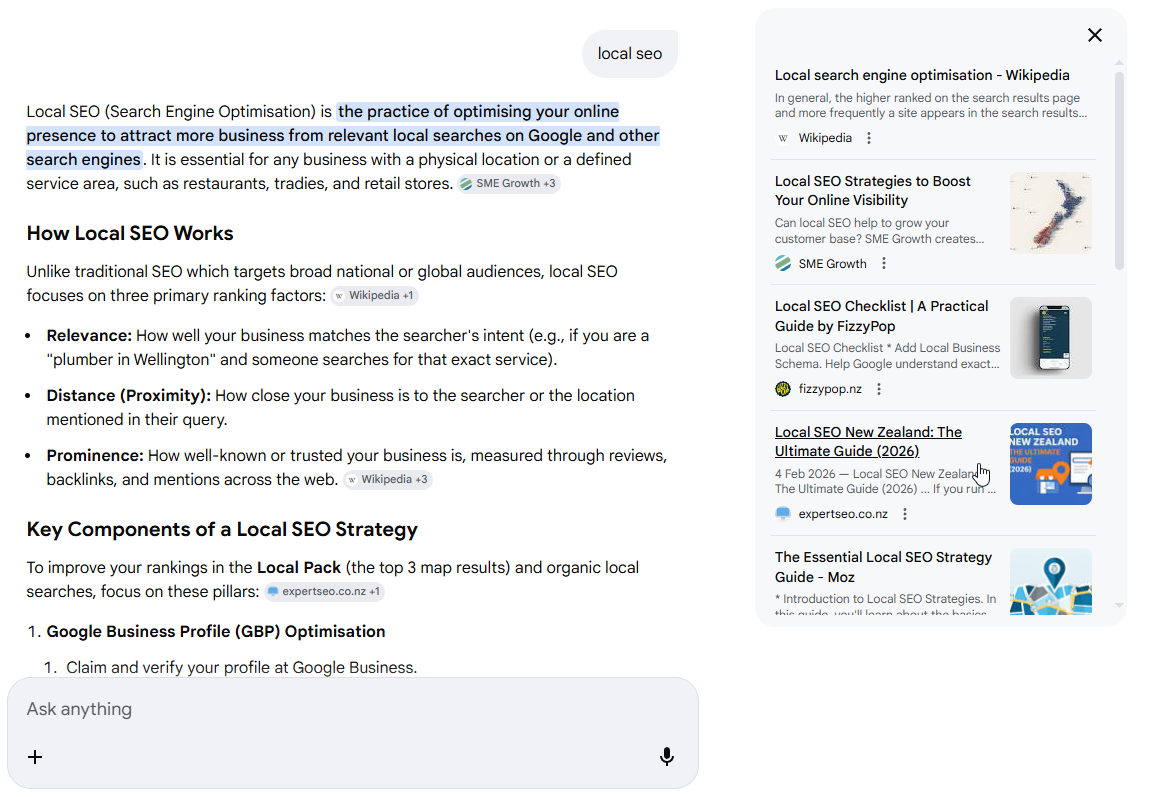
The fundamentals didn’t change. Get indexed, then compete. There’s just more riding on the first half than there used to be.
Final Thoughts
If I could get every NZ business owner to take one thing from this article, it wouldn’t be the sitemap or the robots.txt file. It’d be the ten-minute money-page check.
Here’s the mistake I watch people make over and over: they spend months optimising pages Google doesn’t have. New content, fresh links, a redesign — all of it stacked on top of a page that was never in the index to begin with.
Indexing isn’t the glamorous part of SEO. Nobody’s selling a course on it.
But it’s the only part where the failure is total, and it’s the cheapest thing on the whole list to check.
The Wellington practice went from an invisible implants page to an indexed one in an afternoon. The fix was never the hard part; knowing to look was.
If you’d rather someone else did the looking, our SEO services start with exactly this check, and you can talk to an SEO consultant about your own site first.
Google Index: FAQ
How do I check if my website is indexed by Google?
Type site:yourdomain.co.nz into Google for a quick yes/no, then use Google Search Console's URL Inspection tool for a definitive answer on any single page. For your whole site, open the Page Indexing report under Indexing → Pages. Treat the result count from a site: search as an estimate only — it's frequently wrong by a wide margin.
How long does it take Google to index a new website?
Google's documentation says crawling "can take anywhere from a few days to a few weeks," and that it can take a week or so for Google to start crawling and indexing a new site. Established sites that publish regularly usually see new pages picked up within days. If nothing has happened after a month, treat it as a signal and start diagnosing.
Why is my page crawled but not indexed?
"Crawled – currently not indexed" means Googlebot read the page and decided it wasn't worth storing. It's a quality verdict, not a technical fault, so there's no tag or setting to fix. The usual causes are thin pages, near-duplicate location or service pages, and content that adds nothing the index doesn't already have. Make the page genuinely better and different, link to it from a page Google crawls often, then request indexing once.
Can you force Google to index a page?
No. You can request indexing through URL Inspection, but Google states plainly that requesting a crawl "does not guarantee that inclusion in search results will happen instantly or even at all," and that resubmitting the same URL repeatedly won't get it crawled any faster. There is no paid service or plugin that changes this.
Does Google index every page on a website?
No. Google decides which pages are worth storing, and it routinely declines. That's usually fine — tag archives, filtered URLs, cart pages and internal search results shouldn't be indexed anyway. What matters is whether the pages that make you money are in the index, which is worth checking individually rather than relying on a site-wide number.
How do I stop Google indexing a page?
Use a noindex tag, and let Google crawl the page so it can see it. Do not use robots.txt for this — Google's documentation states robots.txt "is not a mechanism for keeping a web page out of Google," and blocking a URL there can actually prevent Google from seeing your noindex tag. For anything urgent, use the Removals tool in Search Console as a temporary hide while you fix it properly.
Recommended Reading
 SERP Features
What actually sits on a Google results page now, and which features are worth chasing.