

Google Search Console is asking you to submit a sitemap, and you’re not entirely sure what it wants from you.
A sitemap is a file on your website that lists the pages you want search engines to find, crawl, and index.
Think of it as a directory you hand to Google: here are my pages, here’s when they were last updated, go have a look.
That’s the short answer.
The longer answer — whether your site actually needs one, where yours is hiding, what belongs in it, and what doesn’t — is where the plugin companies writing most sitemap guides get conveniently vague.
This guide gives you the straight version, and you’ll have everything checked and sorted in about 15 minutes.
What Is A Sitemap (And What Does It Look Like)?
A sitemap is usually an XML file sitting at an address like yourdomain.co.nz/sitemap.xml.
Open one in your browser and you’ll see a structured list of URLs, often broken into smaller sitemaps for pages, posts, and categories.
Here’s the actual sitemap for our website:
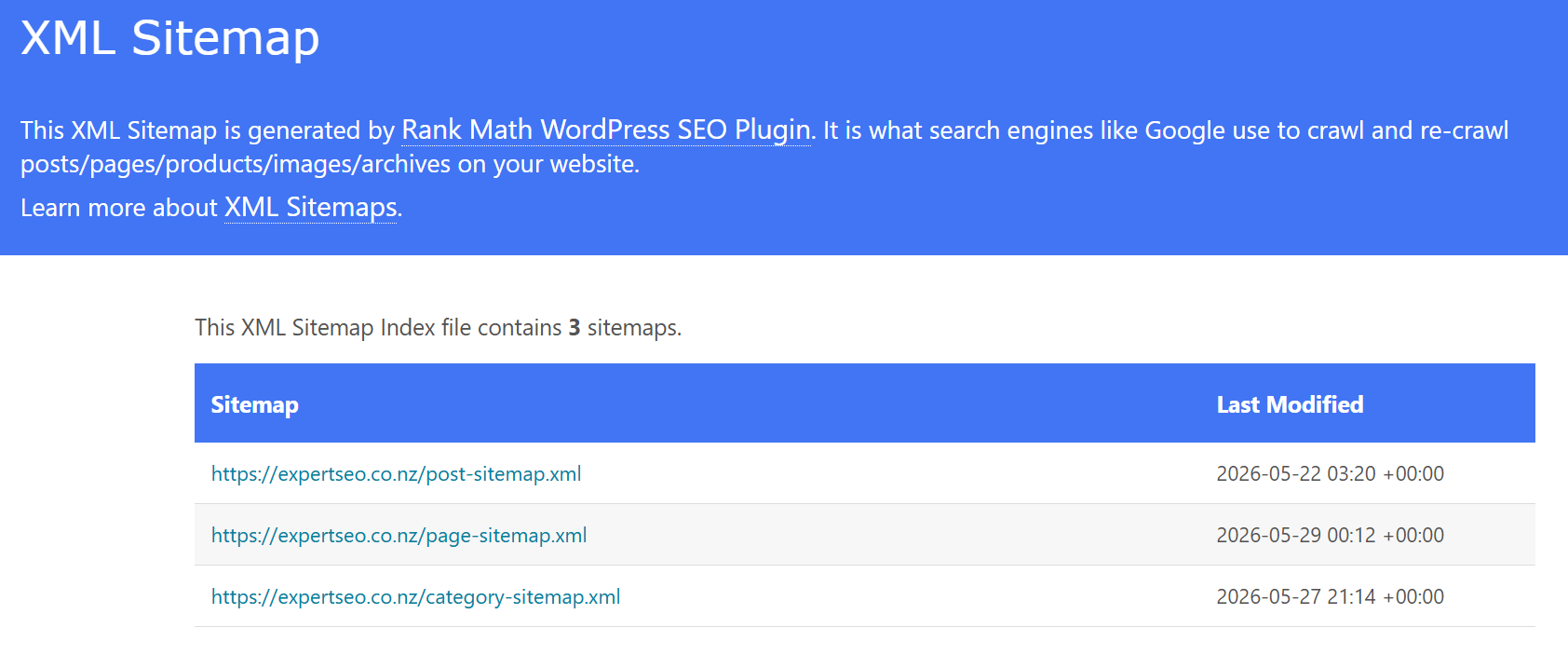
Nothing glamorous — just a list of URLs with dates next to them.
Humans almost never look at this file, and they’re not supposed to. It exists for crawlers like Googlebot, which read it to understand what’s on your site and what’s changed since their last visit.
If your reaction is “that’s it?”, good. A sitemap is one of the simplest files on your website.
The confusion around it comes from the word being used for three different things, which brings us to the types.
The Three Types of Sitemaps (And the Only One That Matters for SEO)
When anyone in an SEO context says “sitemap,” they mean the XML sitemap. The other two types solve different problems entirely.
XML sitemaps are the machine-readable files described above.
They follow a standard protocol established at sitemaps.org in 2006, when Google, Yahoo, and Microsoft agreed on a single format so website owners didn’t have to create a separate file for every search engine.
This is the sitemap Google Search Console asks for, the one your SEO plugin generates, and the one this guide is about.
HTML sitemaps are ordinary web pages listing links to your site’s content, built for human visitors.
They were common in the 2000s when site navigation was worse and crawlers were dumber. Today they’re mostly legacy.
A large site with thousands of pages can still get some value from one, but a typical NZ business site with good navigation doesn’t need an HTML sitemap at all.
Visual sitemaps are planning diagrams — boxes and arrows showing how a website’s pages will connect, drawn before the site is built.
Web designers and UX teams use them to map out structure. They’re a design tool, not an SEO file, and they never touch Google.
From here on, “sitemap” means the XML kind.
Do You Actually Need a Sitemap?
For almost every NZ business website, yes — but not for the reason you’ve probably been told.
Google’s own documentation is refreshingly honest here. According to Google Search Central, you might not need a sitemap if your site has about 500 pages or fewer, is comprehensively linked internally, and doesn’t have lots of media files you need indexed.
If Google can reach every important page by following links from your homepage, it will usually find everything on its own.
A builder in Tauranga with a 15-page website and tidy navigation falls squarely into that category. The sitemap is doing very little heavy lifting there.
So why have one anyway? Because it costs you nothing.
Your website platform almost certainly generates and updates one automatically, and the small benefit it provides — faster discovery of new and updated pages — comes with zero downside.
There is no scenario where a clean sitemap hurts you. So the honest recommendation for small sites is simple: have one, submit it once, and stop thinking about it.
A sitemap genuinely matters in three situations:
- New websites. A new domain has few backlinks, which means crawlers have few paths to discover your pages. Our site is under a year old, and the sitemap is part of how new articles get found and indexed quickly instead of sitting invisible for weeks. On a new domain, that speed compounds — every week a page sits unindexed is a week it earns nothing.
- Large websites. A Queenstown tour operator with hundreds of activity, booking, and seasonal pages can’t guarantee every page is well linked. The sitemap becomes the safety net that catches what internal navigation misses.
- Sites that publish often. If you’re adding blog posts or products weekly, the sitemap’s lastmod dates tell Google exactly where the fresh content is, so it doesn’t waste crawls rechecking pages that haven’t changed.
This is the technical side of SEO at its most typical: unglamorous, mostly automatic, and only noticeable when it’s broken.
What a Sitemap Does (And Doesn’t Do) for Your Rankings
A sitemap helps Google find your pages faster. It does not make them rank higher.
Holding both of those facts at once will save you from most of the bad advice on this topic.
What it actually does:
- Speeds up discovery. New pages get found through your sitemap instead of waiting for a crawler to stumble across a link.
- Catches orphaned pages. Pages with no internal links pointing at them still get crawled because they’re listed.
- Signals freshness. Accurate lastmod dates tell Google which pages changed, making crawling more efficient.
What it doesn’t do:
- It’s not a ranking factor. Two identical pages, one in a sitemap and one not, will rank exactly the same once both are indexed.
- Submission doesn’t guarantee indexing. A sitemap is a hint. Google still decides whether each page is worth indexing, and it routinely declines thin or duplicate pages no matter how many sitemaps list them.
- It can’t rescue weak content. Ahrefs studied around 14 billion pages and found 96.55% get zero traffic from Google. Nearly all of those pages are in a sitemap somewhere. Discovery was never their problem.
Rankings come from content quality, relevance, and authority — the actual SEO process. The sitemap just makes sure Google knows your pages exist so the rest of that work can count.
How to Find Your Website’s Sitemap
Your sitemap almost certainly already exists. Try these three URLs in your browser, in order:
- yourdomain.co.nz/sitemap.xml — the standard location, and where most SEO plugins place it (or redirect from it)
- yourdomain.co.nz/sitemap_index.xml — the default for Rank Math and Yoast on WordPress
- yourdomain.co.nz/wp-sitemap.xml — WordPress’s built-in sitemap, used when no SEO plugin is active
If all three come up empty, check your robots.txt file at yourdomain.co.nz/robots.txt. Sites are supposed to declare their sitemap location there, on a line that starts with “Sitemap:”.
This same trick answers the related question of how to tell whether any website has a sitemap — check those URLs and the robots.txt on their domain. Useful when you’re sizing up a competitor’s site structure.
How to Create a Sitemap on WordPress, Shopify, Squarespace, and Wix
If your site runs on a modern platform, you don’t need to create a sitemap. You need to find the one you already have and check it’s configured sensibly.
WordPress. Around 42% of all websites run on WordPress, including the bulk of NZ small business sites, so this is most readers.
WordPress generates a basic sitemap natively, but if you’ve installed Rank Math or Yoast — and if you’re optimising a WordPress site properly, you should have one of them — the plugin takes over with a better version.
In Rank Math, head to Rank Math → Sitemap Settings.

Confirm the sitemap is enabled, then check which post types are included. Pages and posts should be in; media attachments should be out (more on that shortly).
Shopify. Every store automatically gets a sitemap at /sitemap.xml covering products, collections, pages, and blog posts.
You can’t edit it, which for most stores is fine — the defaults are sensible, and SEO for Shopify stores is won elsewhere anyway.
Squarespace and Wix. Both generate and maintain a sitemap automatically at /sitemap.xml.
There’s nothing to configure and nothing to install. This answers one of the most-asked questions about Squarespace directly: yes, your sitemap already exists.
Large or custom-built sites. Only here do sitemap generators earn their keep.
Google caps a single sitemap at 50,000 URLs or 50MB uncompressed, so bigger sites split into multiple sitemaps tied together with a sitemap index file — the same structure you saw in our sitemap screenshot earlier, just at larger scale.
What to Include in Your Sitemap (And What to Leave Out)
A good sitemap is a curated list of your best URLs rather than a dump of everything on your domain.
Every URL you include is you telling Google “this page deserves to rank.” Padding the list with junk dilutes that signal and wastes crawl attention on pages that were never going to earn a visitor.
Include:
- Pages that return a 200 status code (they load normally)
- Pages set to index (not noindexed)
- The canonical version of each page only
- Everything you actually want ranking: service pages, location pages, blog posts, key product and category pages
Leave out:
- Noindexed pages. Listing a page in your sitemap while telling Google not to index it sends contradictory signals.
- Redirected and deleted URLs. The sitemap should contain final destinations only.
- Thank-you and confirmation pages. A law firm’s “thanks for your enquiry” page has no business ranking, and you definitely don’t want prospects landing on it from Google.
- Thin tag and archive pages. WordPress auto-generates date archives and tag pages that are mostly duplicate listings. Exclude them.
- Media attachment pages. WordPress can create a near-empty page for every uploaded image. These are the single most common source of sitemap bloat we see, and Rank Math disables them in one click.
The test for any URL is simple: would you be happy for a potential customer to land on this page from a Google search? If not, it doesn’t belong in your sitemap.
The Tags Inside Your Sitemap (And Which Ones Google Actually Reads)
Open any sitemap and you’ll see up to four pieces of information per URL. Knowing which ones matter stops you wasting time on the ones that don’t.
- loc — the page URL. Required, and obviously used.
- lastmod — when the page last changed. Google uses this, but only if it’s honest. The official guidance is blunt: if your lastmod dates are consistently inaccurate, Google learns to ignore them. Plugins that bump every page’s date on every trivial save are training Google to distrust your whole sitemap.
- priority — a 0.0 to 1.0 importance score. Google ignores it completely.
- changefreq — how often the page supposedly changes. Also ignored.
If you’ve ever agonised over setting your homepage to priority 1.0 and your blog posts to 0.6, you can let that go.
The only optional tag worth caring about is lastmod, and the way to care about it is to let your SEO plugin handle it and only update content when something genuinely changes.
How to Submit Your Sitemap to Google Search Console
Submission takes five minutes. Reading the report afterwards is where the actual value lives.
- Open Google Search Console and select your website property
- In the left menu, click Sitemaps (under Indexing)
- In the “Add a new sitemap” field, paste your sitemap path — for most WordPress sites that’s sitemap_index.xml
- Click Submit
Within a day or so, the status should change to “Success” with a count of discovered URLs. Here’s ours:

That green Success status means Google read the file without errors. It does not mean every URL is indexed — those are different things.
To see what’s actually indexed, open the Pages report and compare indexed pages against your sitemap count. Some gap is normal.
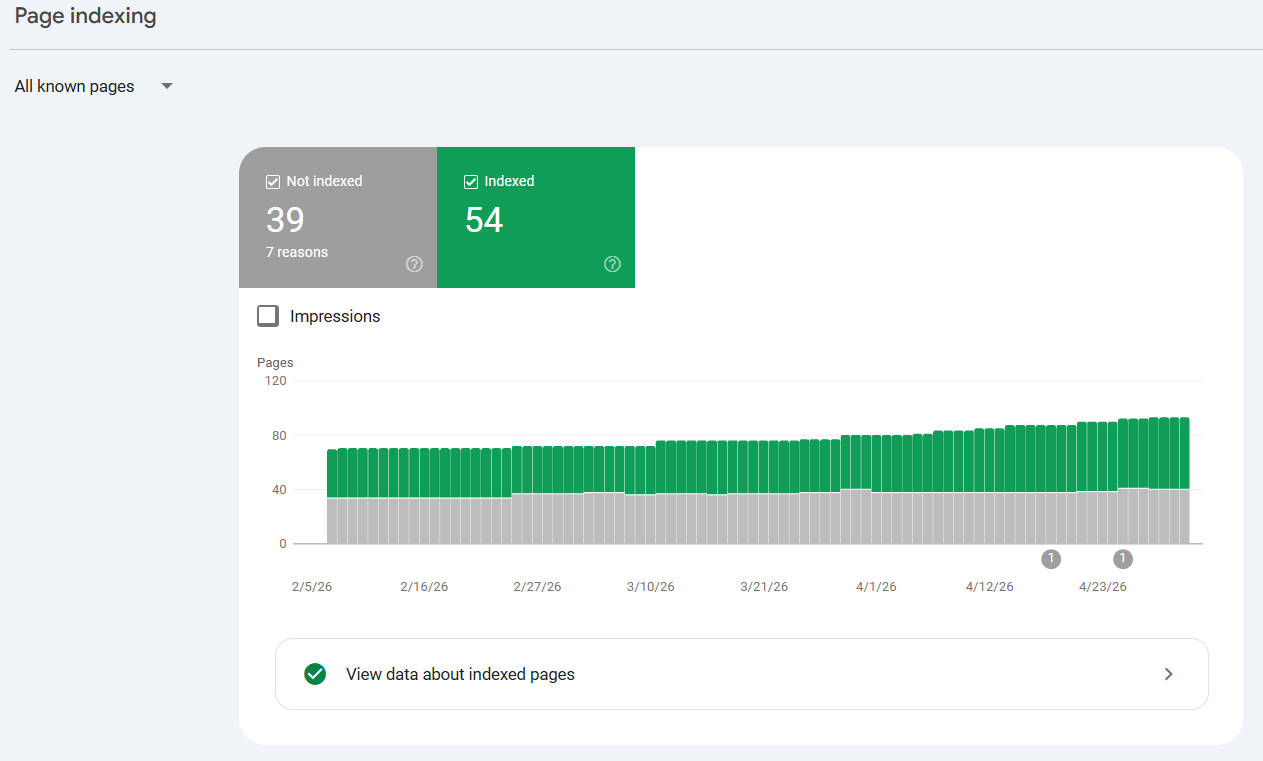
A large gap means Google is choosing not to index a chunk of your site, which usually points to quality or duplication issues worth investigating in a proper SEO audit.
For context on why this pipeline is worth getting right: our SEO company is built on a domain less than a year old, and it’s ranking against NZ competitors with a decade’s head start while earning AI Overview citations within six months.
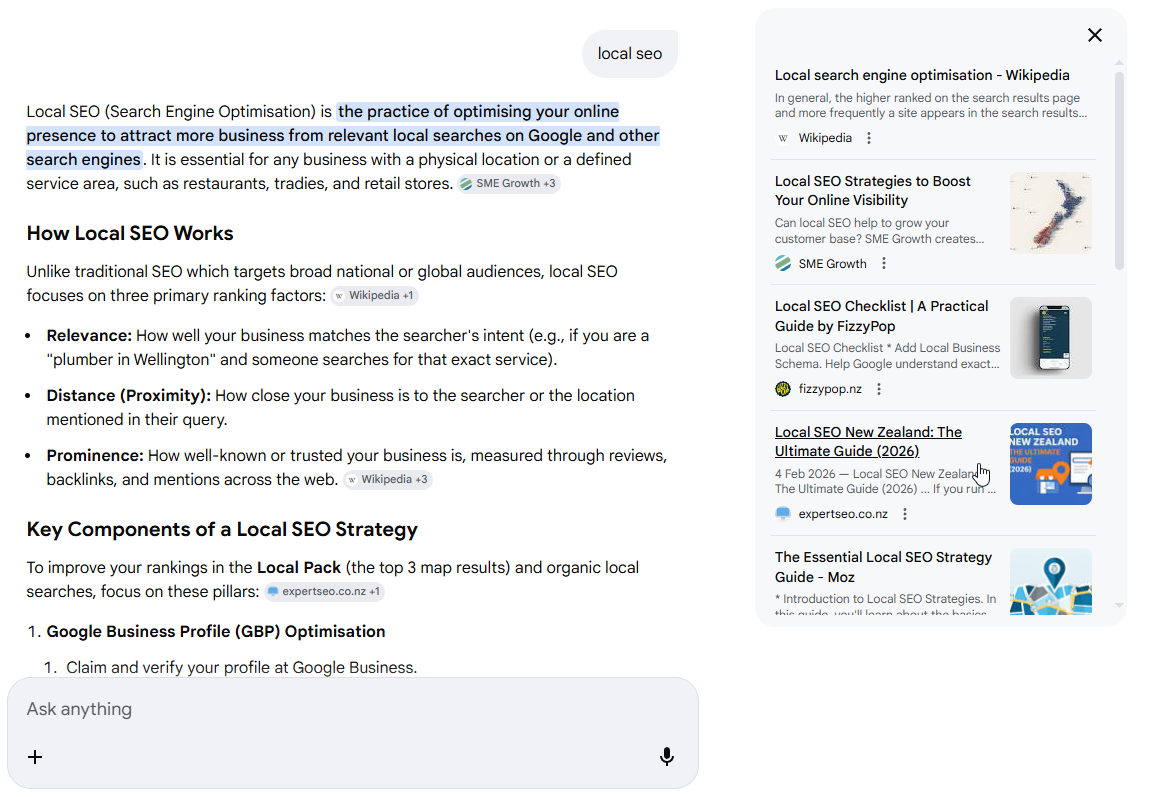
Fast, clean indexing through this exact sitemap-and-Search-Console loop is the unglamorous plumbing underneath those results. The sitemap doesn’t create the rankings, but nothing ranks while it’s sitting undiscovered.
One line on Bing: Bing Webmaster Tools accepts the same sitemap through the same kind of submission screen, and since Bing powers its own results and Microsoft Copilot, it’s worth the extra two minutes.
Five Sitemap Mistakes I Keep Finding in Real Audits
Almost every sitemap problem on small business sites comes from plugins fighting each other or leftovers from old changes, not from anything the owner did deliberately.
1. Duelling sitemaps. WordPress generates its own sitemap at /wp-sitemap.xml, and Rank Math or Yoast generates another at /sitemap_index.xml.
A proper SEO plugin disables the WordPress core version automatically, but on sites where plugins were swapped or half-configured, both end up live — and they disagree about which pages exist.
This shows up constantly in audits. The fix: confirm your SEO plugin’s sitemap is the live one and that /wp-sitemap.xml redirects or 404s.
2. Redirected URLs left behind after a restructure. A mortgage broker renames their services, sets up redirects, and moves on — but the sitemap keeps listing the old URLs for months.
Google follows each one, hits a redirect, and quietly loses confidence in the file. After any restructure, open your sitemap and spot-check that the listed URLs are the live, final versions.
3. Noindexed pages in the sitemap. Usually from noindexing a page in the page settings while the sitemap settings still include that post type. The sitemap says “index this” while the page says “don’t” — pick one.
4. Dishonest lastmod dates. Covered above, and worth repeating as a mistake because some plugins and page builders update lastmod site-wide whenever you change a menu or footer.
If every page on your site claims it changed yesterday, Google stops believing any of it.
5. A sitemap nobody ever submitted. The most common finding of all. The sitemap exists, it’s clean, and it’s never been registered in Search Console — usually because nobody set up Search Console either.
Five minutes fixes it, and if you’d rather have everything checked at once, this is exactly the kind of thing professional SEO services knocks over in the first week.
Sitemaps and AI Search
People keep asking whether websites still use sitemaps, as though they’re a relic. The answer in 2026 is that sitemaps matter slightly more than they did five years ago, and AI search is the reason.
AI systems discover web content the same way Google always has: crawlers following links and reading sitemaps.
OpenAI’s crawlers — GPTBot for training and OAI-SearchBot for ChatGPT search — work through crawling and indexing just like Googlebot.
Anthropic runs an equivalent set of crawlers for Claude, and Google’s AI Overviews draw on its standard search index.
Every one of those systems can only cite content it has discovered and crawled.
That changes the stakes for discovery speed. When someone asks ChatGPT or Google’s AI Overview a question your content answers, you’re only in contention if your page was found and indexed before the question was asked.
A page sitting undiscovered for three weeks misses every AI answer generated in those three weeks.
Fast discovery used to mean ranking a little sooner. Now it’s the entry ticket to AI search optimisation as well.
The practical takeaway hasn’t changed, it’s just become more valuable: keep your sitemap clean, keep lastmod honest, and make sure your robots.txt isn’t blocking the crawlers you want citing you.
Your 15-Minute Sitemap Check
Run through this once and your sitemap is handled:
- Find it — try /sitemap.xml, /sitemap_index.xml, and /wp-sitemap.xml on your domain
- Check what’s in it — live, indexable, canonical pages only; no redirects, attachments, or thank-you pages
- Check for duplicates — make sure only one sitemap system is active
- Submit it — Google Search Console → Sitemaps → paste → submit
- Read the Pages report — compare indexed pages against expectations, and recheck monthly
Then move on, because the sitemap is step one of a much longer list — a full step-by-step SEO checklist runs from this foundation work through content, links, and local visibility, and that’s where rankings actually get won.
If Search Console is showing indexing problems you can’t explain — pages discovered but not indexed, crawled but excluded, numbers that don’t add up — that’s the point where it pays to work with an SEO consultant rather than guess. Diagnosing index coverage is bread-and-butter work for us.