

Google Search Console is one of the first tools I open on any new website, and one of the last I’d ever give up.
I’ve had it running on everything from a brand-new domain with zero traffic to a site pulling more than 900,000 organic visits a month. Same tool. Same reports.
It’s free, it’s from Google, and it tells you things no paid tool can — because the data comes straight from the source.
Here’s the problem. Almost every business owner I meet has it installed and has never once used it to make a decision. They verified their site, saw a graph, and closed the tab. That’s like installing a security camera and never watching the footage.
This guide fixes that. I’ll show you what Search Console is, how to set it up on an Australian site, how to read the handful of reports that matter, and — the part nobody teaches — how to turn that data into more traffic.
This is the same process I’ve used doing SEO for Australian businesses and to grow my own sites from nothing.
Key Takeaways
- What it is: Google Search Console (GSC) is a free tool from Google that shows how your website performs in Google Search — what you rank for, who clicks, and what’s broken.
- It’s the only place Google tells you, in its own words, which of your pages it has indexed and which search terms you’re showing up for.
- Setup takes about ten minutes: add your site as a property, verify you own it, and submit your sitemap.
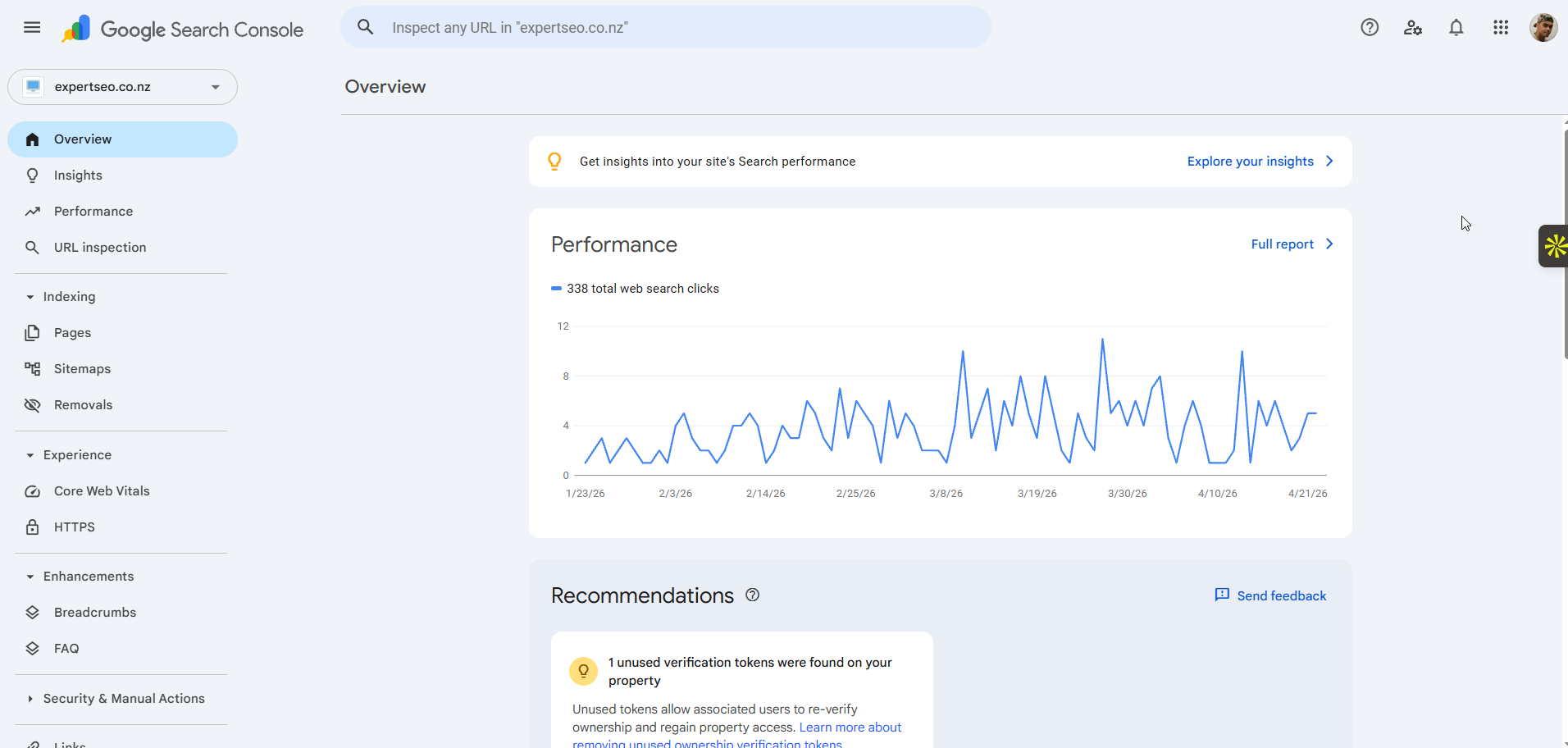
- The Performance report is where the money is — it shows the searches you already rank for, including the ones sitting just off page one.
- The real skill isn’t reading the reports. It’s acting on them: finding pages stuck at positions 5–15, improving them, and getting Google to re-crawl.
- Search Console shows the before-the-click picture (Google’s side). Google Analytics shows after the click (your site’s side). You want both.
- Data lags about two days and is sampled, so don’t panic over a single quiet afternoon. Look at trends over weeks.
What Is Google Search Console?
Google Search Console is a free tool from Google that shows you how your website is performing in Google Search — what you rank for, how many people click, and what’s stopping pages from showing up.
It was called Google Webmaster Tools until 2015, so if you’ve heard that name, it’s the same thing.
Think of it as the report card Google writes about your site. Every other SEO tool — Ahrefs, Semrush, all of them — estimates your search data.
Search Console doesn’t estimate. It’s Google’s own numbers, straight from the search engine that sends you customers.

It does three core jobs:
Shows your search performance. Every query you appear for, every click, how often you show up, and where you rank. This is the gold.
Tells you what’s indexed. Which of your pages Google has stored and can show in results — and which it’s ignoring, and why.
Flags problems. Manual penalties, mobile issues, broken structured data, security flags. If Google has a problem with your site, this is where it says so.
One thing it is not: Google Analytics. People mix these up constantly. Analytics tracks what people do once they land on your site. Search Console tracks how they found you in the first place. I’ll break down when to use which further down.
It’s completely free, there’s no paid tier, and there’s no reason any business with a website shouldn’t have it running.
Why Search Console Matters for Your Australian Business
In Australia, Google handles around 88% of all searches.
When someone’s looking for a plumber in Parramatta or a dentist in Fitzroy, they’re almost certainly using Google. Search Console is the only tool that shows you exactly how you’re doing in that race — for free.
There’s a question I see on forums all the time: do I even need this thing? Fair question. Here’s the honest answer.
You need it because it’s the only place you can see the search terms bringing people to your site — the real words your customers type. Not guesses. Not a keyword tool’s estimate. The actual queries, with real click numbers next to them.
That one report changes how you run your website. You stop guessing what people want and start seeing it. You find pages that are one small push away from page one. You catch a page dropping out of Google before your phone stops ringing.
I’ll put it plainly: my own SEO site got cited in Google’s AI results and named by ChatGPT inside its first year on a brand-new domain. I didn’t find that out by luck. I found the queries driving it in Search Console, then doubled down on what was working.
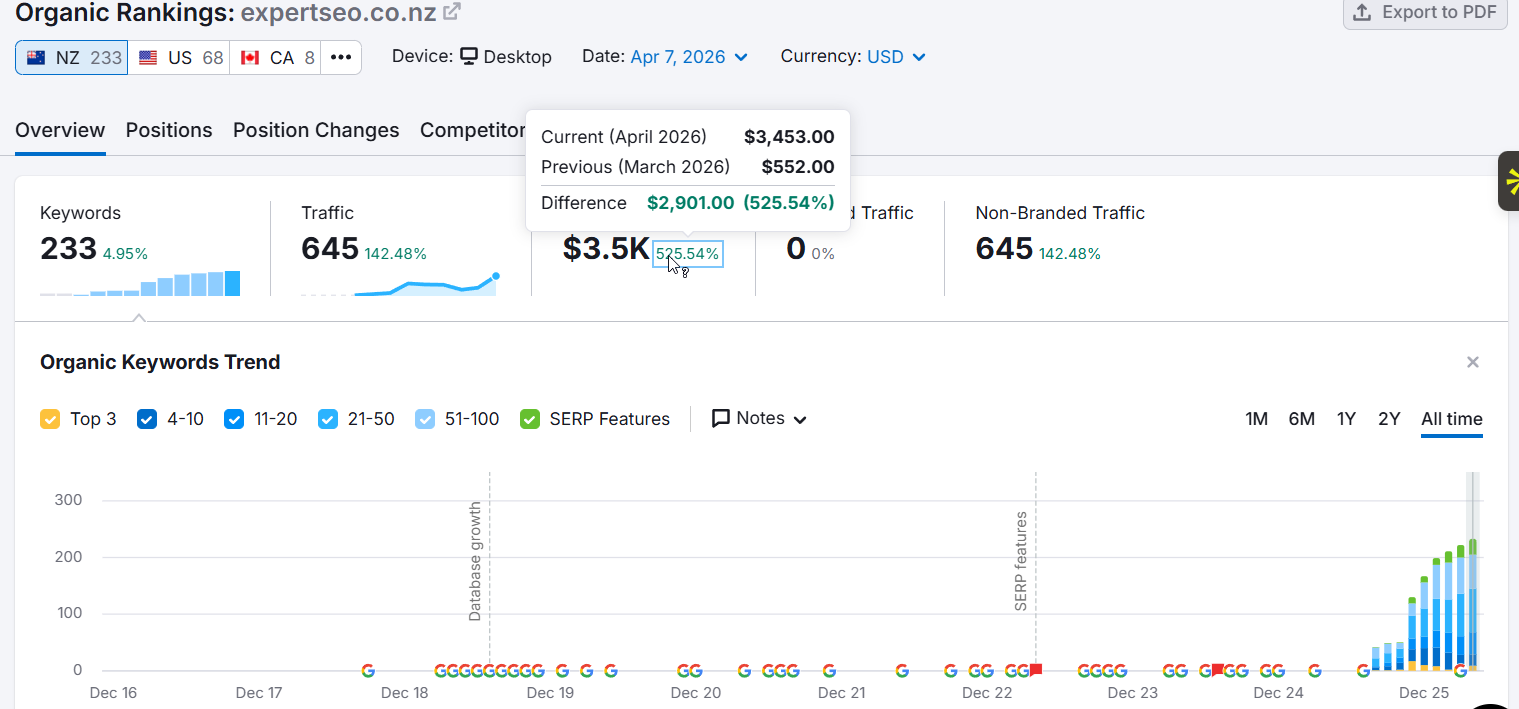
For a local business, that’s the difference between hoping and knowing. Search Console is your customer research, sitting there for free, updated every day.
How to Set Up Google Search Console
Setup is quick: add your website as a property, prove you own it, and submit your sitemap. Ten minutes, start to finish. Let me walk through it the way I’d do it for a client.
Go to search.google.com/search-console and sign in with a Google account. Use one tied to the business, not a random personal Gmail you’ll lose access to — I’ve seen businesses locked out of their own data because the setup account belonged to a web designer who’s long gone.
Domain property vs URL prefix
Google gives you two ways to add your site, and this trips people up.
Domain property covers everything on your domain — every subdomain (www, blog, shop) and both http and https — in one place. It’s the cleaner option, and the one I recommend for most business owners. The catch: you verify it through your domain’s DNS settings, which sounds scary but isn’t.
URL prefix only covers the exact address you enter (so https://yourbusiness.com.au is treated separately from the www version). It’s fiddlier long-term, but it offers more verification methods, so some people find it easier to get started.

My advice: pick Domain property if you can log into wherever your .com.au domain is registered (Crazy Domains, VentraIP, GoDaddy, wherever). Pick URL prefix if you can’t.
Verify you own the site
Verification is Google making sure you’re not snooping on someone else’s website.
For a Domain property, Google gives you a TXT record. You copy it, log into your domain registrar, paste it into the DNS settings, and hit verify. Done. It can take a few minutes to an hour for the record to register.
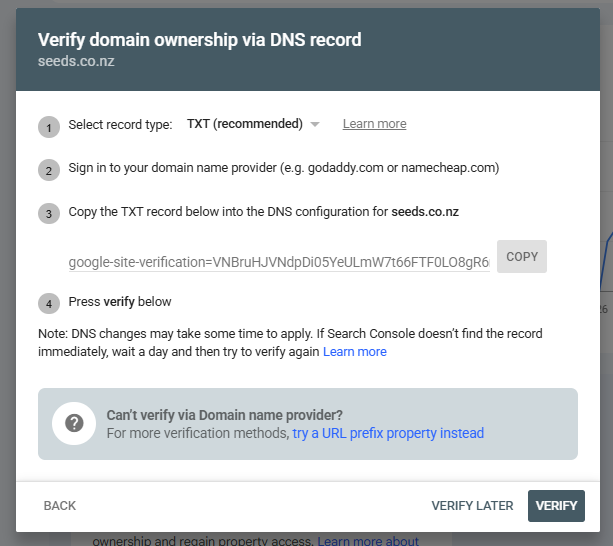
For a URL prefix, you’ve got easier options: upload an HTML file to your site, add a meta tag, or verify through Google Analytics or Google Tag Manager if you already have those. If you’re on WordPress with a plugin like Rank Math or Yoast, they’ll often handle it for you in a couple of clicks.
Submit your sitemap
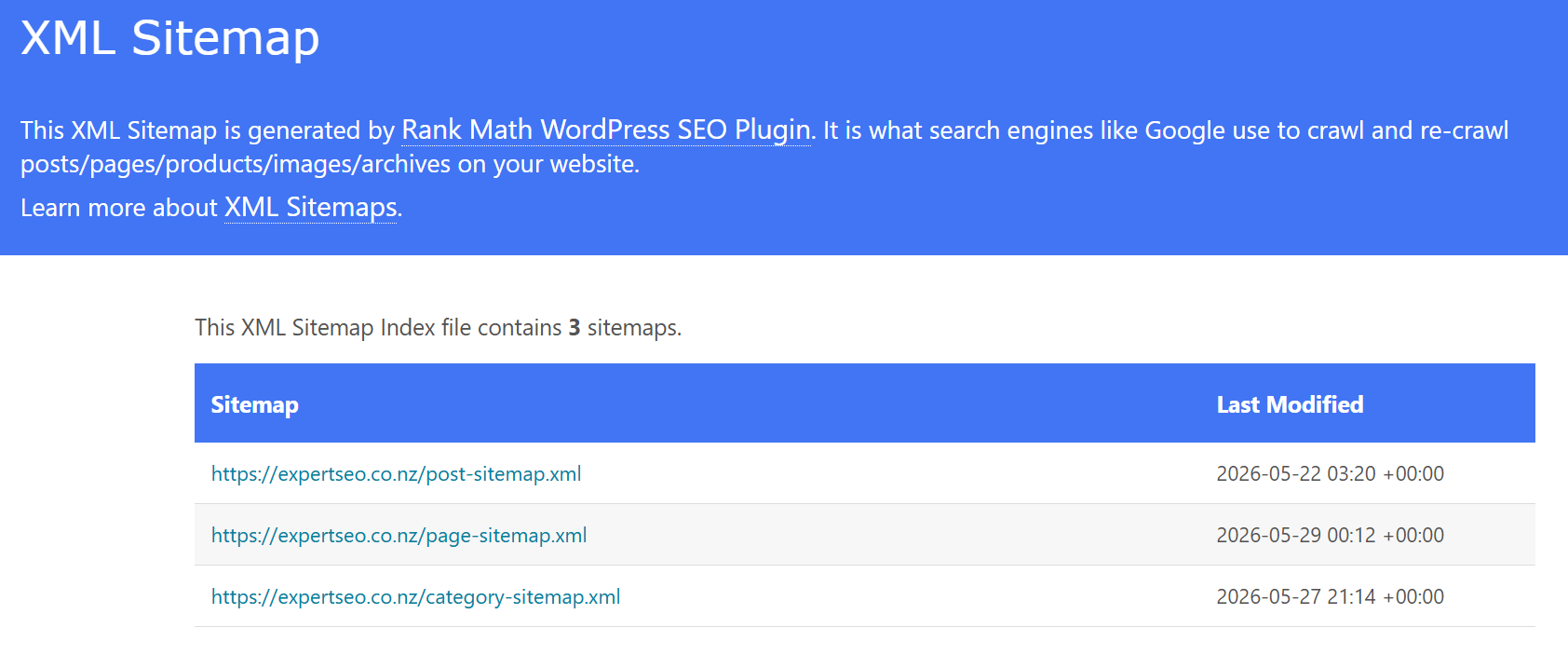
Once you’re verified, submit your sitemap. A sitemap is a list of all your pages that tells Google what exists on your site. Most platforms generate one automatically — on WordPress it’s usually at yourbusiness.com.au/sitemap.xml or /sitemap_index.xml.
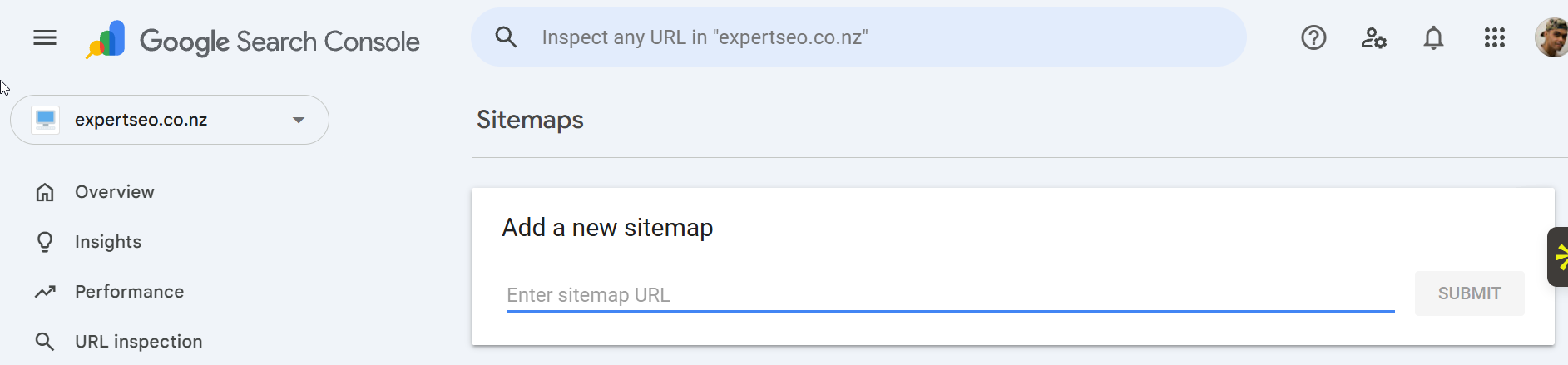
In Search Console, go to Sitemaps in the left menu, enter the sitemap URL, and hit submit. This helps Google find and index your pages faster, especially on a new site.
Give the right people access
If someone helps with your marketing, you can add them without handing over your Google password. Go to Settings → Users and permissions → Add user, enter their email, and choose Full or Restricted access. Clean, safe, and you can remove them any time.
That’s the whole setup. If you run a Melbourne café and you’ve just done this, you’re now collecting data that most of your competitors have but never look at. That head start is exactly the kind of edge SEO in Melbourne is built on.
How to Read the Reports That Matter
Search Console has a lot of reports, but you’ll live in four of them: Performance, URL Inspection, Page Indexing, and Sitemaps. Ignore the rest until you need them. Here’s what each one tells you and what to do with it.
The Performance report (the important one)
This is the report I open first, every time. It shows four numbers:
- Clicks — how many people clicked through to your site from Google.
- Impressions — how many times you showed up in results (whether they clicked or not).
- CTR — click-through rate, the percentage of impressions that turned into clicks.
- Average position — where you typically rank for a query.
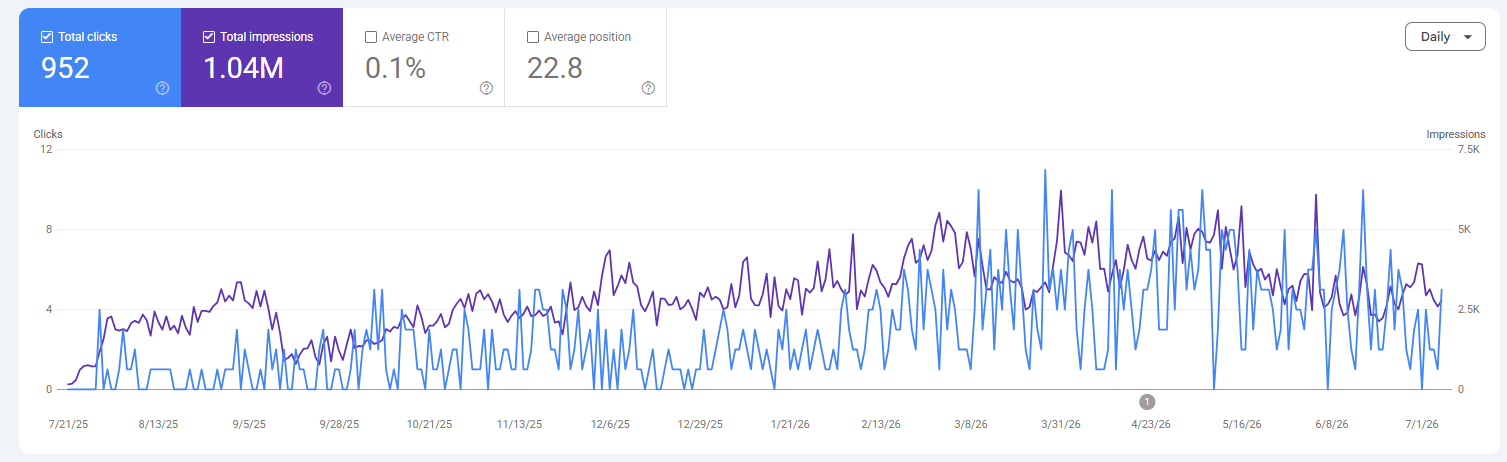
Turn on all four toggles at the top, then scroll to the Queries tab. Now you’re looking at the exact search terms bringing people to your site. Click the Pages tab and you see which pages pull the most traffic. This is real, first-party keyword research — the searches you already rank for, no tool required.
You get up to 16 months of data here, so you can compare this quarter to last, or this year to last year.
URL Inspection
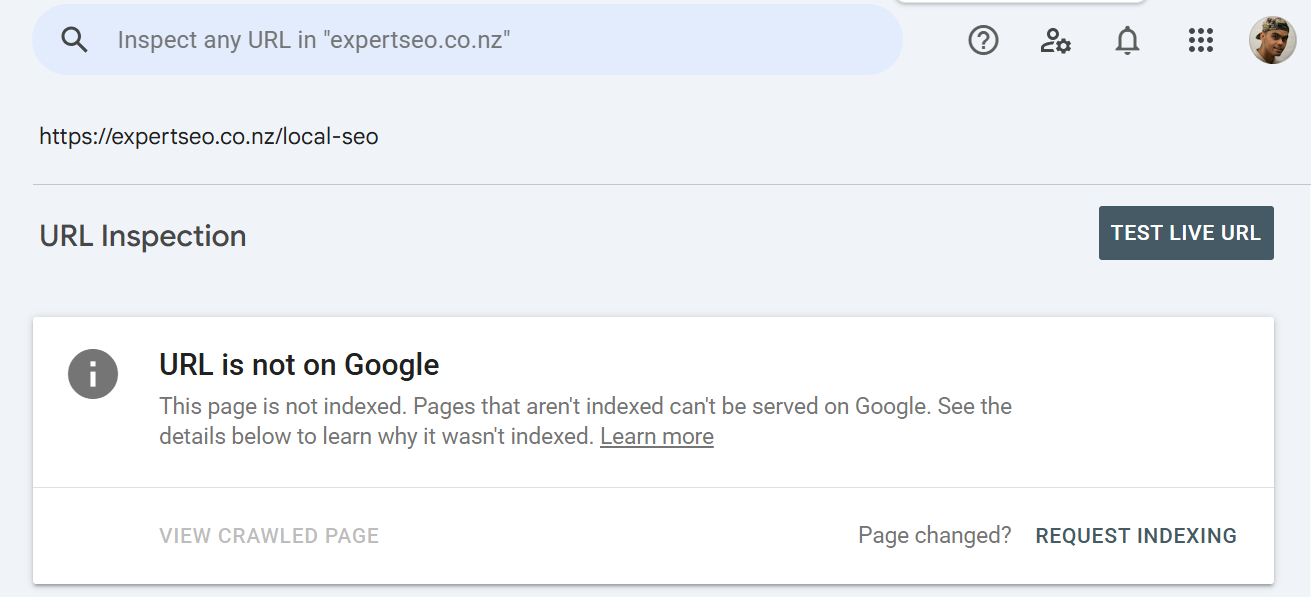
Paste any page’s URL into the search bar at the top of Search Console and it tells you whether that page is indexed, when Google last crawled it, and any problems it found. If a page isn’t indexed, you can hit Request Indexing to push it into Google’s queue. I use this every time I publish or update something important.
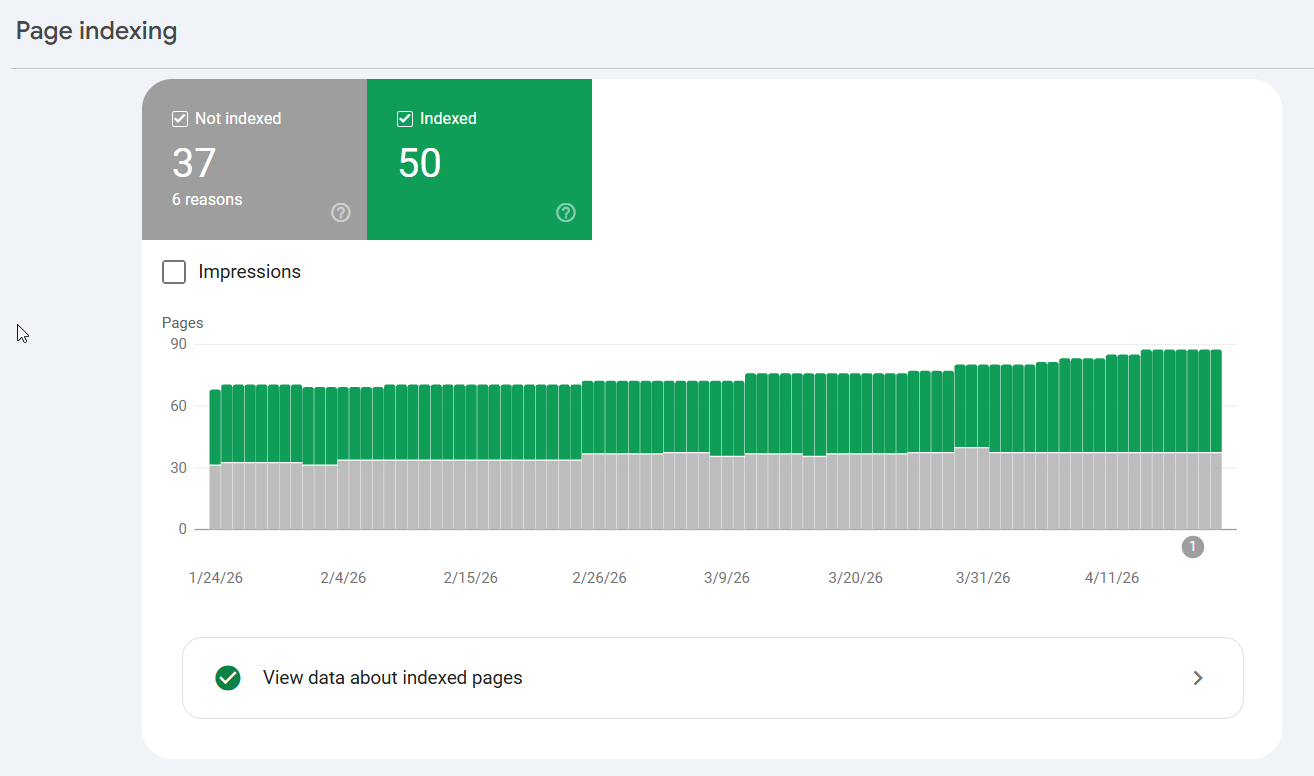
Page Indexing
This report shows how many of your pages Google has indexed, and — more useful — which ones it hasn’t, grouped by reason. “Crawled – currently not indexed” and “Discovered – currently not indexed” are the two you’ll see most. I’ll show you how to act on those in the next section.
Sitemaps
Confirms Google is reading the sitemap you submitted and shows how many URLs it found. If this says “Success,” you’re good. If it errors, your sitemap has a problem worth fixing.
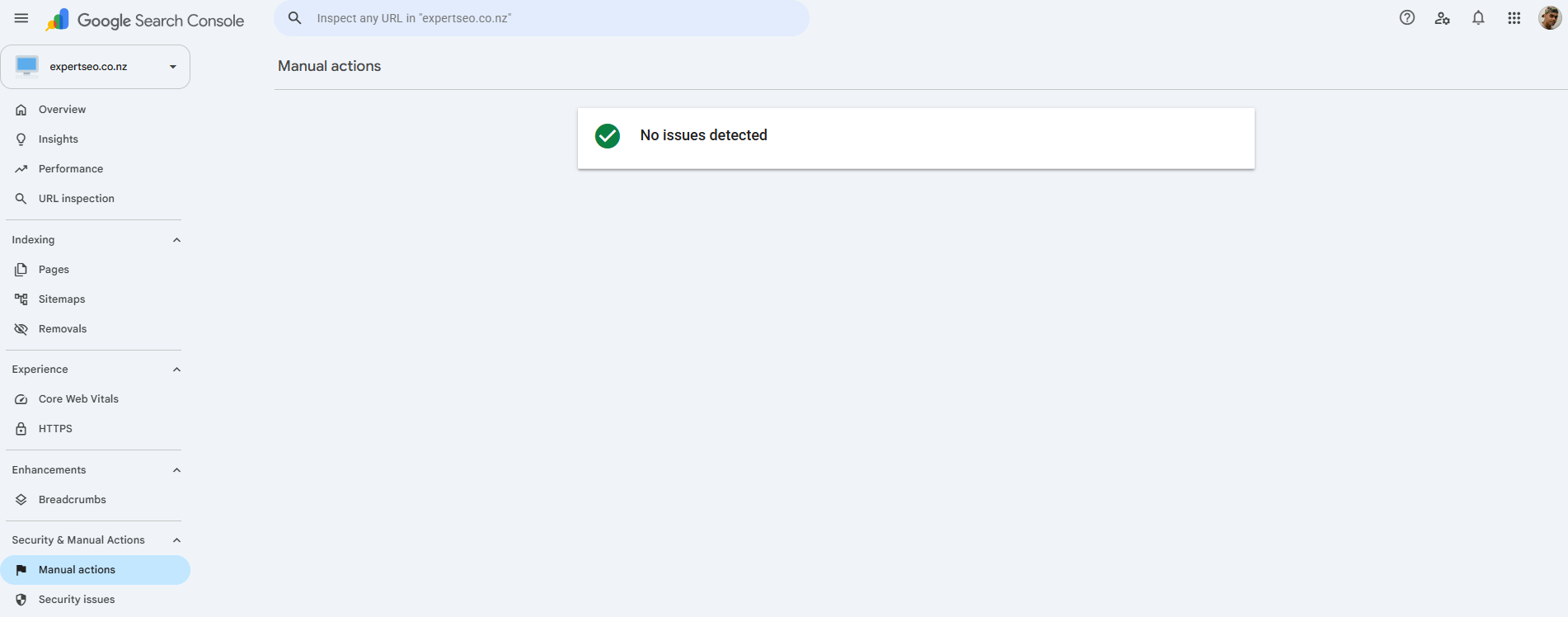
Two more worth knowing about. Core Web Vitals grades your page speed and stability — it now measures INP (Interaction to Next Paint), which replaced the old FID metric in 2024, so an older guide telling you to chase FID is out of date. Speed sits inside broader technical SEO, and for most small sites it’s a tidy-up job, not an emergency. And Manual Actions — check it once, and if it says “No issues detected,” forget it exists. That’s the report that flags a Google penalty, and the vast majority of honest businesses will never see one.
How to Use Search Console to Get More Traffic
Here’s where most guides stop and this one keeps going. Reading the reports is easy. Using them to climb Google is the skill. These are the exact plays I run, week in, week out.
Play 1: Find the pages sitting at positions 5–15
This is the single highest-return move in Search Console, and it’s how I grew a health site from zero to over 1,000 visitors a day.
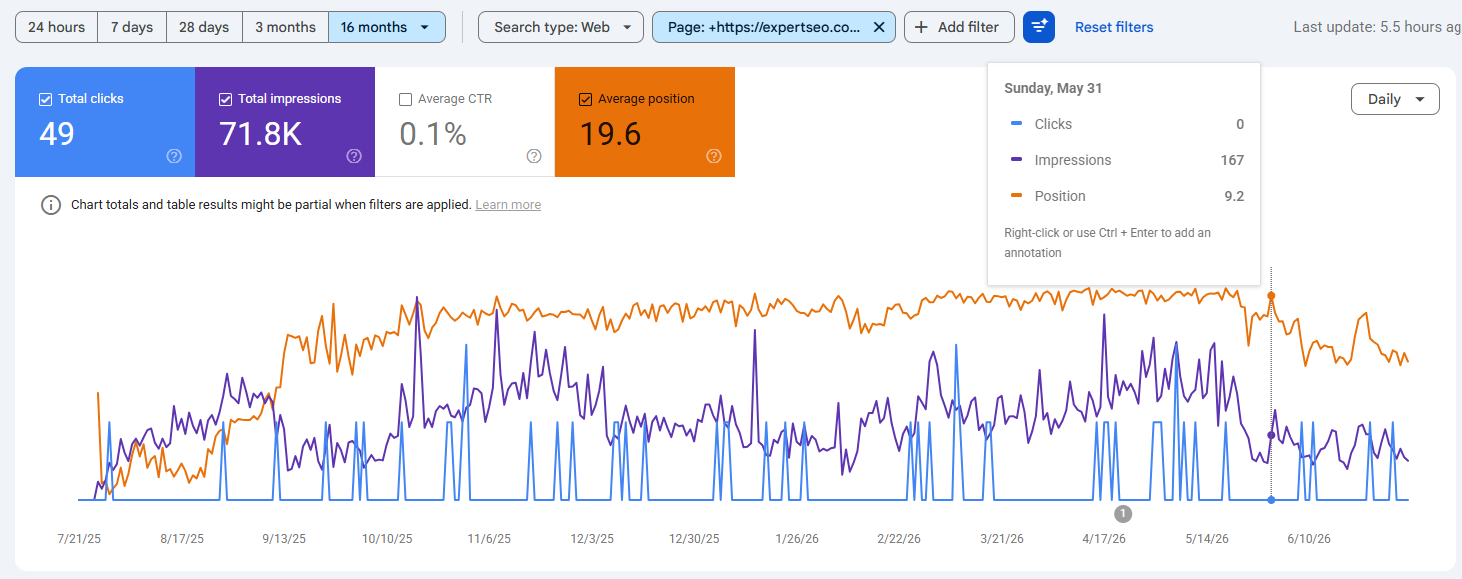
Open the Performance report, go to the Queries tab, and add a filter: Position → greater than 5. Then sort by impressions. What you’re looking at is a list of searches where you’re almost there — page one or the top of page two, getting seen, but not yet getting the clicks.
These are your fastest wins. Google already likes the page enough to rank it. It’s on the doorstep.
A small nudge — a better title, a stronger section, a few internal links pointing at it — often bumps it up several spots, and the traffic jump from position 8 to position 3 is enormous.
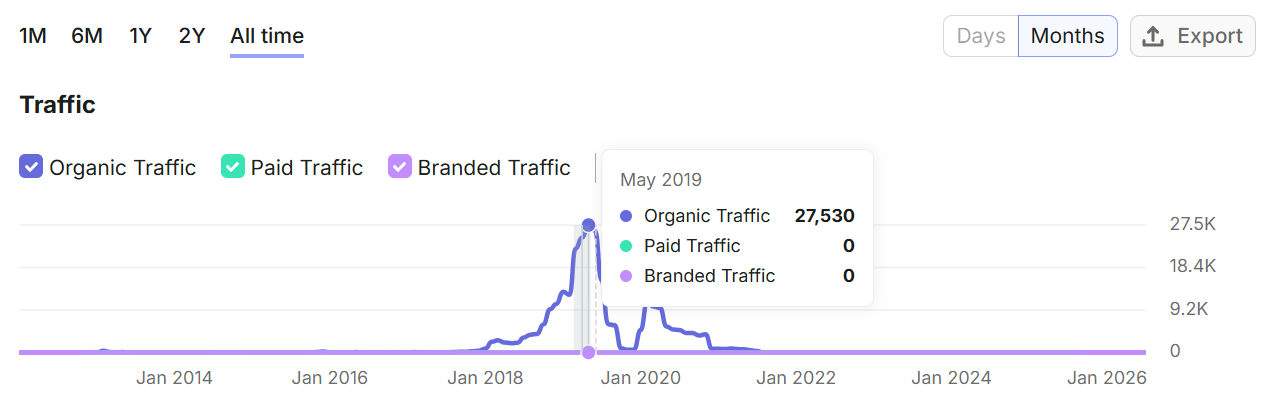
I built HealthVI almost entirely on this loop: find the striking-distance queries, improve the page, request indexing, watch it climb, repeat. No tricks. Just working the data Search Console handed me.
Say a dental practice is sitting at position 8 for “teeth whitening” — plenty of impressions, barely any clicks. Strengthen that one page, add the detail searchers want, point a few internal links at it, and re-request indexing. Move it to position 3 and the clicks multiply. That’s the whole game behind SEO for dentists: find the pages already knocking on the door, and open it.
Play 2: Fix your high-impression, low-click pages
Sort your Pages tab by impressions and look for pages with lots of impressions but a low CTR. Those are pages Google is showing off — but your listing isn’t convincing anyone to click.
Nine times out of ten, the fix is the title tag. Your title and meta description are your shopfront in the search results. A flat, generic title gets scrolled past.
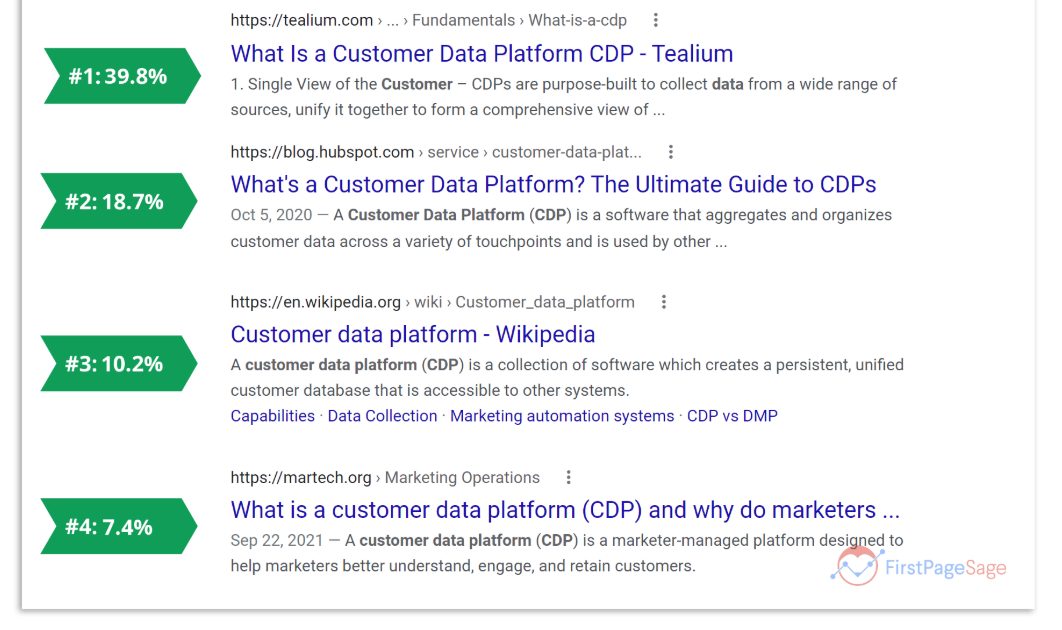
This matters more than people think. Position one takes nearly 40% of all clicks, and the top three results together take almost 69%. A weak title bleeds clicks you’ve already earned the ranking for.
Say you run a bakery in Adelaide and Search Console shows your “custom birthday cakes” page getting 2,000 impressions a month at a 1.2% CTR. Rewrite the title from “Cakes | Your Bakery” to “Custom Birthday Cakes in Adelaide — Ready in 48 Hours.” Same ranking, far more clicks. That’s the kind of quick, compounding win that makes SEO in Adelaide worth doing properly. This is core on-page SEO, and it takes ten minutes.
Play 3: Rescue pages Google won’t index
If a page isn’t indexed, it can’t rank — full stop. The Page Indexing report tells you which pages Google is skipping and why.
The one that panics people is “Crawled – currently not indexed.” It means Google looked at the page and decided, for now, not to include it. Usually that’s a quality signal — the page is thin, too similar to another page, or not obviously useful.
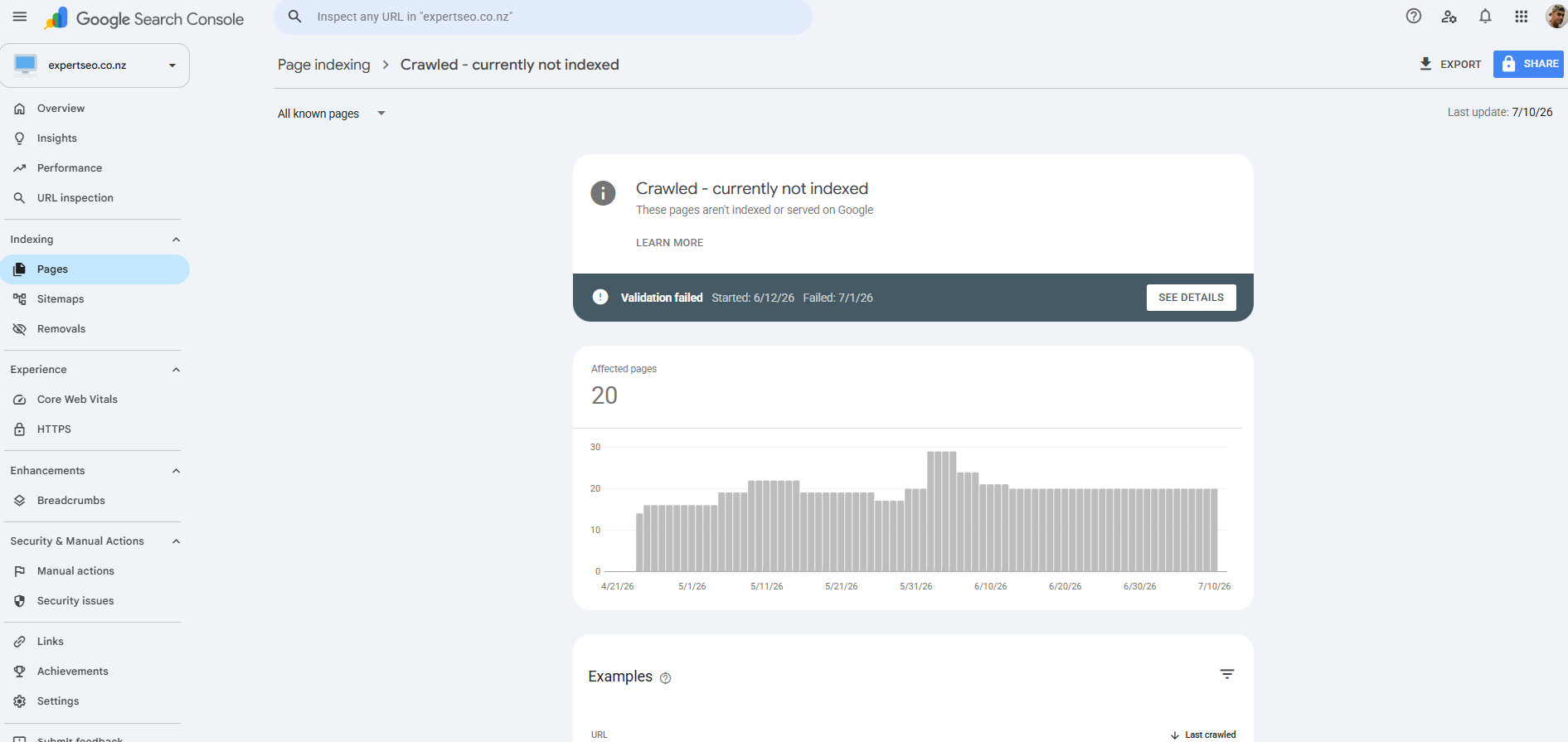
Say a landscaping company in Brisbane launches ten new service pages and half of them land in “Crawled – currently not indexed.”
The fix isn’t to keep hitting request-indexing. It’s to make those pages genuinely worth indexing — more detail, real information, a reason to exist — then use URL Inspection to ask Google to take another look. Sort out the quality and the indexing follows, which is half the battle in ranking a Brisbane business.
Play 4: Catch pages that are slipping
Compare two date ranges in the Performance report — this month versus last, or this year versus last — and you’ll spot pages quietly losing traffic before it hurts.
Content decays. A page that ranked well two years ago slides as competitors publish fresher, better stuff. Search Console shows you the slide while there’s still time to act.

When I see a page dropping, I refresh it: update the information, add what’s missing, improve the helpful, people-first content Google rewards, and re-request indexing. A refresh is far less work than writing something new, and it often recovers the ranking fast.
Picture a cosmetic surgery clinic whose “rhinoplasty recovery” page has quietly slipped from position 4 to 11 over a year as newer guides overtook it.
Refreshing that one page usually wins the spot back faster than starting from scratch. When a handful of high-value pages carry the whole site, that habit is the backbone of SEO for cosmetic surgeons.
None of these plays are complicated. But they take consistency — you’re doing this every week, not once. If you’d rather hand the whole loop to someone who runs it daily, that’s what our SEO services are for.
Using Search Console for Local Search in Australia
If you’re a local business, Search Console can show you the exact suburb and “near me” searches bringing people in — and that’s a goldmine for a location-based site.
In the Performance report, go to the Queries tab and filter queries containing “near me,” or a suburb name, or your city. Now you’re seeing local intent in the raw: the real searches your neighbourhood is typing.
Say you run a plumbing business in Sydney. Filter for “near me” and you might find you’re showing up for “emergency plumber near me” and “blocked drain Parramatta” — but sitting at position 9.
That tells you exactly which local pages to strengthen, and which suburbs to build content around. It’s the fastest way to point your effort where the local demand already is, which is the whole game with SEO in Sydney.
It works for any local service. A personal injury law firm might filter for “near me” and find it’s showing for “car accident lawyer” and “compensation lawyer” across nearby suburbs but stuck on page two — pointing straight at which suburb pages to build next.
For a competitive field like SEO for personal injury lawyers, that query data is where the strategy starts.
Two Australia-specific notes. First, a .com.au domain sends a clear local signal to Google that you’re an Australian business — worth having if local customers are your bread and butter.
Second, if you’re on a .com and mostly serve Australia, older setups had a country-targeting option; these days Google leans on your content, your .com.au links, and your Google Business Profile to work out where you’re relevant. Search Console’s query data tells you whether that’s landing.
Pair this with your Google Business Profile and you’ve got the full local picture — the map pack on one side, your website’s organic searches on the other.
Search Console vs Google Analytics
Search Console shows what happens before the click — on Google’s side. Google Analytics shows what happens after the click — on your site. You want both, and they answer different questions.
Here’s the simplest way to hold it in your head:
| Google Search Console | Google Analytics (GA4) | |
|---|---|---|
| Covers | Your presence in Google Search | Behaviour on your website |
| Answers | What do I rank for? Who’s clicking? | What do visitors do once they arrive? |
| Key data | Queries, impressions, position, indexing | Sessions, conversions, traffic sources, engagement |
| The question | How do people find me? | What do people do when they get here? |
Got ten minutes a week? Open Search Console first. The search data is where the ranking opportunities live. Analytics is where you check whether that traffic turns into enquiries and sales. You can link the two so GA4 pulls in your Search Console queries, which is handy — but they’re separate tools doing separate jobs.
What to Expect: Timelines and Gotchas
Search Console data lags about two days, it’s sampled, and a new site takes time to fill up. Knowing that up front saves you a lot of needless panic.
A few things I wish every business owner knew before they opened it:
The data isn’t live. It runs roughly 48 hours behind. So a quiet Tuesday afternoon on the graph might just be data that hasn’t landed yet. Judge trends over weeks, not hours.
New sites start empty. If you’ve just verified a brand-new site, you’ll see almost nothing for a few weeks. That’s normal. There’s no data because there’s no history yet. Give it time.
Impressions dip after Google updates. Google runs core updates every few months, and rankings shuffle. If your impressions wobble, check whether an update just rolled out before you assume you broke something.
A validated fix can re-fail. When you fix an indexing issue and hit “Validate,” Google rechecks over days or weeks. Sometimes it passes, sometimes it bounces back. Patience — it’s a slow process by design.
The numbers won’t match Analytics. Search Console counts impressions and clicks from Google Search. Analytics counts sessions from every source and measures differently. They will never line up exactly. That’s expected, not a bug.
Say you’re a tradie in Perth who just launched a new site. Three weeks in, Search Console is nearly empty and you’re worried you’ve wasted your money.
You haven’t — you’re watching the data catch up in real time. By month three you’ll have real queries to work with, and that’s when the Perth SEO work starts paying off. SEO is a slow burn, and Search Console is how you watch it build.
Final Thoughts
Search Console is the only tool where Google tells you, straight, what it thinks of your website — for free. Plenty of owners treat it like a dashboard to glance at. The ones that win treat it like a to-do list.
The graphs aren’t the point. The point is what you do next: the page you improve because it’s sitting at position 7, the title you rewrite because it’s bleeding clicks, the page you rescue because Google quietly stopped indexing it. Small moves, made every week, on data your competitors have and ignore.
Open it. Filter for positions greater than 5. Pick one page. That’s your afternoon sorted — and it’s the most productive SEO hour you’ll spend all month.