

I run crawls on New Zealand websites I have nothing to do with. It’s a habit, and it’s how I keep a read on what the market’s actually doing.
A dental practice in Wellington came back with their implants page marked noindex.
That’s the highest-value procedure a practice like that offers. The page existed. It looked fine. You could click through to it from the menu and read the whole thing. It just wasn’t in Google.
One line of code, invisible unless you go looking, quietly holding their best page out of search results — and no reason to think anyone there knew it was on.
This guide covers what noindex is, how to add it properly on whatever platform you’re on, when it’s the right call and when it will cost you, how to check every page on your site for free, and exactly how to undo it when you find one you didn’t mean to put there.
Key Takeaways
- What it is: Noindex is a rule you add to a page that tells search engines to leave it out of their search results, while the page itself stays live and reachable.
- Google has to be able to crawl the page to see the rule — blocking it in robots.txt as well is the most common reason noindex quietly fails.
- Use it on pages that need to exist but don’t deserve to be found: thank-you pages, gated downloads, admin screens, staging sites, client-only resources.
- Don’t use it on duplicate content — a canonical tag consolidates ranking value, noindex throws it away.
- Noindex hides a page from search. It does not make it private. Anyone with the link still gets in.
- “Excluded by ‘noindex’ tag” in Search Console is a statement of fact, not an error. It’s only a problem if you didn’t mean it.
- You can check a single page in ten seconds with view-source, and an entire site in ten minutes with a free crawl.
What Is Noindex
Noindex is a rule you add to a page telling search engines to keep it out of their search results. The page stays live, anyone can still visit it, and it simply stops showing up when people search.
The distinction that trips people up is between crawling and indexing.
Crawling is Google reading the page. Indexing is Google filing it away so it can be served in results. Noindex allows the first and blocks the second.
The rule lives in one of two places: a meta tag in the page’s <head>, or an HTTP response header sent by your server. Same effect either way.
One thing worth knowing that most guides skip: this is a request, not a lock. Google respects it. Bing and Yandex respect it. A scraper written by someone who doesn’t care will ignore it entirely, because there’s nothing forcing compliance.
How Noindex Actually Works
For noindex to work, Googlebot has to reach the page and read the tag. If robots.txt blocks the page first, Google never sees the rule — and the page can still end up in search results anyway.
Here’s the sequence. Googlebot requests the page, reads the noindex rule in the HTML or the header, drops that URL from the index, and keeps it out on every crawl after that.
So yes, Google crawls noindexed pages. It has to. That’s the only way it learns the page doesn’t want to be listed.
Which brings us to the mistake I see more than any other on this topic: people add a noindex tag and a robots.txt disallow, thinking two locks are better than one.
They cancel each other out.
Google’s own documentation is blunt about it — for the rule to be effective, the page must not be blocked by a robots.txt file.

Block the crawl and the crawler never reads the tag. Google can still find the URL through a link from somewhere else and index it based on that link alone.
You’ve seen the result of this without knowing what caused it: a bare URL sitting in the search results with no title and no description, just a line saying no information is available for this page.
That’s a page Google knows exists but has never been allowed to read, and it’s one of the uglier SERP features you can accidentally create for yourself.
The Two Ways to Add a Noindex Tag
There are two methods: a meta tag in the page’s HTML, or an X-Robots-Tag in the server’s HTTP header. The meta tag handles normal web pages. The header handles PDFs, images and anything else with no HTML to edit.
The meta robots tag
This goes in the <head> section of the page — the block at the very top of the HTML that holds the title, the description and the other instructions the browser and search engines read before anything renders on screen.
<meta name="robots" content="noindex">In plain English: every search engine that supports this rule, leave this page out.
If you only want to hide it from Google and leave other engines alone, swap the name:
<meta name="googlebot" content="noindex">Google’s full robots meta tag reference lists every value it supports, and it’s worth a skim if you’re doing anything beyond the basics.
The X-Robots-Tag HTTP header
Some things you want hidden have no <head> to put a tag in. A PDF price list. A downloadable form. An image.
For those you send the rule in the HTTP header instead:
X-Robots-Tag: noindexOn an Apache server, this block in your .htaccess file noindexes every PDF across the site at once:
<Files ~ "\.pdf$">
Header set X-Robots-Tag "noindex"
</Files>
Now, the practical New Zealand reality that the international guides don’t mention.
If you’re on SiteGround, Site Host, or most standard cPanel hosting, you’ll find .htaccess in File Manager, sitting in your public_html folder. On my own hosting it’s right there in the root alongside wp-config.php and index.php:
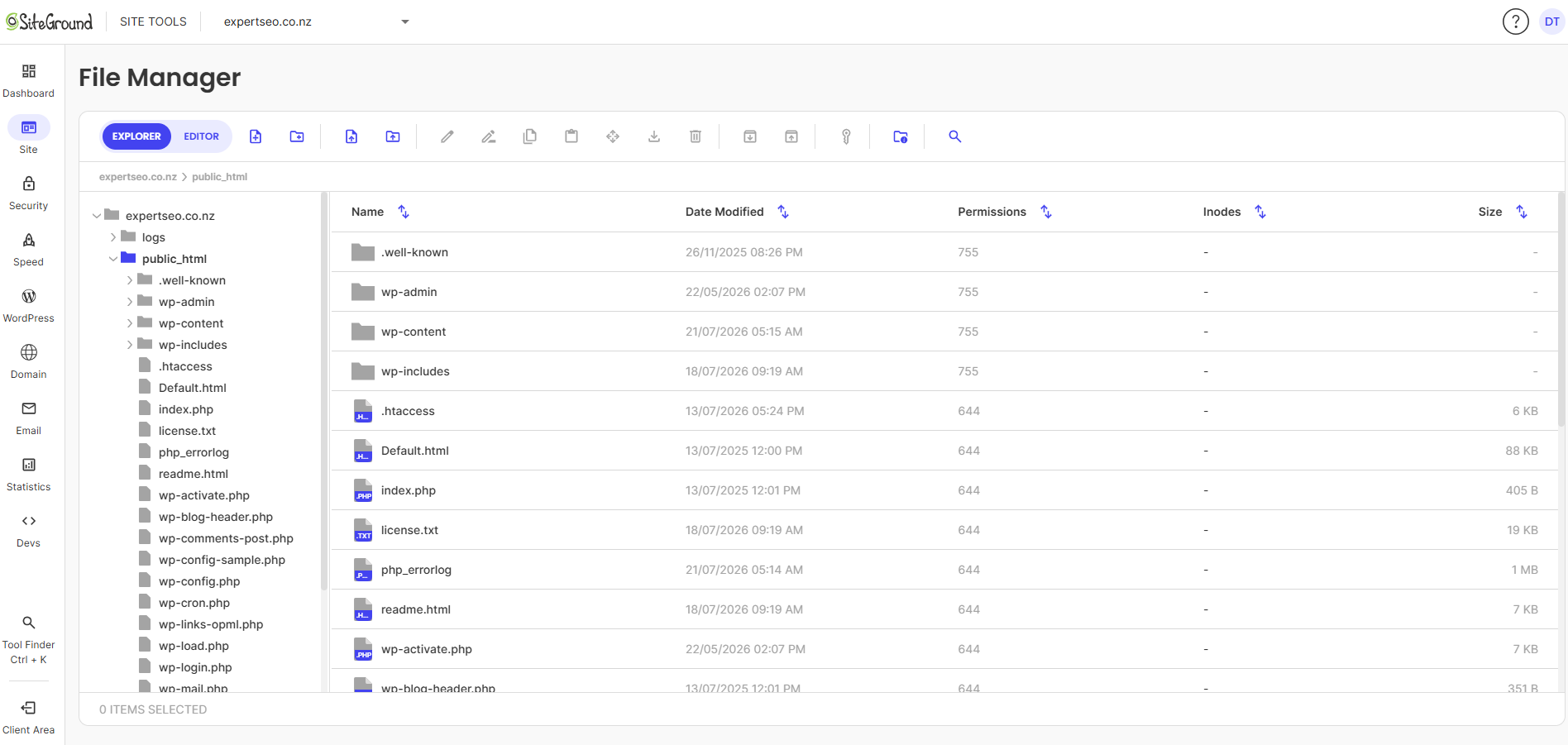
You may need to tick “show hidden files” in the File Manager settings before it appears, since anything starting with a dot is hidden by default.
If you’re on managed WordPress hosting, you may not have access to it at all. In that case the meta tag route is your only option, and for PDFs specifically you’re better off moving the file behind a form or a login than fighting your host over server config.
One honest warning: a syntax error in .htaccess doesn’t cause a small problem, it takes the whole site down with a 500 error. This is the one section of this guide where I’d tell you to get a developer to press the button.
How to Noindex a Page on Your Platform
You almost certainly don’t need to touch any code. Every major platform has a built-in setting for this — each one just buries it somewhere different.
WordPress with Rank Math
- Open the page or post in the editor.
- Open the Rank Math panel and go to the Advanced tab. (If you build in Elementor like I do, it’s under the SEO tab in the Elements panel, then the Advanced icon.)
- Find the Robots Meta block.
- Untick Index and tick No Index.
- Update the page.
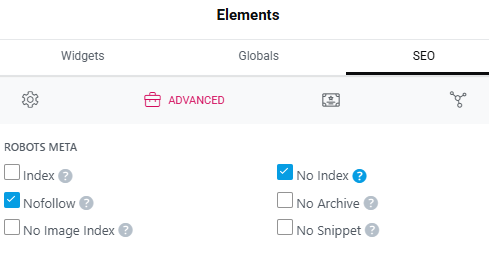
You’ll notice the other options sitting alongside it — No Archive, No Snippet, No Image Index. Those control how the page is displayed if it does get indexed. No Index is the one that removes it from results entirely.
WordPress with Yoast
- Open the page in the editor.
- Scroll to the Yoast SEO box below the content.
- Click the Advanced tab.
- Under “Allow search engines to show this content in search results?”, choose No.
- Update the post.
WordPress without a plugin
If you’d rather not run an SEO plugin, add this to your child theme’s functions.php, swapping in the page ID you want hidden:
add_action('wp_head', function() {
  if (is_page(123)) {
    echo '<meta name="robots" content="noindex">';
  }
});
Use a child theme. Edit the parent theme directly and your next update wipes it.
Shopify
Shopify has no toggle for this, so it goes in the theme. Open Online Store → Themes → Edit code → theme.liquid, and inside the <head> add a condition that fires on the pages you want hidden — matching on the handle is the usual approach.
Wix, Squarespace and Webflow
All three keep it in per-page SEO settings.
- Wix: Pages menu → the page’s three-dot menu → SEO Basics → toggle off “Show this page in search results”.
- Squarespace: Page Settings → SEO → tick “Hide this page from search engines”.
- Webflow: Page Settings → SEO Settings → tick “Exclude this page from site search results”. For CMS collection pages, bind it to a switch field so you can control it per item.
The site-wide switch that catches people out
WordPress has one setting that noindexes your entire website in a single tick: Settings → Reading → “Discourage search engines from indexing this site.”
It exists for a good reason — you tick it while you’re building. The problem is what happens on launch day, and we’ll come back to it shortly, because it’s responsible for more invisible New Zealand websites than any other single cause I’ve run into.
Noindex Doesn’t Make a Page Private
Noindex keeps a page out of search results. It does not lock the door. Anyone with the URL can still open it, forward it, post it in a Facebook group, or scrape it.
This one matters because people reach for noindex when what they actually wanted was privacy, and the gap between those two things is where the damage happens.
The question that sorts it: is this page merely not worth showing to searchers, or is it genuinely not for the public?
If it’s the first, noindex is exactly right. If it’s the second, you want a password, a login, or a proper members area — and the noindex tag is a nice extra on top, not the thing doing the work.
I use it the first way myself. A few months back I ran a masterclass at Wintec, walking a room through what’s actually involved in my SEO services — the work itself, not the sales version of it.
For that masterclass I built a guide specifically for the people in that room, so I noindexed the page. Here’s the actual tag on it:

Anyone from that talk who kept the link can still open it any time they like. That was the point. It’s unlisted, not locked, and I knew the difference when I made the call.
Noindex controls who finds a page. It has nothing to say about who can open one.
When to Use Noindex
Use noindex on pages that serve a real purpose for your visitors or your team but have nothing to offer someone arriving cold from a Google search.
In practice that’s:
- Thank-you and order confirmation pages. Someone landing on “Thanks, we’ll be in touch!” straight from Google gets a confusing experience and you get a worthless visit.
- Gated resources. If the guide is the reason people hand over their email address, you don’t want Google handing it out for free.
- Internal admin, account and dashboard pages. Nothing there for a searcher.
- Staging and development sites. The whole site, deliberately, until launch.
- Thin tag and date archive pages. Auto-generated by WordPress, usually near-empty, and they dilute what Google sees when it looks at your site.
- Client-only or event-only resources. The Wintec masterclass guide above.
Then there’s crawl budget, which comes up constantly in this conversation and deserves an honest answer.
Crawl budget is real. Google allocates a finite amount of crawling to your site, and on a huge site with hundreds of thousands of URLs, trimming the junk genuinely helps.
It is also almost certainly not your problem. If you run a 40-page site for a building company, Google is not struggling to get around it — and SEO for builders at that size is won on service pages and reviews, not on crawl efficiency. Lumar make essentially this point and they crawl enterprise sites for a living: unless there’s a specific reason to hide a page, leave the decision to Google.
The number where this starts to change is somewhere in the tens of thousands of URLs — a big Auckland ecommerce catalogue with faceted filters generating endless colour-and-size combinations is a genuine crawl budget conversation, and SEO in Auckland at that scale does turn into an indexation problem before it’s a content one.
If that’s not you, noindex pages because they shouldn’t be found, not because you’re trying to ration Googlebot’s attention.
When Not to Use Noindex
Noindex is the wrong tool more often than people realise. Used on the wrong page it doesn’t just fail to help — it throws away value you’d worked to build.
Don’t use it for duplicate content. Use a canonical tag instead. A canonical tells Google which version is the real one and consolidates the ranking strength from every copy onto it. Noindex just deletes the copies from consideration and bins whatever they’d earned.
Don’t use it on paginated pages. Noindexing page 2 onward of a product listing or blog archive can cut Google’s path through to everything deeper in the set.
Be careful noindexing pages that carry internal links. John Mueller has been explicit about what happens over time:
“But if we see the noindex there for longer than we think this page really doesn’t want to be used in search so we will remove it completely. And then we won’t follow the links anyway. So in noindex and follow is essentially kind of the same as a noindex, nofollow. There’s no really big difference there in the long run.”

So anything reachable only through that page can go orphaned and quietly slide out of the index with it.
And then there’s the staging site. A developer builds the new site with “Discourage search engines” ticked, which is correct. Launch day arrives, the site goes live, everyone celebrates, and nobody unticks the box.
What follows looks exactly like SEO not working. Rankings never arrive. Traffic stays flat. The client starts asking questions. Meanwhile the entire website is politely asking Google to ignore it.
Which brings me back to that dental practice.
Their implants page — the single highest-value procedure in the business — was sitting there noindexed while the rest of the site indexed normally. Not a site-wide switch. Just that one page.
Here’s what that crawl looked like:
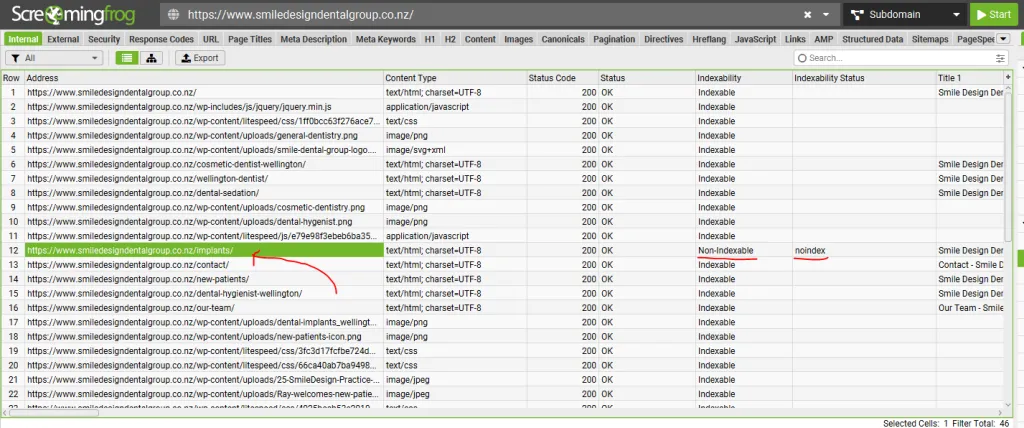
Whoever set it almost certainly didn’t mean to, and there’d be no way to notice from the front end. The page looks completely normal to a visitor. It’s only when you crawl the site and read the directives column that it shows up at all.
That’s the whole problem with this particular mistake: it produces no symptoms. Nothing breaks. The page loads, the phone still rings from other sources, and the one thing that’s wrong is invisible from every angle except the one nobody’s looking from. It’s the sort of thing that sits undetected for years while a practice competing for SEO in Wellington wonders why implants never took off for them.
Noindex vs Nofollow vs Disallow vs Canonical
Four directives, four different jobs, and they get mixed up constantly. Noindex hides a page from search results. Disallow stops Google crawling it. Nofollow stops link value passing through a link. Canonical points to the version you want ranked.
| Directive | What it does | Where it goes | What it does not do | Use it when |
|---|---|---|---|---|
| noindex | Keeps the page out of search results | Meta tag in <head>, or HTTP header | Stop crawling; make the page private | The page should exist but not be found |
| disallow | Stops Google crawling the URL | robots.txt | Guarantee the page stays out of results | You want to save crawling on junk URLs |
| nofollow | Stops link value passing through a link | rel attribute on a link, or meta tag | Stop the page being indexed | Linking to something you don’t vouch for |
| canonical | Names the version that should rank | <link rel="canonical"> in <head> | Hide anything | You have near-duplicate versions of a page |
The one that catches people is disallow. It sounds like the strongest option and it’s the weakest for this job: it stops the crawl, not the listing, so a disallowed page can still appear in results if Google finds it linked from somewhere else.
You’ll also run into noindex, follow. That combination means keep this page out of results, but do follow the links on it and pass value through them.
It’s a sensible setting for something like a paginated archive. Just don’t treat it as permanent — per Mueller above, Google eventually collapses it into a plain noindex, nofollow anyway.
Worth noting on nofollow: since Google’s 2019 update it comes with two siblings, sponsored for paid links and ugc for user-generated content, and all three are now treated as hints rather than strict directives.
How to Check If a Page Is Noindexed
You can check a single page in about ten seconds, and your entire site in about ten minutes, without paying for anything.
View the page source
Type view-source: directly in front of the URL in your browser’s address bar and hit enter:
view-source:https://yourdomain.co.nz/your-page/Then Ctrl+F (Cmd+F on a Mac) and search for noindex. If it’s there, you’ll see it in a meta robots tag near the top — exactly like the masterclass page further up this article.
That’s the whole check. No tools, no login, ten seconds.
Google’s URL Inspection Tool
Open Search Console, click URL Inspection in the left menu, paste the full URL, and press enter.
Look at the Indexing allowed? line. If a noindex rule is in place you’ll get: No: ‘noindex’ detected in ‘robots’ meta tag. That exact phrase is what a lot of people end up googling, so if it’s what brought you here — that’s your answer. Google has read a noindex rule on the page and is doing what it was told.
Here’s my masterclass page in the same tool:
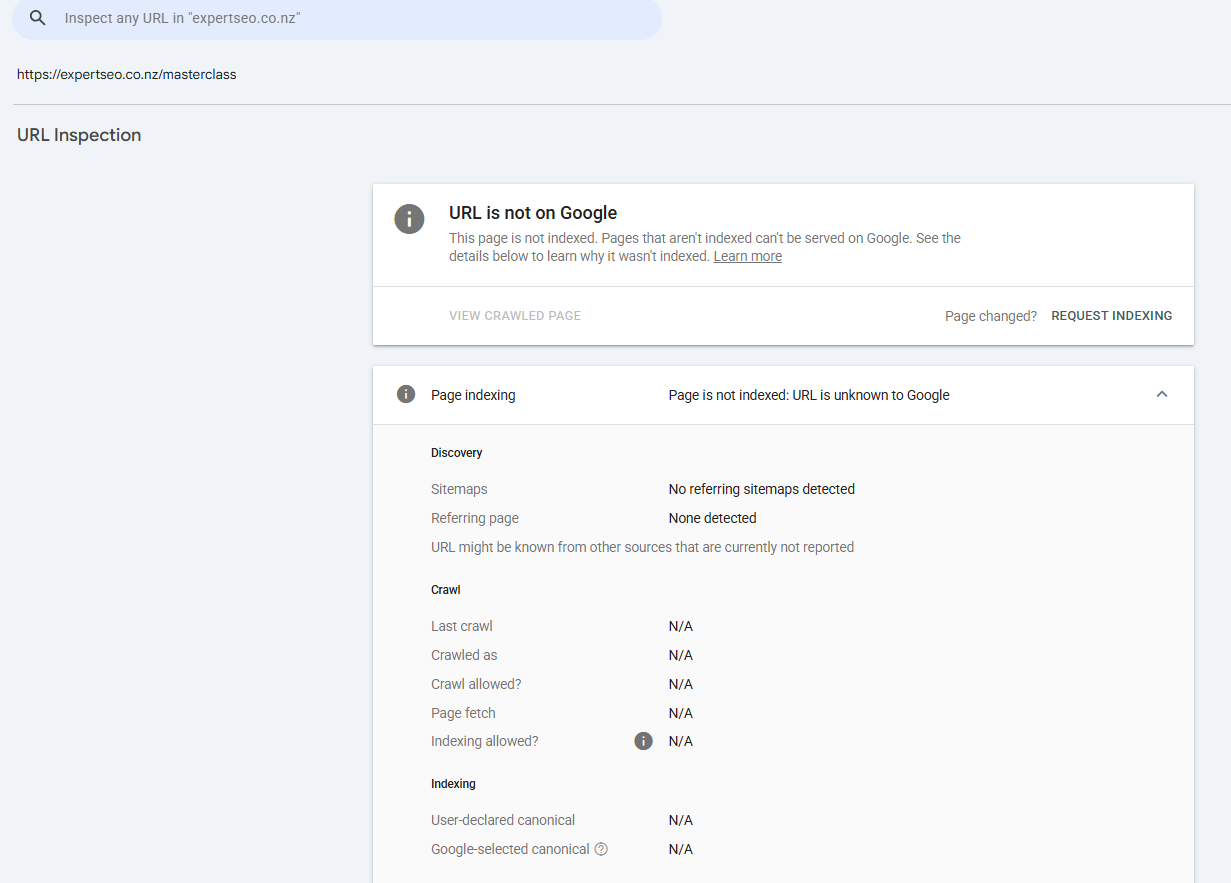
Note the status it actually returns: URL is unknown to Google. Not “noindex detected.”
That’s a subtly different outcome and worth understanding. The page is noindexed and it’s not in the sitemap and nothing links to it, so Google has never crawled it at all — it isn’t obeying my tag, it simply doesn’t know the page exists. Either way it stays out of search, but if you’re troubleshooting, those two statuses point at completely different causes.
The URL Inspection Tool also shows you the HTML Googlebot actually received, which settles arguments about whether a tag is really there.
The site: operator
Search site:yourdomain.co.nz/your-page-url in Google. If nothing comes back, the page isn’t indexed.
Fast, but blunt: a page can be missing from that check for several reasons, and noindex is only one of them. Treat it as a prompt to look properly, not a diagnosis.
Crawl the whole site with Screaming Frog
This is the one that finds the problem you don’t know you have — and it’s how I found the dental implants page.
- Download Screaming Frog. The free version crawls up to 500 URLs, which covers most New Zealand business sites comfortably.
- Paste your domain into the bar at the top and hit Start.
- When the crawl finishes, click the Directives tab.
- Use the filter dropdown and select Noindex.
- Read the list.
Every page on your site carrying a noindex rule is now in front of you, in one place. Most of them will be exactly what you expected. It’s the ones that aren’t that make this worth doing, and it’s the same five minutes that starts every technical SEO checklist I run.
How to Fix “Excluded by Noindex Tag” in Search Console
“Excluded by ‘noindex’ tag” means Google found the page, read a noindex rule on it, and left it out of the index as instructed. It is a statement of fact, not an error message. It’s only a problem if you didn’t mean to put that rule there.
You’ll find it in Search Console under Indexing → Pages, in the “Why pages aren’t indexed” table at the bottom.
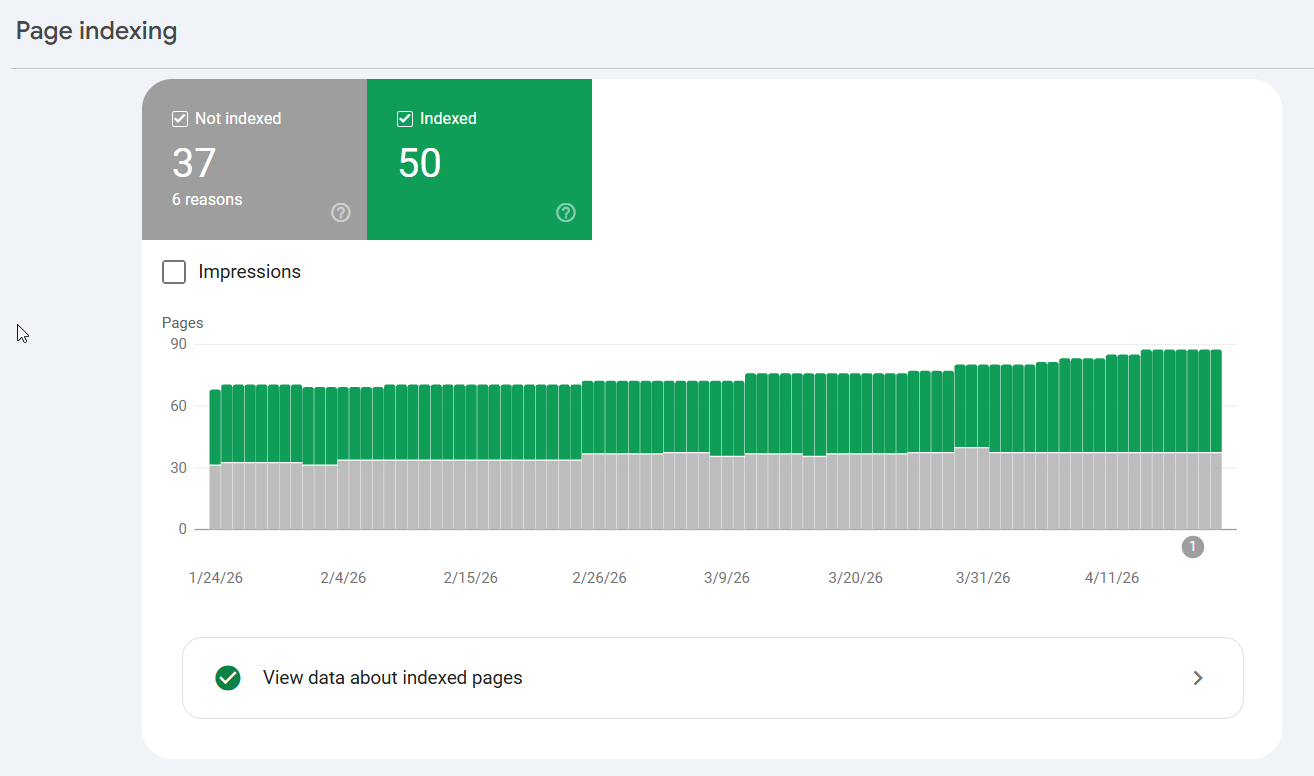
Click the row and you get the full list of affected URLs.
Now the part that actually matters, and the reason this report panics people who shouldn’t be panicking: read the list, not the number.
Go through those URLs and sort them into two piles.
Pile one — pages that should be hidden. Thank-you pages, admin screens, gated downloads, tag archives. For every one of these, the report is telling you the system is working exactly as designed. Leave them alone.
Pile two — pages that should be earning you money. Service pages, location pages, product pages, the blog post you spent a day on. This is your actual problem, and it’s usually a much shorter list than the headline number suggests.
I’ve seen a business panic over 340 excluded URLs where 338 were auto-generated tag archives and two were service pages. The two were the whole story.
When it is an accident, the cause is almost always one of these:
- The WordPress “Discourage search engines” tick, still on after launch
- An SEO plugin defaulting an entire post type to noindex
- A theme or page template applying it across a section
- A staging configuration that shipped to production
- A developer’s leftover from testing
One more thing worth separating out, because confusing these two costs people weeks.
“Excluded by ‘noindex’ tag” and “Crawled – currently not indexed” are different statuses with different causes. The first means you told Google to stay away. The second means Google looked, decided the page wasn’t worth indexing right now, and moved on — that’s a content and quality problem, and no amount of hunting for a noindex tag will fix it.
Check which one you’re actually looking at before you start pulling the site apart. Google’s Page Indexing report documentation lists every status and what each one means.
If the list in pile two is long, or you can’t work out where the rule is coming from, that’s the point to get an SEO audit done properly rather than changing settings and hoping.
How to Remove a Noindex Tag and Get the Page Re-Indexed
Take the tag off, confirm it’s actually gone, then tell Google to look again. Removing the rule on its own does nothing until Googlebot comes back to the page.
- Remove the rule at its source. Go back to wherever you added it — Rank Math’s Advanced tab, Yoast’s Advanced tab, the Reading setting, the
.htaccessblock — and reverse it. If you inherited the site and don’t know where it came from, start with Settings → Reading, then check the SEO plugin’s global settings for that post type. - Confirm it’s gone with view-source. Don’t trust the toggle. A theme and a plugin can both be writing robots tags, and switching one off doesn’t always win. Look at the actual HTML.
- Check robots.txt isn’t now blocking the crawl. This is the trap: people fix the noindex tag and leave a disallow rule sitting in robots.txt, so Googlebot still can’t get in to see that the tag has gone.
- Request indexing. Search Console → URL Inspection → paste the URL → Request Indexing. This nudges Google to re-crawl sooner than it otherwise would.
- If the page was actively removed via the Removals tool, undo that too. That’s a separate lever with its own roughly six-month window, and it will keep the page hidden regardless of what the tag says. Google’s removals documentation covers it.
On timing: both directions run on Google’s re-crawl schedule, not yours.
A page that gets crawled often can drop out or come back within days. A neglected page with few links pointing at it can take a great deal longer — Google’s documentation says so plainly:

Requesting indexing speeds that up. It doesn’t guarantee it, and there’s no queue position to check. Fix it properly, request the crawl, then leave it alone for a week or two before you start worrying.
Does Noindex Hide a Page From AI Search Too?
If a page is noindexed, it won’t feed Google’s AI Overviews or AI Mode, because those are built on the same search index the tag removes it from. Other AI systems are a separate question with separate controls.
That’s the part worth understanding. Google’s AI features draw on the index. Take a page out of the index and you’ve taken it out of the pool those answers are assembled from — which is the mechanism behind most of how AI Overviews choose what to cite in the first place.
ChatGPT, Perplexity, Claude and the rest are a different story. They crawl independently, and a robots meta tag on your page is not a universal off-switch across all of them — what each one honours varies.
If controlling that is the actual goal, the levers are different ones: Google-Extended for Google’s AI training crawler, per-crawler rules in robots.txt for the others, and noarchive or nosnippet where you want the page indexed but not quoted.
Here’s the flip side, and commercially it’s the bigger half.
An accidentally noindexed page in 2026 isn’t just missing from Google’s blue links. It’s missing from the AI answers people are increasingly asking instead of searching.
That implants page wasn’t only absent from search results. It was absent from every AI answer being assembled about dental implants in that city, because there was nothing in the index for those systems to draw on.
A noindexed page doesn’t just lose its ranking. It loses its right to be quoted.
Final Thoughts
The thing that stays with me about that dental crawl is how ordinary it was. Not a hack, not a penalty, not some exotic technical failure. A checkbox.
And the reason a checkbox like that survives for years is that almost every piece of SEO advice ever written is about adding something. Publish more. Build more links. Add more pages.
Almost none of it is about checking what’s already switched off.
So if you forget everything else in this guide, keep this: crawl your own site once a quarter and read the directives column. It takes ten minutes and it’s the cheapest insurance in SEO.
If you’d rather have someone else make it their problem, that’s what working with an SEO consultant is for.
The stakes on that habit went up recently, too. A hidden page used to just cost you rankings. Now it costs you every AI answer that would have quoted you — and unlike a ranking, you can’t see the ones you didn’t get.
Noindex: FAQ
Can you noindex a PDF?
Yes, but not with a meta tag — a PDF has no HTML head to put one in. You use an X-Robots-Tag in the HTTP response header instead, usually added to your .htaccess file so it applies to every PDF on the site at once.
Can I run Google Ads on a noindexed page?
Yes. Google Ads and organic search are separate systems, so a noindexed landing page can still run paid traffic. Just make sure the page isn't blocked in robots.txt as well, because Google's ad crawler still needs to reach it to check the landing page quality.
Does noindex remove backlink value?
Over time, largely yes. Once Google drops a noindexed page from the index it stops passing that page's link value onward, and eventually treats links on it as nofollow. If a page has earned good backlinks, a 301 redirect preserves far more of that value than noindexing it.
How long does it take for a noindexed page to drop out of Google?
It drops out the next time Google crawls it, which can be days for a well-linked page or months for a neglected one. Google's own documentation says it may take months for Googlebot to revisit a page, so use the URL Inspection tool to request a recrawl if you need it gone faster.
What does "noindex, follow" mean?
It tells search engines to keep the page out of results while still following the links on it and passing value through them. It's useful for paginated archives, but it isn't permanent — John Mueller has confirmed that Google eventually treats a long-term noindex, follow page the same as noindex, nofollow.
Is noindex bad for SEO?
Not on its own. Used deliberately on thin or private pages it helps by focusing Google on what matters. It only hurts when it lands on a page you wanted ranking, which is why checking your site for accidental noindex tags is worth doing every few months.
What does "noindex detected in robots meta tag" mean?
It's the message Google Search Console shows in the URL Inspection tool when it has read a noindex rule on your page. It's a factual report, not an error. If the page is meant to be hidden, nothing needs fixing; if it isn't, remove the tag and request indexing.
What's the difference between noindex and disallow?
Noindex keeps a page out of search results but still lets Google crawl it. Disallow, set in robots.txt, stops Google crawling the page but doesn't guarantee it stays out of results. Using both together breaks the noindex, because Google can't crawl the page to read the rule.
Recommended Reading

 On-Page SEO vs Technical SEO
Where indexing sits, and which side of the fence each job actually belongs on.