

There’s a grey screen some people see instead of your website.
“Your connection is not private.” A warning triangle. A button that says Back to safety, and a much smaller one, buried, that says Advanced.
Most people take the big button.
That screen is what HTTPS is for — and by October this year, Chrome starts showing a version of it to everyone who visits a site that still runs without it.
So here’s what HTTPS actually is, what the padlock does and doesn’t prove (this is the part almost every guide gets wrong), and how to get it sorted properly on a New Zealand website without wrecking your rankings on the way through.
Key Takeaways
- What it is: HTTPS is the secure version of the protocol your browser uses to load websites. The S stands for Secure, and it means the connection between your browser and the site is encrypted.
- What it protects: anything typed or sent while it’s in transit — passwords, card numbers, booking forms — from anyone watching the network.
- What it doesn’t do: prove the website is honest. As far back as 2021, 83% of phishing sites carried a valid certificate and a working padlock.
- What changes in 2026: from October, Chrome asks users to confirm before loading any public site that doesn’t support HTTPS.
- What it costs: usually nothing. Free certificates are standard with most New Zealand hosting.
- The SEO reality: it’s been a confirmed ranking signal since 2014, but a lightweight one. The bigger risk is botching the migration, not skipping the protocol.
What Is HTTPS?
HTTPS stands for Hypertext Transfer Protocol Secure. It’s the same protocol your browser has always used to load websites, with one thing added: the connection is encrypted, so nobody sitting between you and the website can read what’s passing through.
That’s the S. Secure.
Think of it as the difference between shouting your credit card number across a crowded room and writing it in a code only the person at the other end can read.
Same room, same people in it. The message just means nothing to anyone else now.
Strictly speaking, HTTPS is just ordinary HTTP with a layer of encryption called TLS wrapped around it. Same delivery van, armoured.
You can see it in any address bar: the https:// sitting in front of the domain.
Most browsers put a padlock beside it too — though recent versions of Chrome quietly swapped that padlock for a settings icon, on the grounds that too many people were reading it as a badge of trustworthiness. Hold that thought.

HTTP vs HTTPS: What’s the Difference?
HTTP sends everything as plain text that anyone on the network can read. HTTPS encrypts it first. That’s the entire difference — and it’s why browsers now treat plain HTTP as unsafe by default.
Here’s what that means in practice.
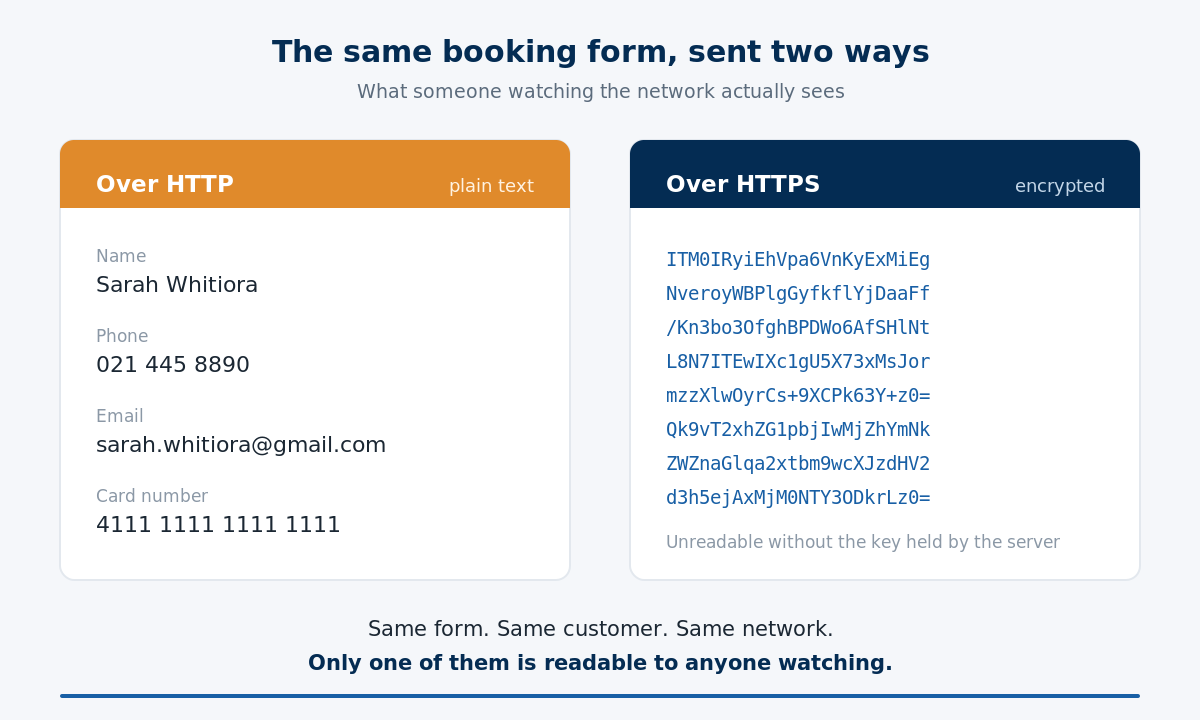
When someone fills in a booking form over HTTP, their name, phone number and card details travel across the network as readable text.
Anyone with free software and access to that network — dodgy public Wi-Fi, a compromised router — can sit there and read it like a postcard.
Over HTTPS, the same data goes across looking like this:
ITM0IRyiEhVpa6VnKyExMiEgNveroyWBPlgGyfkflYjDaaFf/Kn3bo3OfghBPDWo6AfSHlNtL8N7ITEwIXc1gU5X73xMsJormzzXlwOyrCs+9XCPk63Y+z0=
Intercept that and you’ve got nothing. It’s noise until it reaches the server that holds the key.
| HTTP | HTTPS | |
|---|---|---|
| Stands for | Hypertext Transfer Protocol | Hypertext Transfer Protocol Secure |
| Encryption | None — plain text | Encrypted with TLS |
| Port | 80 | 443 |
| What a snooper sees | Everything you type | Scrambled characters |
| What the browser shows | “Not secure” | Padlock |
| Google’s position | Confirmed ranking disadvantage | Confirmed (lightweight) ranking signal |
| Used for | Effectively nothing on the public web | Every modern website |
HTTP hasn’t merely fallen out of fashion; it’s been pushed off the public web by every browser vendor at once.
Which is why HTTPS now sits near the top of any technical SEO checklist as a prerequisite rather than an improvement.
How HTTPS Actually Works
HTTPS does three jobs at once, and it does all of them before the page even loads.
- Encryption scrambles the data so it can’t be read in transit.
- Authentication verifies that the server answering you is genuinely the one that owns the domain.
- Integrity means nothing can be altered along the way without breaking.
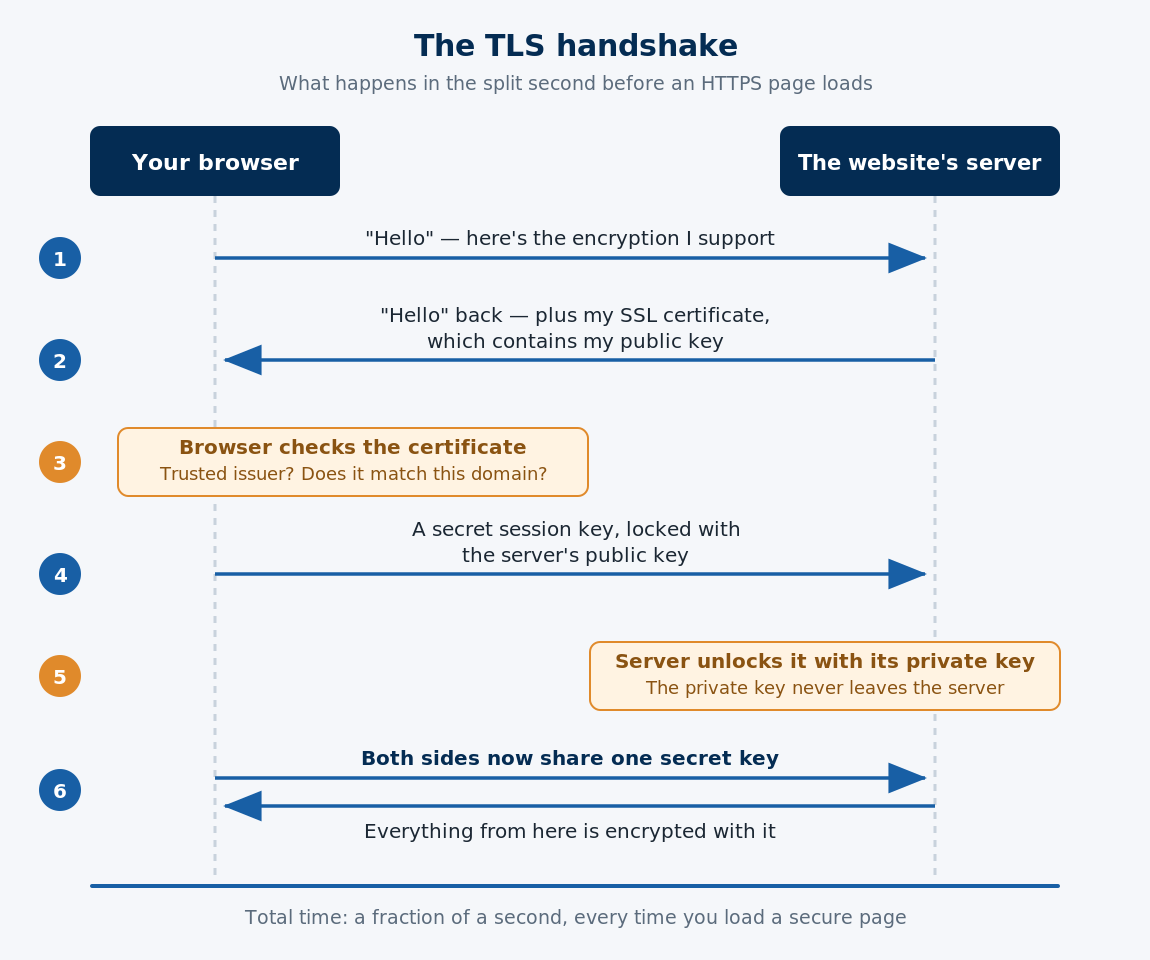
Those three happen in something called the TLS handshake. It’s a back-and-forth between your browser and the server that takes a fraction of a second, and it goes roughly like this:
- Your browser says hello to the server.
- The server says hello back and hands over its SSL certificate, which contains its public key.
- Your browser checks the certificate — was it issued by a trusted authority, and does it actually match this domain?
- Satisfied, the browser uses that public key to encrypt a secret session key and sends it across.
- The server decrypts it with its private key. Now both sides share a secret nobody else has.
- Everything from here runs encrypted with that session key.
The public key is the padlock anyone can snap shut. The private key is the only thing that opens it, and it never leaves the server.
One naming thing worth clearing up: SSL and TLS get used interchangeably, but TLS is the one actually running.
SSL was the original protocol, retired years ago on security grounds. The name just stuck to the certificates.
So everyone still says “SSL certificate” while their browser quietly runs TLS 1.3. Harmless, until you’re trying to buy one.
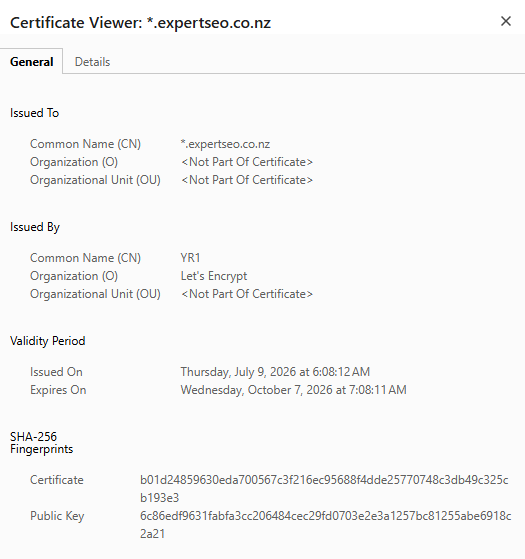
Click the padlock on this page and you can see ours: issued to *.expertseo.co.nz by Let’s Encrypt, valid for three months, renewed automatically and free.
Does HTTPS Mean a Website Is Safe?
No. HTTPS means your connection to the site is private. It says nothing about whether the site is honest.
This is the single most misunderstood thing about the padlock.
A scammer can register a lookalike domain, get a free certificate in about two minutes, and stand up a phishing page with a padlock identical to your bank’s.
Nothing about that padlock is lying. The connection to the fake site really is encrypted — it’s just encrypting your details on their way to a criminal.
The numbers on this are not subtle.
As far back as the first quarter of 2021, 83% of phishing sites had SSL enabled — up from 58% two years earlier.
Of those, 90.5% used the cheap Domain Validated certificates anyone can get free in minutes. The volume of HTTPS phishing sites has since grown 56% year-on-year.
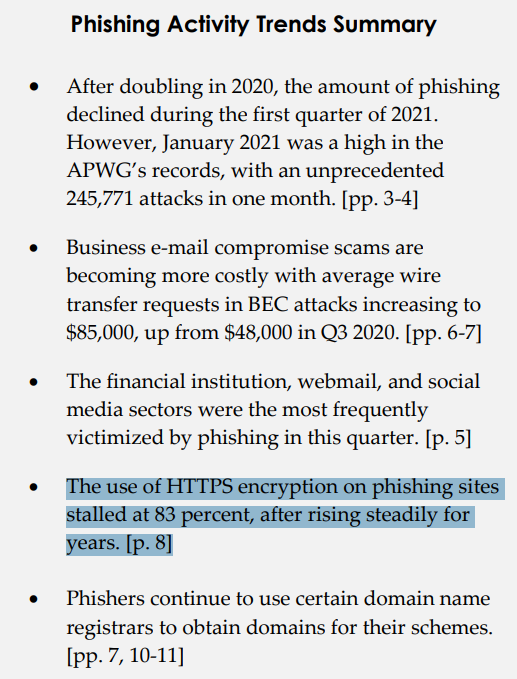
The irony is sharp: the thing that made HTTPS universal is the same thing that hollowed out the padlock as a trust signal.
Free certificates for everyone included the people you’d least want holding one.
So what should you actually check?
- The domain name, character by character. Not the padlock — the letters.
paypa1.com,westpac-nz-secure.com,anz.co.nz.login-verify.net. The scam is almost always in the URL, not the certificate. - Who the certificate was issued to. Click the padlock, open the certificate details. A DV certificate issued to a domain you’ve never heard of on a page claiming to be your bank is the tell.
- How you arrived. A link from an unexpected text message deserves suspicion no matter how good the padlock looks. Type the address yourself instead.
The padlock tells you the envelope is sealed. It has never told you who’s reading the letter.
Why Your Website Needs HTTPS
Without it, browsers put a warning in front of your website, and for a New Zealand business collecting customer details, you’ve also got a Privacy Act problem.
Start with what it costs you commercially, because that’s the part owners feel first.
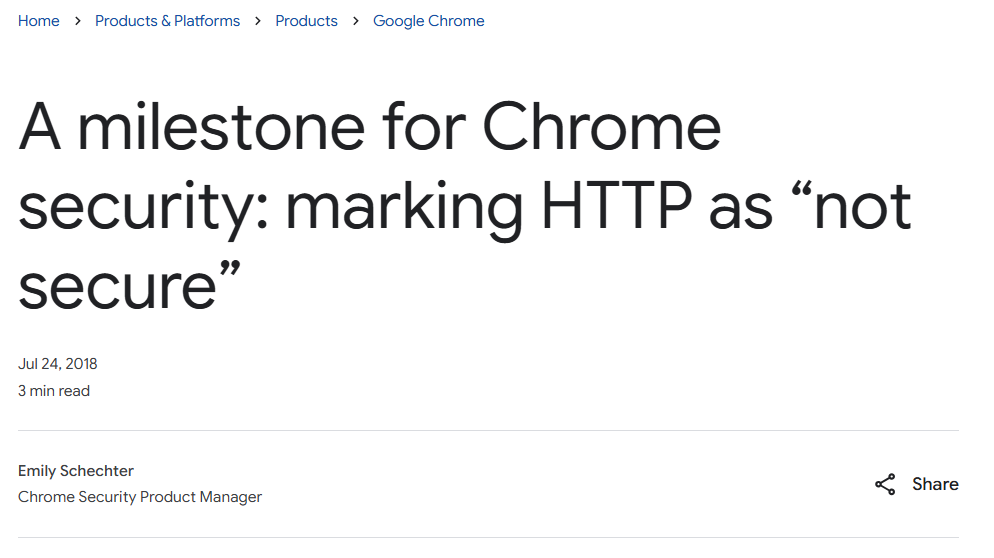
Chrome has been marking HTTP pages as “Not secure” for years now.
A visitor who came to book a table sees a security warning before they see your menu. Some push through. Plenty don’t — and you never find out they were there.
Picture a café in Hamilton taking bookings through a form on its site. Name, phone, email, sometimes a card to hold the table.
Over plain HTTP, every one of those details crosses the network in the clear — and every customer who notices the warning has been handed a reason to hesitate.
Businesses running SEO in Hamilton fight hard enough for that click without a warning screen standing in front of it.
Then there’s the legal side, and this is where the international guides are no use to you at all. They’ll cite HIPAA, PCI DSS and GDPR — none of which are the law that governs a New Zealand business.
Yours is the Privacy Act 2020. Information Privacy Principle 5 requires you to protect personal information with safeguards that are reasonable in the circumstances.
Collecting names, phone numbers and card details through an unencrypted form in 2026 — when encryption is free and universal — is a hard position to defend.
And if it goes wrong badly enough to cause serious harm, you’re notifying the Privacy Commissioner. The expectation is within 72 hours.
That exposure scales with how sensitive your enquiries are.
A booking form is one thing. Law firms taking case details through a web form, or a clinic collecting health information, are handling exactly the kind of data the Act was written about.
Does HTTPS Help Your Google Rankings?
Yes, but barely — and the honest version of this is one nobody else on page one will give you.
Google announced HTTPS as a ranking signal in August 2014.
In the same announcement they called it a “very lightweight” signal, affecting fewer than 1% of global queries and carrying less weight than high-quality content.

That was twelve years ago, and the wording has never been upgraded.
So switching to HTTPS will not lift you up the results. Anyone selling it that way is selling you something.
A dentist in Auckland who switches their site over this afternoon will not outrank the practice down the road by Friday. What they will do is stop losing the people who took one look at a security warning and went straight back to the results page.
That’s why HTTPS never appears on its own in an Auckland SEO plan. It appears as the thing you fix before the plan starts.
What it removes is a handicap, and the handicap is mostly indirect:
- A “Not secure” warning tanks click-through and sends people straight back to the results page, and those behavioural signals are not helping you.
- HTTP/2, which genuinely does load pages faster, is gated behind HTTPS in every major browser. So the speed win people attribute to HTTPS is real, it just arrives by a different door.
- Every competitor already has it, which makes its absence conspicuous rather than its presence impressive.
So HTTPS belongs in the same bucket as crawlability and clean redirects: the technical SEO foundations that win you nothing on their own, and quietly cap your ceiling when they’re broken.
The real ranking risk sits in the migration itself, done carelessly — which we’ll get to.
For what it’s worth, Expert SEO ranks for a few hundred New Zealand keywords on a domain barely out of nappies — and HTTPS did precisely none of that work.
It was table stakes to be allowed in the game.
How to Get HTTPS on Your Website
For most New Zealand websites this is free and takes under an hour. You get a certificate, install it, redirect everything to the secure version, then clean up whatever is still pointing at the old one.
Here’s the order.
Step 1 — Get a certificate
Almost every New Zealand host now includes free SSL, usually through Let’s Encrypt, and it’s already sitting in your control panel waiting to be switched on.
In a cPanel host it’s under Security → SSL/TLS Status: tick the domain, hit Run AutoSSL. In SiteGround it’s Site Tools → Security → SSL Manager, choose Let’s Encrypt, click Get.
Most hosts have some version of this, and it takes about ninety seconds.
If your site sits behind Cloudflare, the certificate is issued there instead, under SSL/TLS → Overview.
Step 2 — Turn on HTTPS enforcement
Getting the certificate installed only makes the secure version available. Both versions of your site now exist, which is not what you want.
Most panels have an HTTPS Enforce or Force HTTPS toggle right beside the certificate. Switch it on.
Step 3 — Redirect everything with a 301
If your host doesn’t offer a toggle, you do it with a redirect rule — and it has to be a 301 (permanent), not a 302 (temporary).
A 301 tells Google the move is final and passes the ranking signals across. A 302 tells Google you’ll be back, and it holds onto the old version.
One hop is the target. http://yoursite.co.nz should land directly on https://www.yoursite.co.nz, not bounce through two or three URLs on the way.
Step 4 — Fix mixed content
Mixed content is when a secure page loads an insecure asset — an image, a stylesheet, a script still hardcoded with http://. The browser flags it, the padlock breaks or disappears, and all your work looks broken to the visitor.
Open the page, press F12, check the Console tab. Mixed content warnings list every offending file by URL.
On WordPress a search-and-replace plugin clears most of them in one pass. The stubborn ones are usually hardcoded into a theme file or a page builder widget.
Step 5 — Tell Google
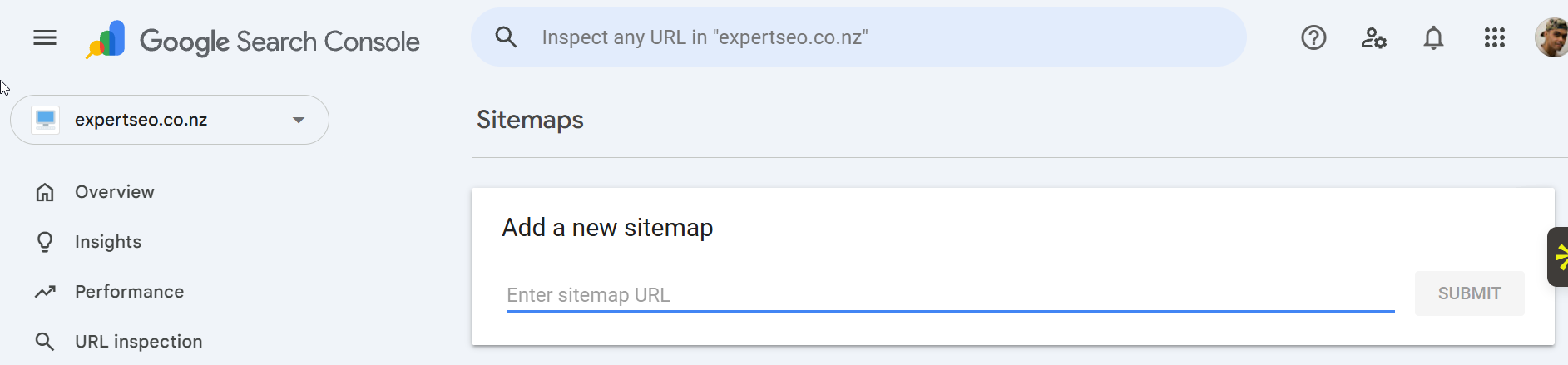
The HTTPS version of your site is, as far as Google Search Console is concerned, a different property. Add it: Add property → URL prefix, enter the https:// version, verify.
Then resubmit your sitemap under Sitemaps, and check your canonical tags actually moved across — a canonical still pointing at http:// is telling Google the insecure version is the real one.

Do you ever need to pay for a certificate?
Almost certainly not.
There are three validation levels.
Domain Validated (DV) proves you control the domain, issues in minutes, and is free. It’s what the overwhelming majority of sites run on.
Organisation Validated (OV) and Extended Validation (EV) additionally verify that your business legally exists, which costs money and takes days.
Encryption strength is identical across all three. You’re paying for identity verification, not security.
For a New Zealand café, tradie, clinic or small business website, free DV is the right answer — and anyone telling you otherwise is working on commission.
What Changes for NZ Websites in 2026
From October 2026, Chrome stops quietly loading HTTP pages and starts asking permission first.
Google is turning on a setting called Always Use Secure Connections by default. Chrome will attempt every connection over HTTPS, and where a public site doesn’t support it, the browser asks the user to confirm before loading it at all.
It arrives in two phases.
Chrome 147 switched it on in April 2026 for everyone enrolled in Enhanced Safe Browsing — over a billion people. So it’s already live for a slice of your audience.
Chrome 154 extends it to every user globally in October 2026.
Why now rather than five years ago? Chrome traffic running over HTTPS climbed from around 30–45% in 2015 to roughly 95–99% by 2020, and then growth stalled.
As the Chrome team put it: “Attackers only need one insecure connection to compromise a user.”
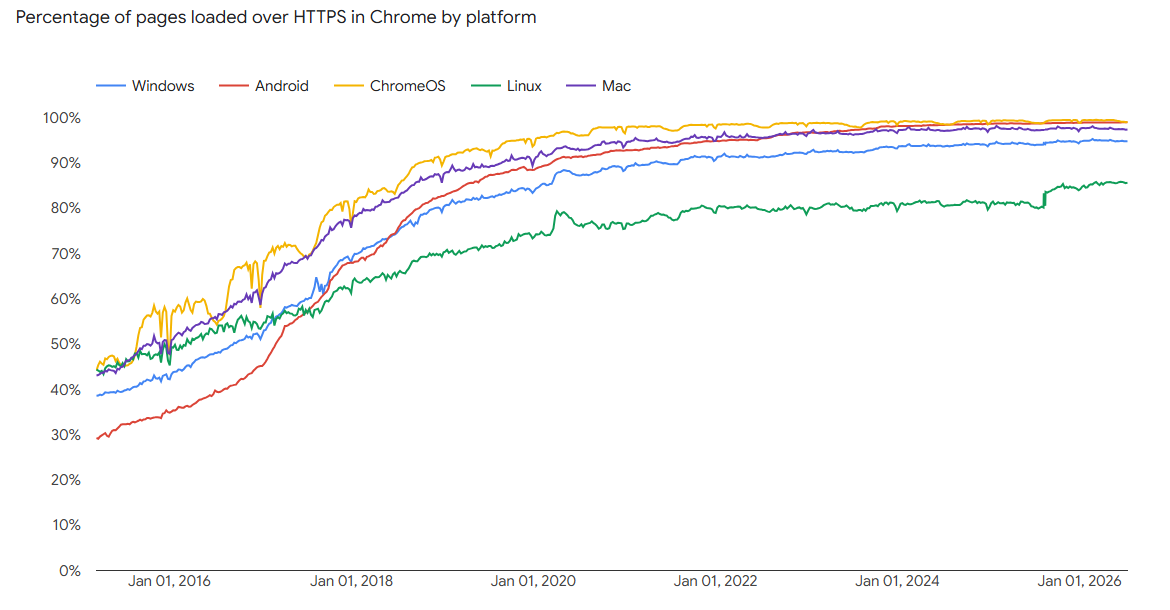
In aggregate the disruption is small — Google’s early testing had fewer than 3% of navigations triggering a warning, with most users seeing under one alert a week.
For a site still on HTTP, though, that 3% becomes every single visit.
Should you turn HTTPS-Only Mode on yourself?
Yes, and you don’t have to wait for October. In Chrome it’s Settings → Privacy and security → Security → Always use secure connections. Firefox has had the same thing as HTTPS-Only Mode since 2020.
Switched on, your browser tries HTTPS everywhere and warns you before it ever sends anything over an unencrypted connection. The only cost is the occasional prompt on an old site that never migrated, which is arguably a feature.
Site owners have an equivalent, called HSTS: a header telling browsers to only ever connect to your domain securely, so they never attempt the insecure version at all.
Worth switching on once your migration is finished and stable. Not before.
How to Check If Your Site Is Running HTTPS Properly
Type your domain with http:// in front of it and watch what happens. If it loads without redirecting to the secure version, your HTTPS is available but not enforced, which is only half the job.
That’s the thirty-second version. Three things to look at:
- Does
http://redirect? It should land on thehttps://version, in one hop. - Does the padlock hold on every page? Not just the homepage. Check a blog post, a product page, a form page — mixed content usually hides on the pages nobody tests.
- Who issued the certificate, and when does it expire? Click the padlock, open the certificate details.
Now for the one that catches people out.
If you’re behind Cloudflare, check which SSL mode you’re on. Cloudflare’s Flexible mode encrypts the leg between the visitor and Cloudflare — and leaves the leg between Cloudflare and your actual server unencrypted.
The padlock shows. The visitor sees a secure site. Half the journey is still a postcard.
It’s the security equivalent of locking the front door and leaving the ranch slider wide open. And it’s more common on NZ small-business sites than anyone admits, because Flexible is the mode that just works without touching your origin server.
Set it to Full (strict), and install a certificate on the origin.
Beyond the manual checks, this is standard fare for a full site audit, which will flag expired certificates, mixed content, redirect chains and any HTTP pages still sitting in the index — the things you can’t see from the front end.

What HTTPS Doesn’t Protect You From
HTTPS secures the journey. It does nothing about the destination.
Encryption protects data while it’s moving between the browser and the server. Once it arrives, HTTPS has finished its shift and gone home.
So it will not save you from:
- A hacked WordPress install. Out-of-date plugins, a vulnerable theme, an admin password of
Summer2026!— HTTPS is irrelevant to all of them. - Data sitting on your server. What’s in your database is only as protected as your host and your access controls make it.
- A site that’s simply dishonest. Certificate validity and business legitimacy are unrelated properties, as the padlock section covered.
There are also attacks aimed at HTTPS itself.
SSL stripping intercepts the first connection and downgrades it to HTTP before encryption is ever established — which is exactly what HSTS and the Chrome changes above exist to shut down. Downgrade attacks force a connection onto obsolete encryption that can be broken.
Neither should keep a small business awake. Both are reasons to keep TLS versions current rather than treating the setup as finished forever.
And the honest answer to “what are the disadvantages of HTTPS?” — there are two, and both are operational rather than fundamental.
Certificates expire, and an expired one throws a scarier warning than no certificate at all. A migration done carelessly can cost you rankings.
The first is solved by auto-renewal. The second is solved by doing the next section properly.
HTTPS Migration Mistakes That Cost Rankings
Nobody loses rankings by turning HTTPS on. They lose them by leaving the old version half-attached to the new one.
Every migration horror story traces back to the same handful of loose ends. In rough order of how often they show up:
- Redirect chains.
http://→http://www→https://wwwis three hops where there should be one. Each hop is a little more friction and a little more signal loss, and chains have a habit of getting longer every time someone adds a plugin. - Canonical tags still pointing at
http://. You’ve moved the site and left a note on every page telling Google the old address is the real one. Google, reasonably, believes the note. - Mixed content left unfixed. The padlock breaks on a handful of pages, nobody checks those pages, and it sits there for a month.
- The Search Console property never re-added. Your data quietly stops updating on a property that no longer matches your site, and you’re flying blind exactly when you most want to be watching.
- Internal links and sitemaps still hardcoded to
http://. Every internal link becomes another redirect hop, on every page, forever.
Here’s what normal looks like, because this is the part that panics people.
Some fluctuation during the recrawl is expected. Google has to re-discover the site at its new addresses, and that takes days to a few weeks depending on size.
A dip that recovers is the migration working. A dip that doesn’t recover is one of the five above, still sitting there.
That distinction is the whole reason it’s worth checking the setup rather than guessing at it.
If you’d rather not be the one squinting at redirect chains at 11pm, an SEO consultant sorts that in an afternoon. If you want the whole technical foundation looked at rather than just the certificate, that’s what ongoing SEO work covers.
Final Thoughts
HTTPS stopped being a security upgrade a long time ago. It became the floor, and the industry is about to finish the job in October when Chrome starts asking permission before it loads anything without it.
The bit I’d actually want you to carry out of here is about the padlock, though, more than your own site.
A whole generation of us were taught to look for it before typing a card number. That advice quietly stopped being true around the point certificates became free.
Four out of five phishing sites have one now. The padlock proves the line is private; it has never proved who’s on the other end of it.
Check the domain. The padlock’s just the envelope.
HTTPS: FAQ
What does the S in HTTPS stand for?
Secure. HTTPS is Hypertext Transfer Protocol Secure — the same protocol browsers have always used to load websites, with the connection encrypted so nobody in between can read what's being sent.
What port does HTTPS use?
Port 443. Plain HTTP uses port 80. The switch happens automatically when a site redirects you to its https:// version, so it's not something you ever need to set yourself.
Is HTTPS the same as SSL or TLS?
No. HTTPS is HTTP running over TLS. SSL was TLS's predecessor and was retired years ago on security grounds, but the name stuck to the certificates — which is why everyone still says "SSL certificate" while their browser actually runs TLS 1.3.
Is HTTPS free?
For most websites, yes. Free Domain Validated certificates through Let's Encrypt are included with almost every New Zealand host, and they encrypt exactly as strongly as paid ones. You only pay when you need your organisation's identity verified as well, which most small businesses never do.
Does HTTPS mean a website is safe?
No. HTTPS proves your connection to the site is private, not that the site itself is honest. As far back as 2021, 83% of phishing sites carried a valid certificate. Check the domain name character by character rather than trusting the padlock.
What are the disadvantages of HTTPS?
Two, and both are operational rather than fundamental. Certificates expire, and an expired one throws a scarier warning than no certificate at all — solved by auto-renewal. And a migration done carelessly can cost you rankings, which is solved by redirecting properly and fixing mixed content.
How do I know if I'm using HTTP or HTTPS?
Check the address bar. A secure connection shows https:// in front of the domain; an insecure one shows http:// and a "Not secure" label. To test your own site, type your domain with http:// in front and see whether it redirects.
Does HTTPS improve SEO?
It's a confirmed Google ranking signal, but Google called it "very lightweight" when it announced it in 2014 — affecting fewer than 1% of queries. The indirect effects matter more: browser warnings destroy click-through, and HTTP/2 is gated behind HTTPS.
What if I accidentally clicked a suspicious website?
Don't enter anything — no passwords, no card details. Close the tab. If you did type a password, change it on the real site straight away, and change it anywhere else you've reused it.
Recommended Reading
 Technical SEO
Find and fix the technical issues quietly holding your rankings back — HTTPS is one line on a much longer list.
 What Is SEO?
A plain-English explanation of how search engines rank pages, and what actually moves the needle.