

You opened Google Search Console one morning, clicked into the Pages report, and there it was sitting under a pile of your URLs: “Alternative page with proper canonical tag.”
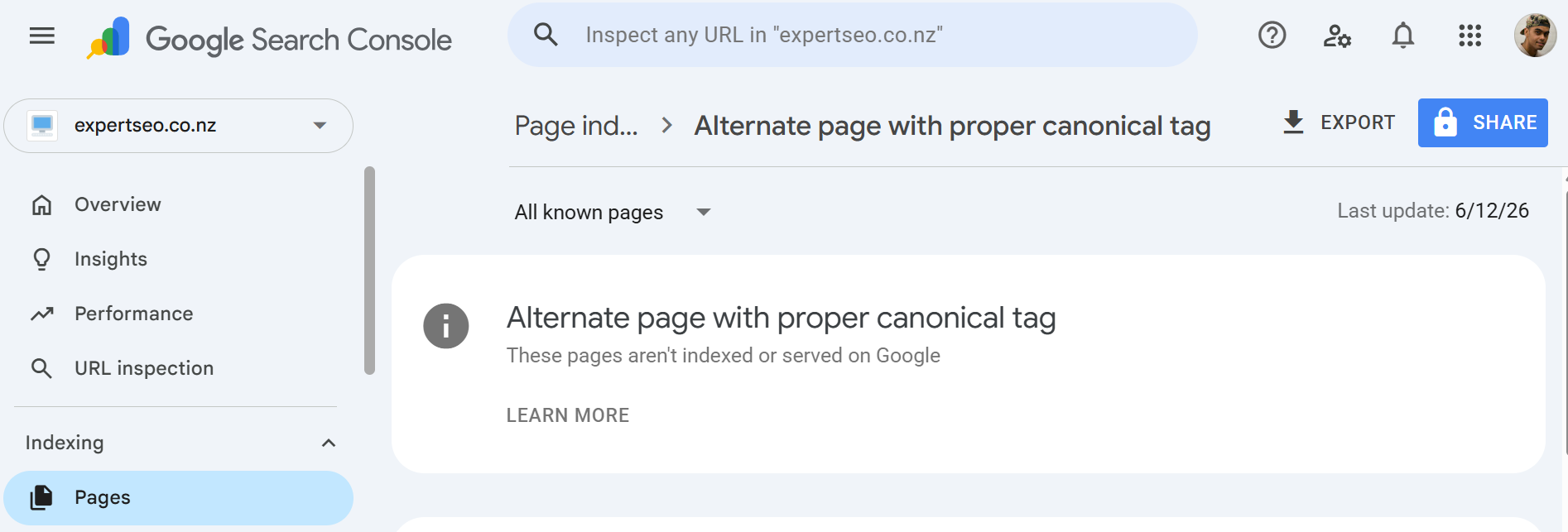
There’s no red error and no clear instruction — just a phrase that sounds like it might be quietly tanking your rankings while you sleep.
Or maybe your developer mentioned you’ve got “duplicate content,” and you nodded along like you knew exactly what that meant.
Either way, you’re in the right place.
The canonical tag is one of the most misunderstood parts of technical SEO, and most business owners do one of two things with it: ignore it completely, or panic and break something that was already working fine.
This guide is the plain-English version. What a canonical tag actually is, how to tell if you even need to touch yours, and the exact steps to add or fix one on your own site — whether you’re on WordPress, Shopify, or hand-coded HTML.
What Is a Canonical Tag?
A canonical tag is a line of HTML that tells search engines which version of a page is the “main” one when the same content sits on more than one URL.
That’s it. It points Google to the master copy so your duplicate or near-duplicate URLs stop competing with each other.
Here’s what one looks like, tucked into the <head> of a page:
<link rel="canonical" href="https://yoursite.co.nz/blue-hoodie/" />Think of it like votes. Say you’ve got five different URLs all showing the same product page.
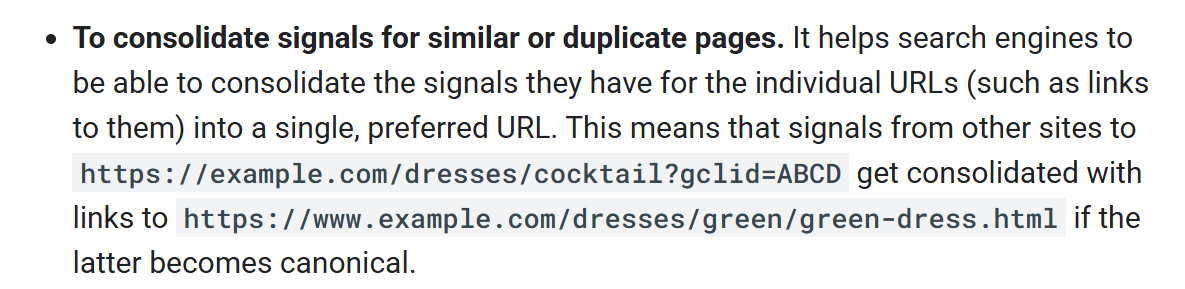
Without a canonical, Google sees five separate pages and splits the “votes” — the links, the authority, the ranking signals — across all five. None of them ranks as well as it should.
A canonical tag gathers those five up and says: count them all for this one URL.
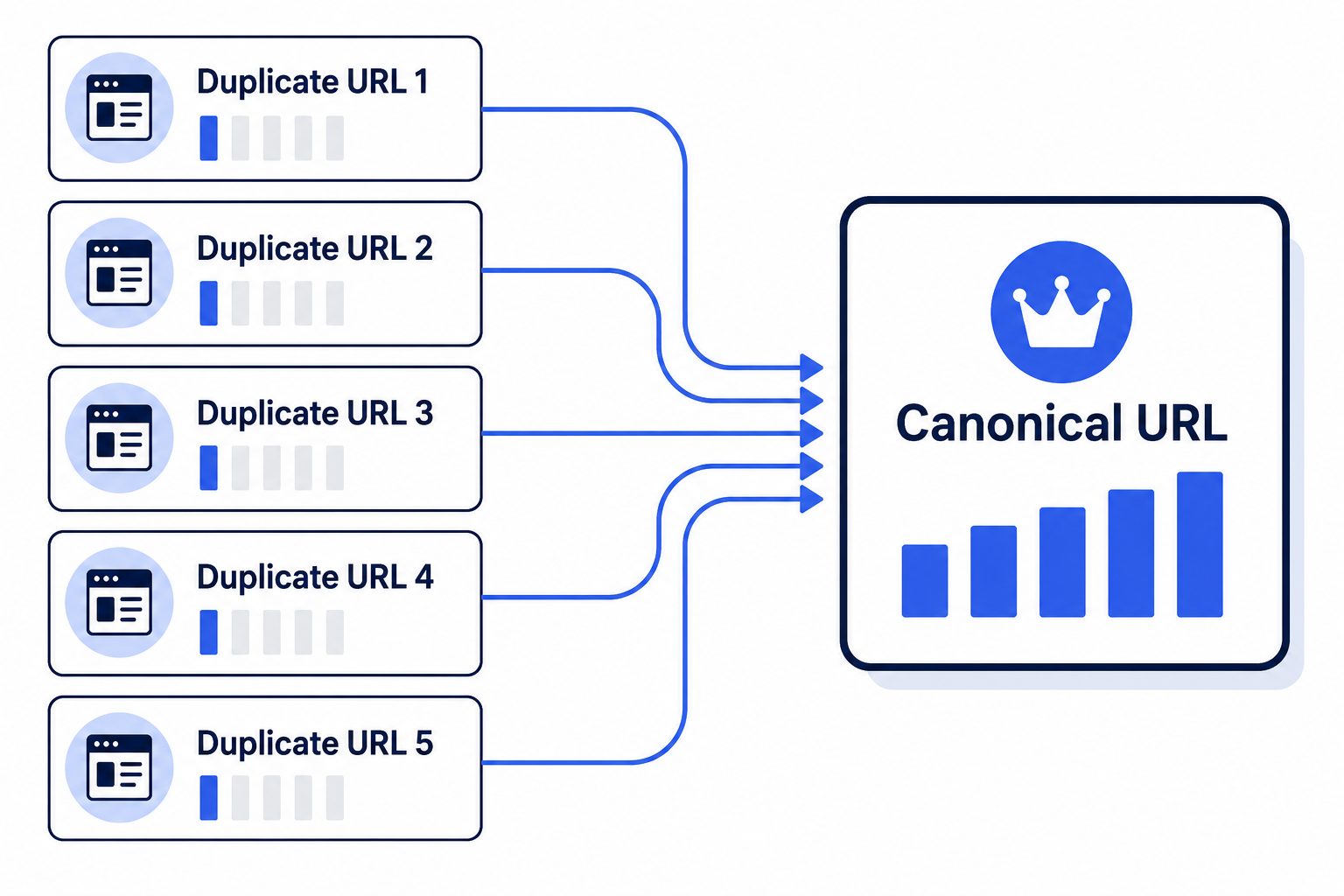
That single line is doing real work. Roughly 29% of web pages contain duplicate content of some kind, and the canonical tag is the main tool for telling Google which copy actually matters.

Why Duplicate URLs Happen (and Why Google Cares)
Search engines treat every variation of a URL as a separate page — so the same content showing up at different addresses quietly splits the signals Google would otherwise pool into one.
The thing most people don’t realise is how easily duplicates appear without anyone creating them on purpose.
Take a single homepage. It can often be reached at all of these:
http://yoursite.co.nzhttps://yoursite.co.nzhttps://www.yoursite.co.nzhttps://yoursite.co.nz/index.html
Same page to you and me. Four different pages to Google.
Then there’s the big one for anyone selling online. Picture an Auckland clothing store — and SEO for Auckland businesses is about as competitive as retail search gets in this country, so split signals cost you more there than almost anywhere. Its “hoodies” category lives at /hoodies/.
But the moment a shopper starts filtering, your platform spins up URLs like this:
/hoodies/?colour=green/hoodies/?size=XS/hoodies/?colour=green&size=XS&sort=price
Every filter combination is a fresh URL with basically the same content. A busy store can generate hundreds of these.
This is exactly the kind of mess that makes online store SEO trickier than a simple brochure site — and exactly what canonicals were built to tidy up.
The same trick handles syndication. If you publish an article and let another site republish it, a canonical pointing back to your original tells Google who wrote it first — so the copy doesn’t outrank you on your own work.
So why does Google care?
Two reasons, and neither is a penalty. There’s no “duplicate content penalty” lurking out there waiting to smite you. What actually happens is quieter and more annoying:
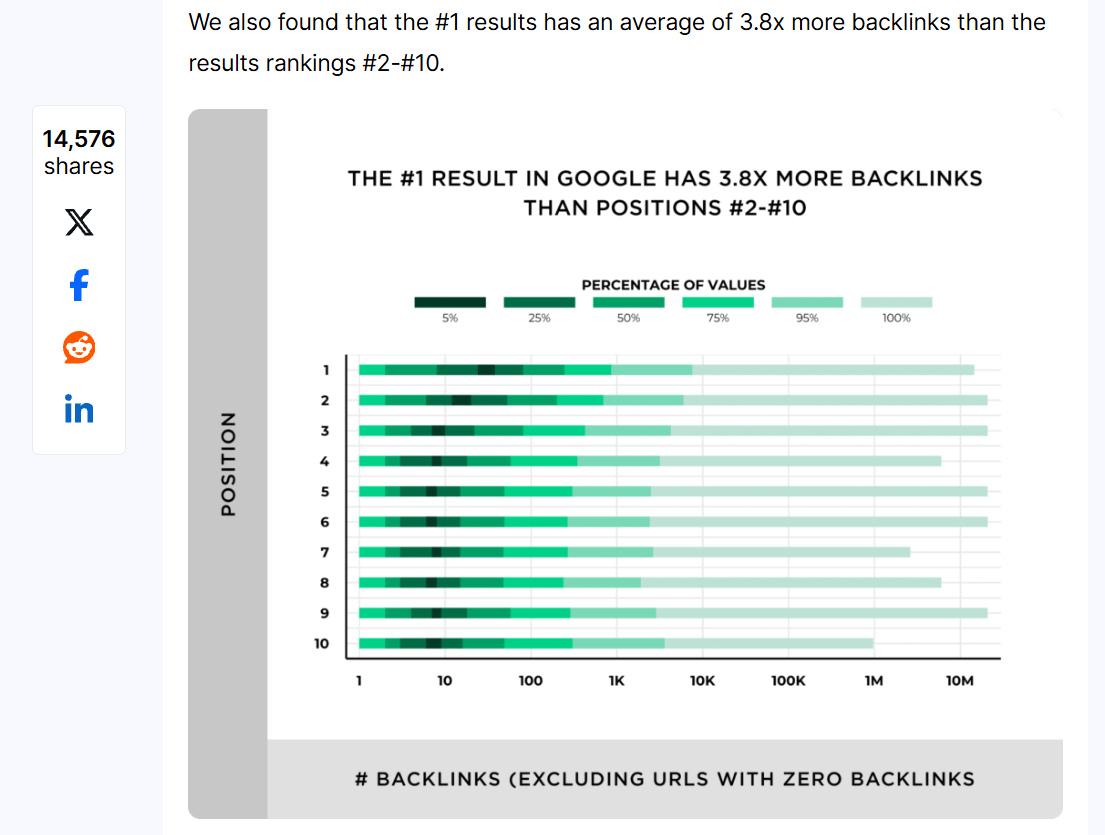
First, your signals get split. Links are still a confirmed Google ranking factor, so spreading them across five duplicate URLs means no single version builds the authority it needs to rank higher in search.
Second, Google wastes its crawl budget shuffling through near-identical pages instead of finding the new content you actually want indexed.
Consolidate the duplicates with a canonical, and both problems go away.
Do You Actually Need to Touch Your Canonical Tags?
Probably not — and that’s the part nobody tells you. If you’re on WordPress with an SEO plugin, or on Shopify, your pages almost certainly already have a self-referencing canonical doing its job.
A self-referencing canonical is simple: it’s a page whose canonical tag points to itself.
The /blue-hoodie/ page has a canonical that says /blue-hoodie/ is the master. That’s the correct, healthy default for most normal pages, and good platforms add it automatically.
So before you go anywhere near your code, know this: messing with canonicals you don’t understand is one of the faster ways to accidentally deindex your own pages.
I’ve seen tidy little NZ sites where someone “fixed” a canonical they didn’t need to and pointed half their blog at the homepage. Don’t be that person.
You only need to step in when:
- You’re deliberately publishing duplicate or very similar pages and need to point Google at the main one.
- You’re syndicating content to other sites.
- You run a parameter-heavy ecommerce store where filters spawn duplicates.
- You’ve just done a site migration and ended up with two live versions of pages.
- Search Console is flagging a canonical issue (more on fixing those below).
Everything else? Leave it alone. A law firm with ten clean service pages and a blog doesn’t need to fiddle with anything — the self-referencing default already handles it, which is why solid law firm SEO rarely starts with canonicals at all.
When we audit NZ sites at our SEO company, the canonical setup is usually already fine; the work is checking, not rebuilding.
How to Add a Canonical Tag (Step by Step)
The fastest way to set a canonical depends on what your site runs on. Here’s the click-by-click for the platforms most NZ businesses are actually using.
WordPress with Rank Math
This is the one I’d reach for first, because it takes about ten seconds and you never touch code.
Open the page or post you want to set. Scroll down to the Rank Math box, click the Advanced tab, and you’ll find a Canonical URL field. Drop the master URL in there, update the page, done.
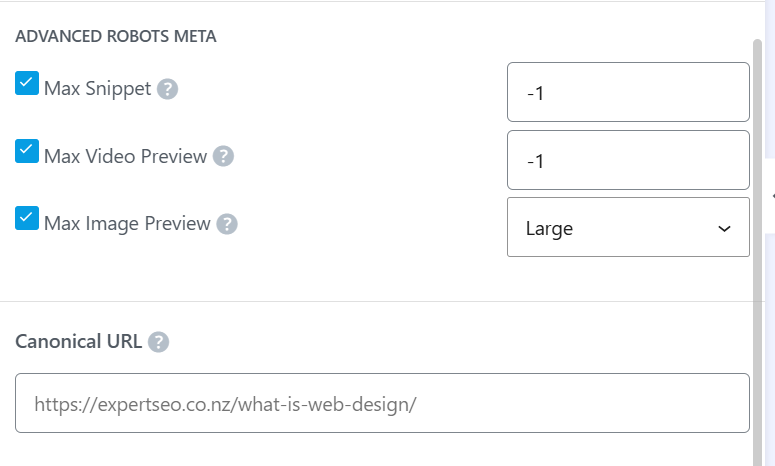
Leave it blank and Rank Math sets a self-referencing canonical for you, which is what you want most of the time.
You only fill the field when you’re deliberately pointing one page at a different master. Getting this right is half of what good SEO on WordPress comes down to.
WordPress without a plugin
If you’d rather not run a plugin, you can add canonicals in your theme. The clean way is a small function in your child theme’s functions.php that outputs a self-referencing canonical into the <head>.
The rough-and-ready way is editing header.php directly — but if a theme update overwrites it, your canonical’s gone. For most people the plugin is the safer call here.
Shopify
Shopify handles canonicals fairly well on its own. Every product and collection page gets a self-referencing canonical out of the box, so for most small and medium stores you won’t need to lift a finger.
Where it trips up is exactly that Auckland clothing store example. Shopify often shows the same product under multiple collection paths (/collections/hoodies/products/blue-hoodie and /collections/sale/products/blue-hoodie), and its default canonical doesn’t always point where you’d want.
Fixing that means editing your theme’s .liquid files, which is developer territory — don’t wing it on a live store. Strong SEO on Shopify usually means checking what Shopify chose, not overriding it blindly.
Raw HTML
Hand-coded site? Add the canonical straight into the <head> of each page:
<head>
  <link rel="canonical" href="https://yoursite.co.nz/about/" />
</head>
Whatever platform you’re on, four rules carry across all of them:
- Use the full, absolute URL —
https://yoursite.co.nz/page/, not/page/. - Use the HTTPS version, not HTTP.
- One canonical per page. Two and Google ignores both.
- It must live in the
<head>. A canonical in the<body>does nothing.
How to Check Your Canonical Tags
Two quick checks tell you everything: view the page source to see the canonical you’ve declared, and use Search Console to see the one Google actually chose. They’re not always the same, and that gap is where the interesting problems live.
The manual check takes five seconds. Open any page, right-click, hit View Page Source, then Ctrl+F (or Cmd+F) and search for “canonical.” You’ll see the exact rel="canonical" line and where it points.

The deeper check is in Google Search Console. Pop a URL into the URL Inspection tool, expand the coverage details, and you’ll see two lines: User-declared canonical (what you told Google) and Google-selected canonical (what Google decided to use).
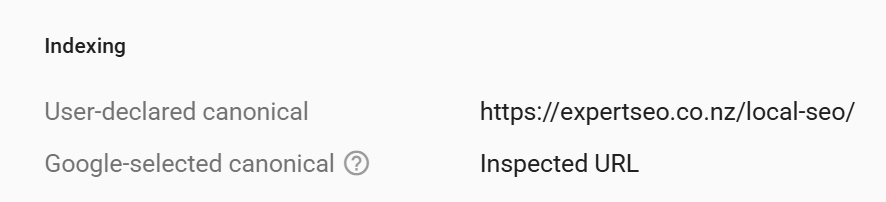
When those two match, you’re sorted. When they don’t, Google’s reading some other signal — a sitemap, an internal link, a redirect — as a stronger vote than your tag.
Remember, Google treats the canonical as a signal, not a directive; if your other signals contradict it, Google backs the crowd, not your tag.
The fix is almost always alignment: make sure your internal links, your sitemap, and your canonical all point at the same master URL. Conflicting signals are what confuse Google in the first place.
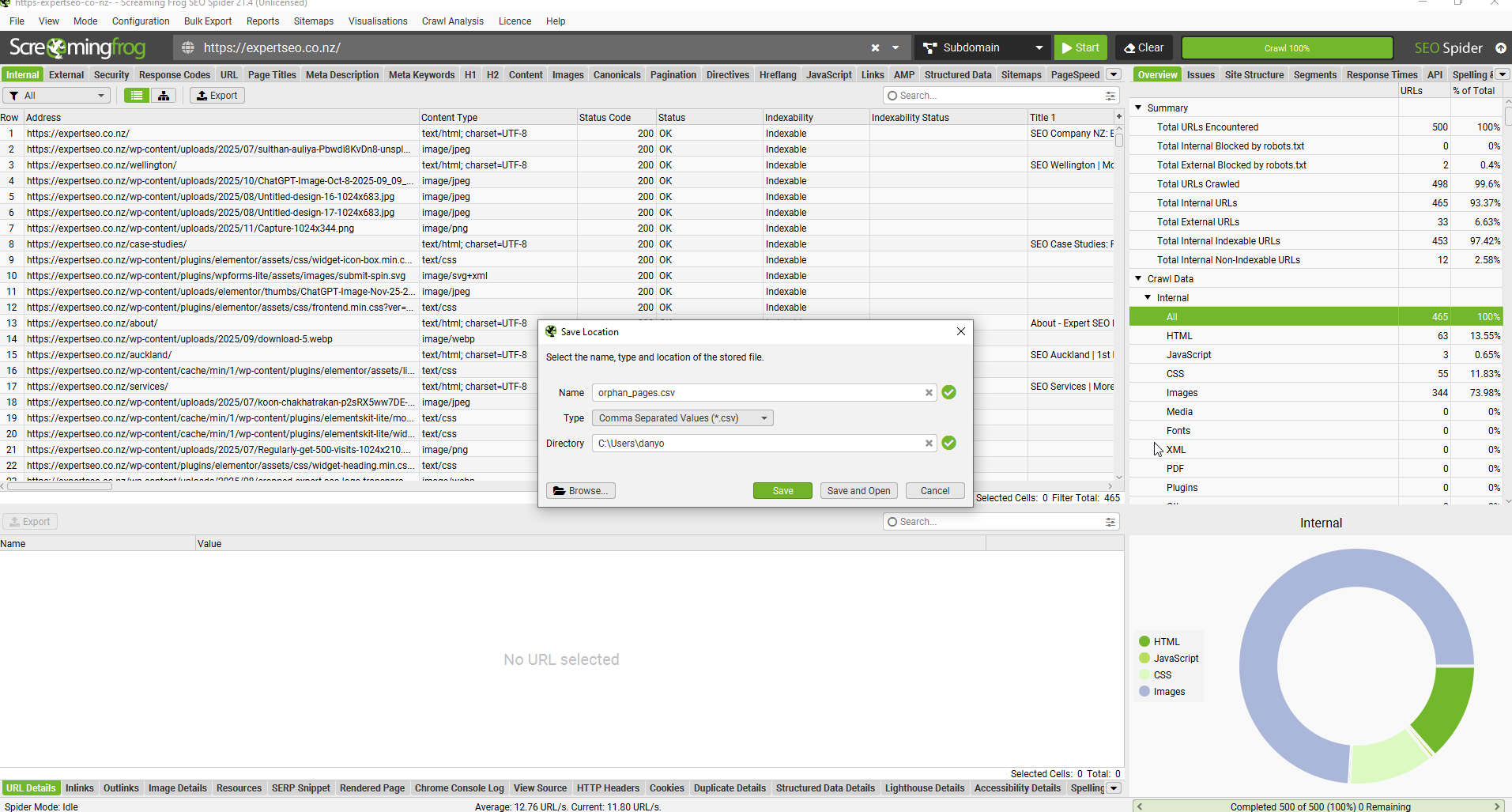
For a whole-site view, a crawler like Screaming Frog will list every canonical on your site in one pass.
Handy on a dentist’s site with sixty-odd pages where checking by hand would take all afternoon — and a normal part of SEO for dentists or any business past a handful of pages.
Fixing the Common Search Console Canonical Errors
Most canonical “errors” in Search Console aren’t emergencies. Here’s what each one actually means and how to clear it.
Across the NZ sites we look at, canonical confusion is one of the most common things Search Console flags — and the good news is that roughly two-thirds of pages now carry canonical tags, though mismatched ones have doubled since 2022. In other words: most sites have canonicals; plenty have them pointed slightly wrong.

“Alternative page with proper canonical tag”
This is the one that makes people nervous, and it’s usually nothing to worry about. It means Google found a duplicate of one of your pages, and that duplicate correctly points its canonical at the version you want indexed.
That’s the system working. Google is telling you: “I found a copy, I can see it defers to the main one, I’ve handled it.” It sits in the report as information, not as a problem to fix.
When is it worth a look? If a page you actually want indexed shows up here, that means Google thinks it’s a duplicate of something else. Then you check whether the canonical is pointing where you intended.
“Duplicate without user-selected canonical”
This one means you’ve left the decision to Google. It found duplicate content and you didn’t declare a canonical, so it picked one for you — and it won’t necessarily pick the version you’d want.
The fix is straightforward: add a self-referencing canonical to the page you want as the master, so you’re making the call instead of Google.
“Duplicate, Google chose a different canonical than user”
Here your signals are fighting each other. You declared one canonical, but Google’s other clues — internal links, sitemap, redirects — pointed somewhere else, so it overrode you.
Fix it by getting everything to agree. Point your internal links and your sitemap at the same URL you’ve set as the canonical. Stop sending mixed messages and Google will usually fall back in line.
A real-world shape this takes: a Hamilton building company migrates its site, and the old and new versions of a blog post both stay live. Search Console lights up with “alternative page with proper canonical tag.”
Nine times out of ten the canonical is already pointing the right way and there’s nothing to do — the trap is “fixing” something that was never broken, then watching pages quietly drop out of the index.
That calm, check-first habit is most of what SEO for builders actually rewards. It’s the same low-drama discipline behind steady SEO in Hamilton, where the wins come from not breaking what already works.
If your report is full of these and you’re not sure which are real, that’s the moment an SEO audit earns its keep — it surfaces every canonical issue at once and separates the noise from the handful that actually matter.
Canonical Tag Best Practices
Get five things right and canonicals rarely cause you grief.
- Self-reference by default. Every important page should have a canonical pointing to itself. It locks in the version you want indexed.
- Use absolute URLs. Write the full address, protocol and all (
https://yoursite.co.nz/page/), never a relative/page/. - Keep URLs lowercase and consistent. Mixed-case URLs can create duplicates on some servers. Pick lowercase and stick to it.
- Always point at HTTPS. If you’ve moved to SSL, never declare an old HTTP URL in your canonical.
- One canonical per page, no chains. A canonical should point straight to the master — A to B. Never A to B to C.
A clean canonical next to a broken one makes the difference obvious:
Good: absolute URL, HTTPS, points to the master
<link rel="canonical" href="https://yoursite.co.nz/about/" />

Bad: relative path, no protocol or domain
<link rel="canonical" href="/about/" />
Common Canonical Mistakes That Quietly Hurt You
A canonical only works if Google can see it and trust it. These are the mistakes that silently cancel it out.
- Mixing
noindexwith a canonical. They’re contradictory instructions — one says “consolidate to this,” the other says “drop this from search.” Pick one. - Blocking the URL in robots.txt. If Google can’t crawl the page, it can’t read the canonical on it, so no signal passes through.
- Canonical loops. When page A points to B, and B points back to A, Google may abandon the hint entirely and choose its own canonical instead.
- Canonicalising every paginated page to page one. Page two of a blog archive isn’t a duplicate of page one. Let paginated pages self-reference.
- Two canonical tags on one page. Usually caused by a theme and a plugin both adding one. Google sees the conflict and ignores both.
- A canonical in the
<body>. It only counts in the<head>. Sometimes a stray script or unclosed tag pushes it into the body during rendering, and it stops working without you ever knowing.
Canonical Tag vs 301 Redirect vs Noindex — Which One, When?
These three get mixed up constantly, so here’s the simple rule: use a canonical when both URLs should stay live but only one should rank; use a 301 redirect when the duplicate should disappear; use noindex when a page needs to exist for visitors but never show up in search.
| Tool | What it does | When to use it | NZ example |
|---|---|---|---|
| Canonical tag | Keeps all URLs live, consolidates ranking signals to one | Duplicates that all need to exist (filtered product pages, tracking URLs) | An online store’s ?sort=price filter URLs pointing to the clean category page |
| 301 redirect | Permanently sends users and Google from one URL to another | The duplicate should be gone for good (old page after a migration) | Redirecting http:// to https:// after switching to SSL |
| Noindex | Keeps the page live for users, hides it from search | Useful pages with no search value (thank-you pages, internal search results) | A “form submitted” confirmation page that has no business showing up in search |
The one rule that ties it together: don’t stack them. A canonical and a noindex on the same URL, or a canonical pointing at a redirected page, just sends Google mixed signals — and mixed signals are the whole problem you were trying to solve.
When to Do It Yourself vs Hire an Expert
Here’s the truth: checking your canonicals is something you can do yourself this afternoon. View-source on your top pages, run the URL Inspection check in Search Console, and you’ll know within twenty minutes whether anything’s off.
Where it gets worth handing over is scale and stakes.
A 2,000-page ecommerce store with parameter duplicates, a botched migration throwing canonical errors across hundreds of URLs, or a site where rankings dropped and you can’t tell if canonicals are the cause — that’s when guessing gets expensive.
If that’s you, professional SEO help takes it off your plate, and one-off SEO consulting is enough if you just want someone to check your setup and tell you straight whether it’s a problem.
Either way, you’ll stop losing sleep over a phrase in Search Console that, half the time, means everything’s working exactly as it should.
Canonical Tag: FAQ
Is a canonical tag important for SEO?
Yes, where you have duplicate or near-duplicate URLs. It consolidates ranking signals to one version and stops your own pages competing with each other. For a small site with unique pages, the automatic self-referencing canonical already handles it.
What is a canonical tag example?
A canonical tag looks like this: <link rel="canonical" href="https://yoursite.co.nz/page/" />, placed in the <head> of the page. The URL inside it is the version you want Google to index and rank.
What is the use of a canonical tag?
It tells search engines which URL is the master copy when the same content appears at multiple addresses, so links and authority pool into one page instead of being split across duplicates.
Do canonical tags matter for AI search and getting cited?
Indirectly, yes. AI Overviews and chatbots pull from indexed pages, so making sure the right version of your content is the one Google indexes — rather than a duplicate — gives you the best shot at being the page that gets surfaced and cited.
Recommended Reading
How to find and fix the foundation issues canonicals sit alongside.
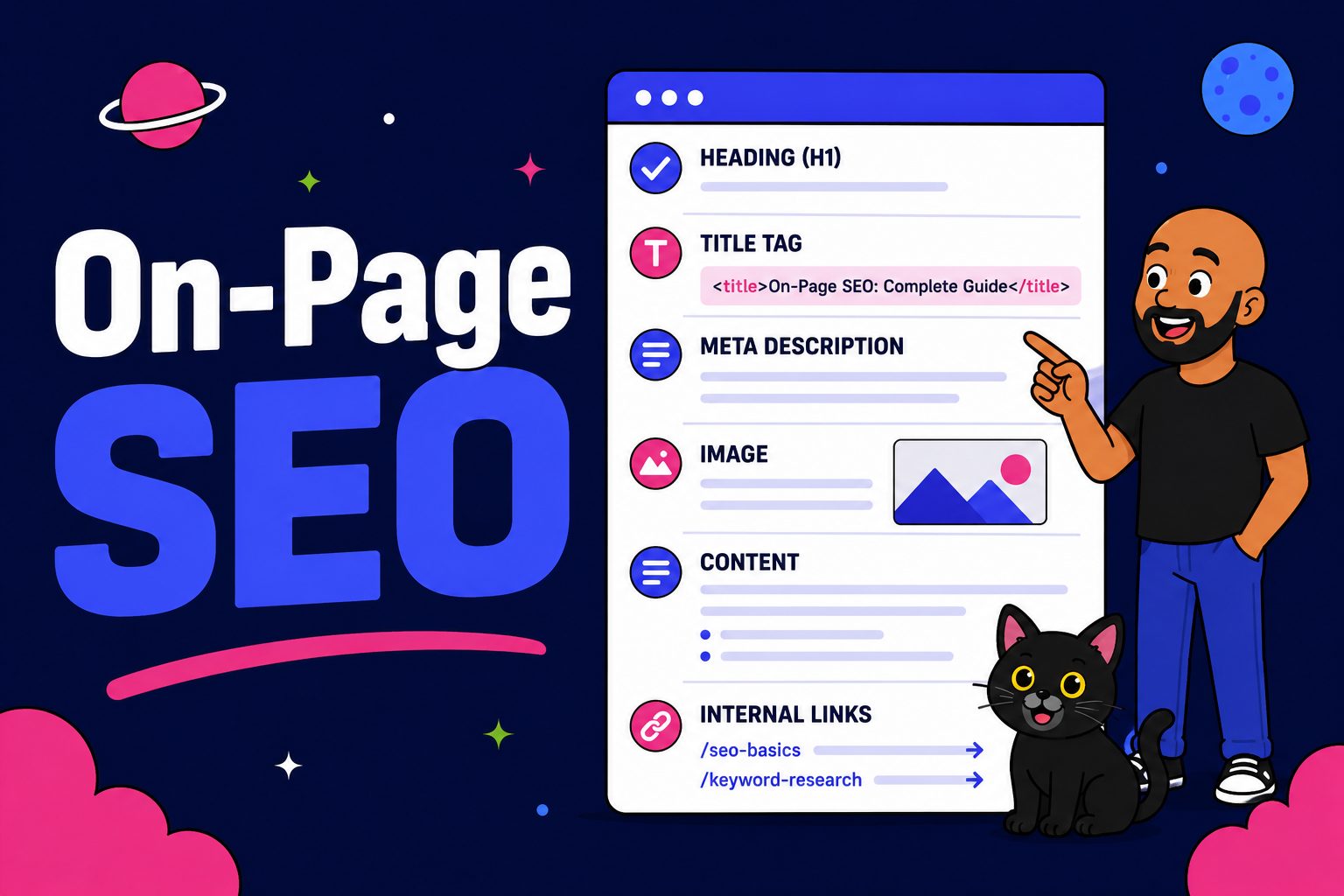
The full on-page checklist for getting individual pages to rank.
How aligning your internal links reinforces the canonical signals you’ve set.