

There’s a free tool from Google that shows you the exact keywords you rank for, which pages are dying, and why your newest page still isn’t showing up in search.
Google built it. The data comes straight from the source, so it’s more accurate than anything Ahrefs or SEMrush can estimate.
And on nearly every New Zealand website I look at, it’s sitting there installed and untouched: a developer set it up years ago, nobody’s opened it since.
That’s Google Search Console.
This guide covers what it is, how to set it up, and the part every other guide skips: how to read the data and turn each number into an actual SEO move — walked through on a real site that used it to rank #1 in NZ.

What Is Google Search Console?
Google Search Console (GSC) is a free tool from Google that shows how your website performs in Google Search — which keywords you rank for, how many people click, and what’s stopping Google from showing your pages.
If “Google Webmaster Tools” rings a bell, it’s the same thing under a new name: Google rebranded it Search Console back in 2015.
Worth knowing, because a few local guides still lean on features Google retired years ago — a good tell that they haven’t opened the tool recently.
Here’s the one thing to get straight from the start: Search Console reports on your search presence, it doesn’t control it.
It won’t rank you higher on its own. It hands you the data — the reading and the doing is on you. That’s exactly what the rest of this guide is for.
What Does Google Search Console Do?
At a glance, GSC gives you four core numbers, plus a live view of whether Google can even find your pages.
The four numbers live in the Performance report:
Impressions — how many times your site showed up in search results. This is your visibility. Someone searched, Google put you on the page, whether they clicked or not.
Clicks — how many of those impressions turned into an actual visit.
CTR (click-through rate) — clicks divided by impressions, as a percentage. It’s the share of people who saw you and chose you.
Average position — where you typically rank for a query. Position 3.2 means you hover around the third result.
Underneath those, the indexing side tells you which pages Google has actually stored and is willing to show — and flags the ones it’s ignoring or hit an error on.
One thing worth flagging for 2026: Google has started folding AI Overviews and AI Mode traffic into the Performance report in some regions.
It’s rolling out unevenly — as of writing this, I can’t see a separate AI-search breakdown on my own NZ properties yet. So it’s coming, it’s worth watching, and if you’re in NZ and can’t find it, you’re not doing anything wrong. It just hasn’t landed here.
Why Google Search Console Is Important for SEO?
Search Console matters because it’s the only place you see Google’s own truth about your site — not a third-party estimate.
Every other tool guesses. Ahrefs and SEMrush model your rankings and traffic from sampled data; they’re brilliant, but they’re inferring.
GSC is Google telling you directly: here’s what we showed you for, here’s who clicked, here’s the page we couldn’t index. First-party data, straight from the referee.
That matters for three reasons.
First, it catches the silent killers. A page can drop out of Google’s index — a bad noindex tag, a botched redirect, a crawl block — and nothing on your site looks broken.
The page loads fine. It’s just invisible in search, quietly bleeding traffic. GSC is where you catch that, often before you’d notice the drop in leads.
Second, it shows you the fastest wins in SEO: the near-misses. Pages sitting on page two, ranking position 8 to 15, pulling impressions but hardly any clicks.
Those pages already have relevance — Google’s showing them — they just haven’t earned the authority to climb.
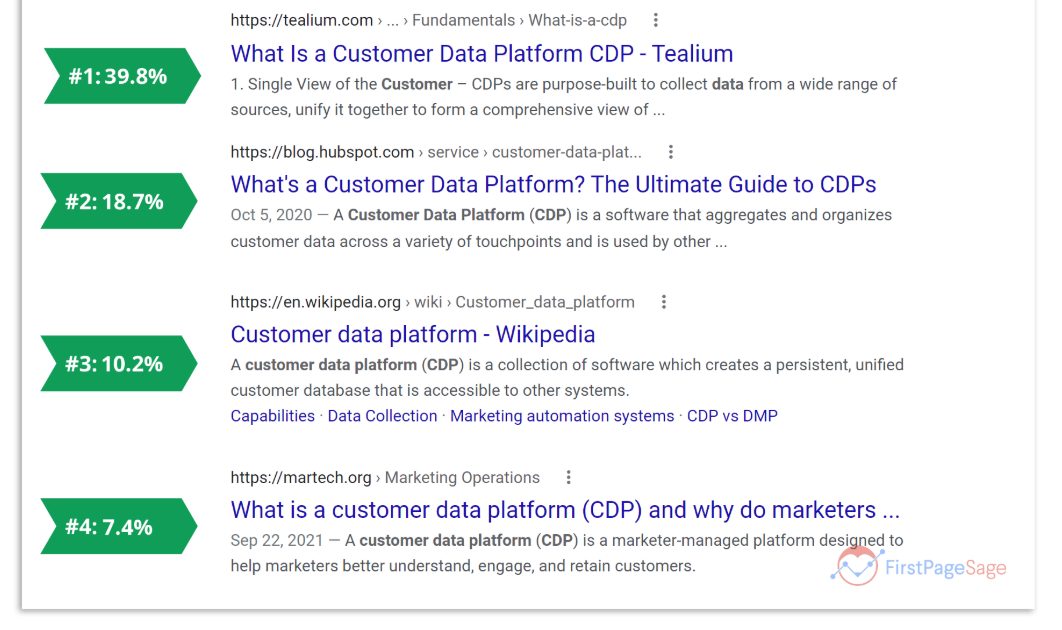
Nudge them up a few spots and the clicks follow, because the top three organic results take about 68.7% of all clicks according to First Page Sage. Page two gets crumbs. Moving from position 11 to position 5 can multiply a page’s traffic without writing a single new article.
Third, ignoring it is expensive. A page ranking position 9 with 2,000 impressions and 20 clicks is money sitting on the table — real searches, real intent, going to a competitor because you’re one page too low.
You can’t fix what you can’t see.
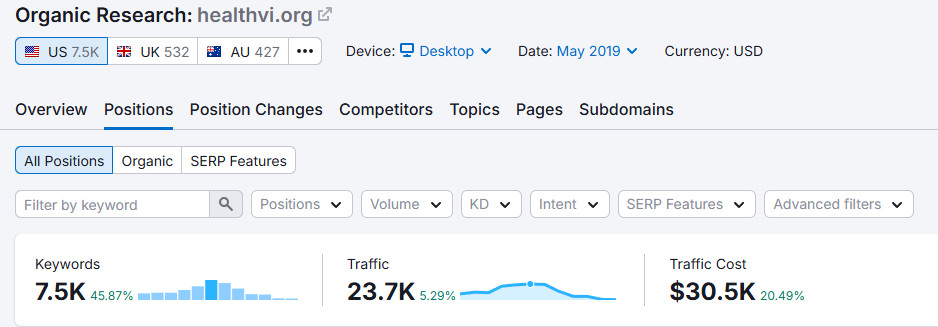
I’ve built this exact data-driven habit into every site I’ve grown. HealthVI went from zero to over 20,000 monthly organic visitors, and a huge chunk of that was reading the Performance report every week, spotting the near-misses, and feeding them.
Now, the fair criticism people throw at GSC: “it shows me the data but never tells me what to do with it.” True. That’s precisely why the reading skill matters more than the tool. So let’s build that skill.
How to Set Up Google Search Console
To set up GSC, go to search.google.com/search-console, add your website as a property, verify you own it, and submit your sitemap. Ten minutes, start to finish.
Here’s the click-by-click.
-
Head to search.google.com/search-console and sign in with a Google account (use the one you actually want tied to the site long-term).
-
Click Add property. You’ll get two choices: Domain or URL prefix.
- Domain covers everything —
www, non-www,http,https, and every subdomain — in one property. It’s the cleaner option, but it verifies through your domain provider (DNS), which trips some people up. - URL prefix covers just the exact address you enter. It’s fussier about protocol, but it gives you easier verification methods (like uploading a file).
- For most NZ business owners on one main site, go Domain if you can access your DNS, URL prefix if that’s a step too far.

- Verify ownership. If you picked Domain, Google gives you a TXT record to paste into your DNS settings at your registrar. If your site’s on WordPress, the simplest path is a plugin — Rank Math or Yoast will let you verify by pasting a small code, no DNS wrangling required. For a typical
.co.nzsite on WordPress, that plugin route is the one I’d point most people to.
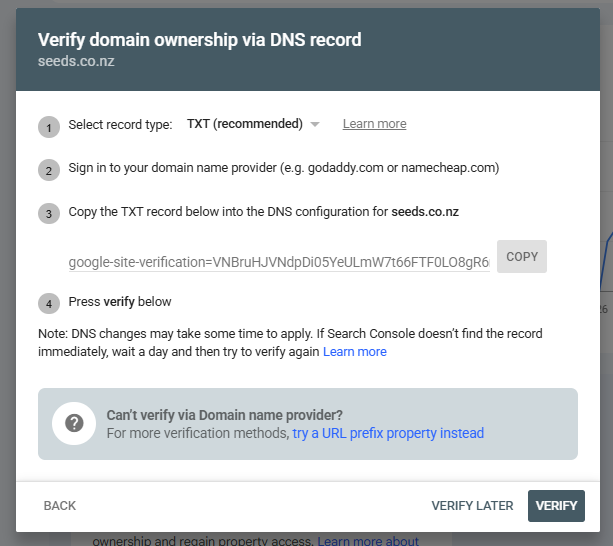
- Submit your sitemap. Once verified, go to Sitemaps in the left menu and enter
sitemap_index.xml(orsitemap.xml, depending on your setup — Rank Math usessitemap_index.xml). This hands Google a map of every page you want found.
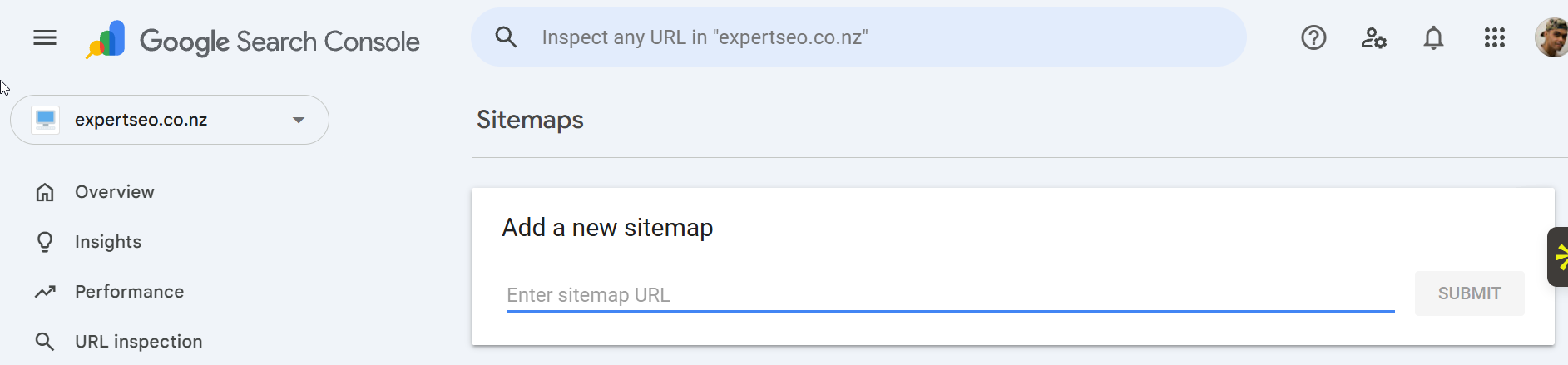
Then wait. GSC needs a day or two to start collecting data, and the reports fill out over the following weeks. If you open it the next morning and see “no data,” that’s normal — the reports just need a few days to fill.
Getting your pages crawled and indexed cleanly is the foundation the rest of this sits on — it’s the same groundwork technical SEO covers, just the Google-facing half of it.
How to Read Your Google Search Console Data
This is the part that separates people who have GSC from people who use it. The numbers only mean something once you know what a pattern is telling you — and what to do about it.
Here’s how to diagnose the situations you’ll actually run into.
High impressions, low clicks.
The most common one, and the most misread. First, check your average position for that page or query.
If you’re sitting on page two (position 8 to 20), the story is simple: Google thinks you’re relevant enough to show, but you haven’t earned enough authority and trust to rank in the spots that get clicks yet.
Give it time, keep strengthening the page, and build the site’s authority — as you climb, the clicks come, and Google starts surfacing you more often. That’s a page maturing, not a page failing.
But if you’re already ranking high (position 1 to 5) and still getting a weak CTR, it’s a different problem: your title and meta description aren’t compelling enough to earn the click. Rewrite them to match what the searcher actually wants, and watch the CTR lift.
High clicks, but on the wrong queries.
Open the Performance report and look at which search terms are bringing people in. If a page built to sell a service is getting all its clicks from an informational question, the intent’s mismatched.
Either the page is chasing the wrong keyword, or you need a separate page for that informational query. This is where GSC quietly does your keyword research for you — it shows you the exact phrases real people used to find you, no tool required.
Impressions dropping week over week.
Compare the last 28 days to the previous period (GSC has a date-range toggle top-left).
A steady decline in impressions usually means you’re slipping in the rankings — a competitor’s overtaken you, or the page has gone stale. That’s your cue to refresh the content before the clicks follow the impressions down.
Impressions near zero for a page you published.
If a page has been live for weeks and GSC shows barely any impressions, Google probably hasn’t indexed it — or doesn’t rate it enough to show.
Drop the URL into the inspection tool (next section) and check its status.
A sudden click cliff.
Clicks fall off a shelf overnight. Check two things: did your average position drop (a ranking hit), or did impressions hold steady while clicks tanked (a CTR or SERP-feature problem — often an AI Overview or featured snippet now sitting above you)?
The fix depends entirely on which one it is, which is exactly why you look before you act.
The habit underneath all of this: never react to a single number. Read it against position, against the date range, against the query.
The number is the symptom; the pattern is the diagnosis.
How to Use Google Search Console for SEO
Using GSC for SEO means turning each report into a decision. Every report points at a specific action. Here’s the loop for the ones that matter, report by report.
The Performance report — find your striking-distance pages
This is the highest-leverage move in the whole tool. Open Performance → Search results, then:
- Set the date range to the last 3 months.
- Make sure the Average position metric is toggled on.
- Click the Position column to sort, and hunt for pages sitting around position 8 to 20 that already pull decent impressions.
Those are your striking-distance pages — near-misses that Google’s this close to ranking.
They’re the fastest wins going, because the jump in click-through rate from page two to the top of page one is enormous — Backlinko’s analysis of millions of results put the number-one spot at around 27% CTR, and page two barely registers.

Pick one. Look at the query bringing it impressions, then strengthen the page around that exact intent — better title, deeper content, cleaner on-page SEO. Re-check in a few weeks. Nine times out of ten it climbs.
URL Inspection — get a new page indexed today
Published a new page and want Google on it now instead of whenever it wanders past? Paste the full URL into the URL inspection bar at the top.
GSC tells you if it’s indexed. If it isn’t, click Test Live URL, then Request Indexing. That pushes it into Google’s crawl queue — no guarantee on timing, but it’s far faster than waiting.
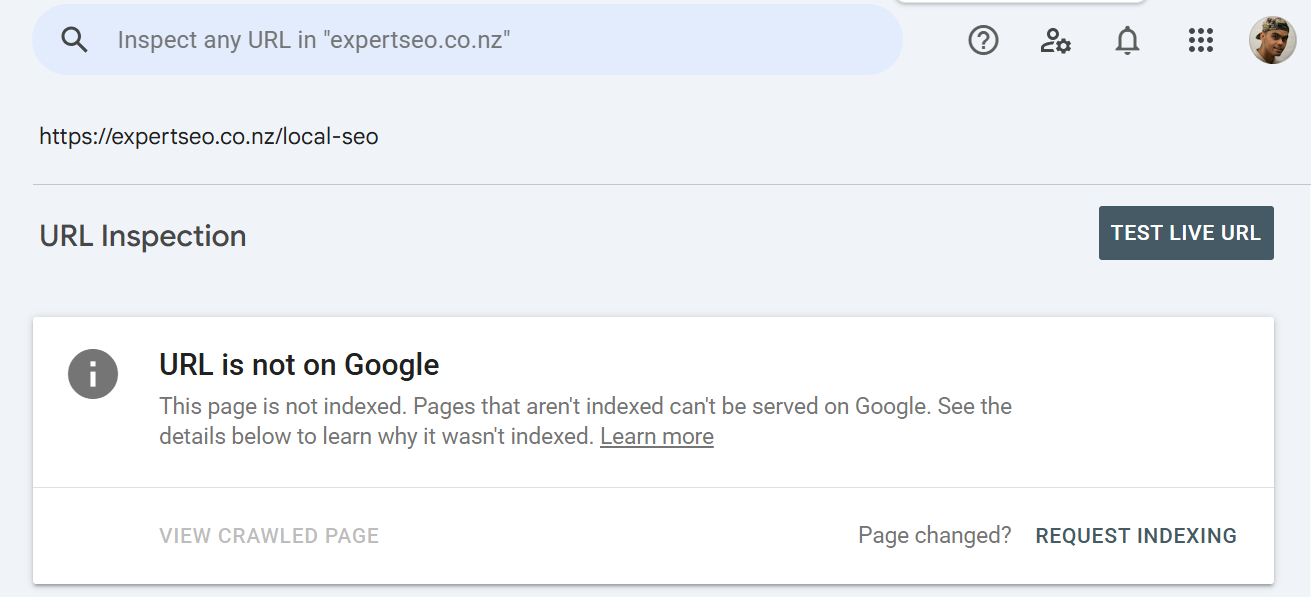
This is gold when you’ve just launched a new service or multi-location page and want it earning as soon as possible.
Page Indexing — find the pages Google is ignoring
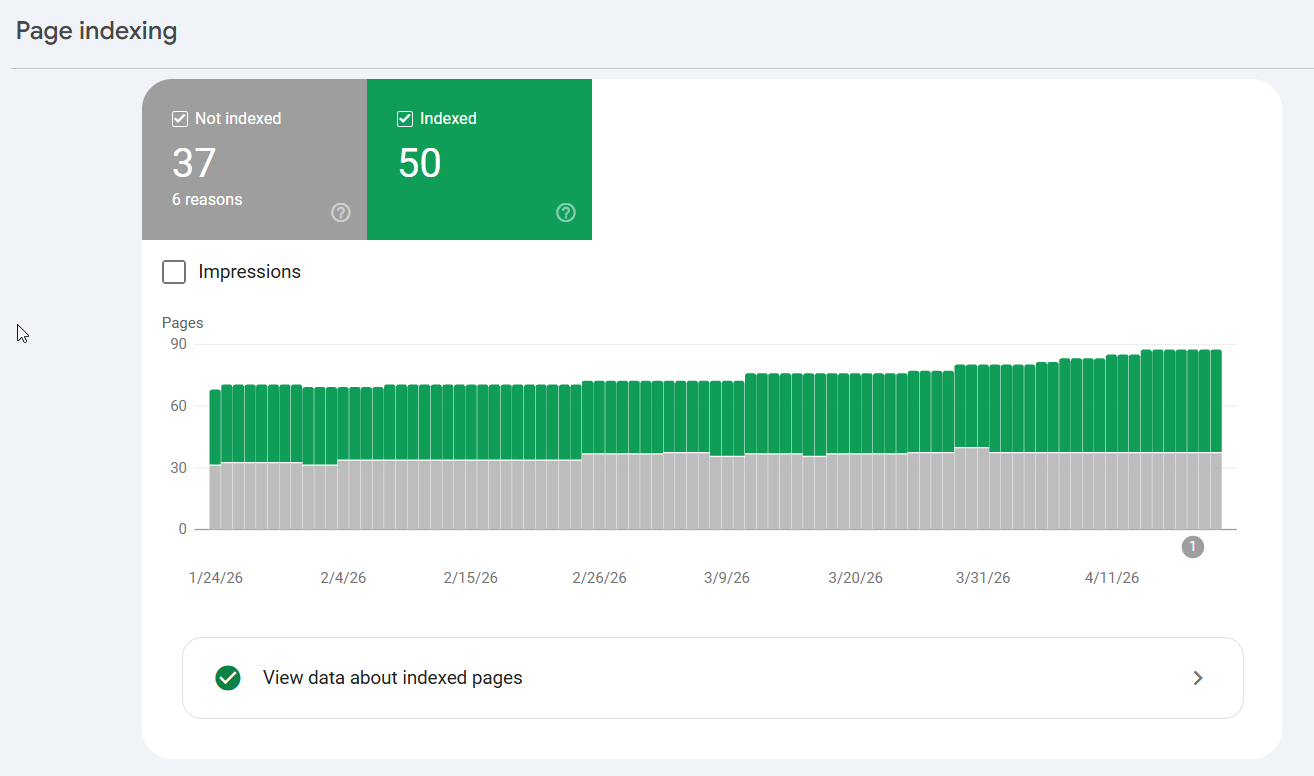
Go to Indexing → Pages. This splits your site into indexed and not-indexed, with reasons. Two you’ll see a lot:
- “Discovered – currently not indexed” — Google knows the page exists but hasn’t bothered crawling it yet, often a sign the page (or the site) needs more authority or internal links pointing at it.
- “Crawled – currently not indexed” — Google looked and decided it wasn’t worth storing. Usually a quality or thin-content signal. Beef the page up or point some internal links at it.
Fixing these is pure found money — pages you already built, finally eligible to rank.
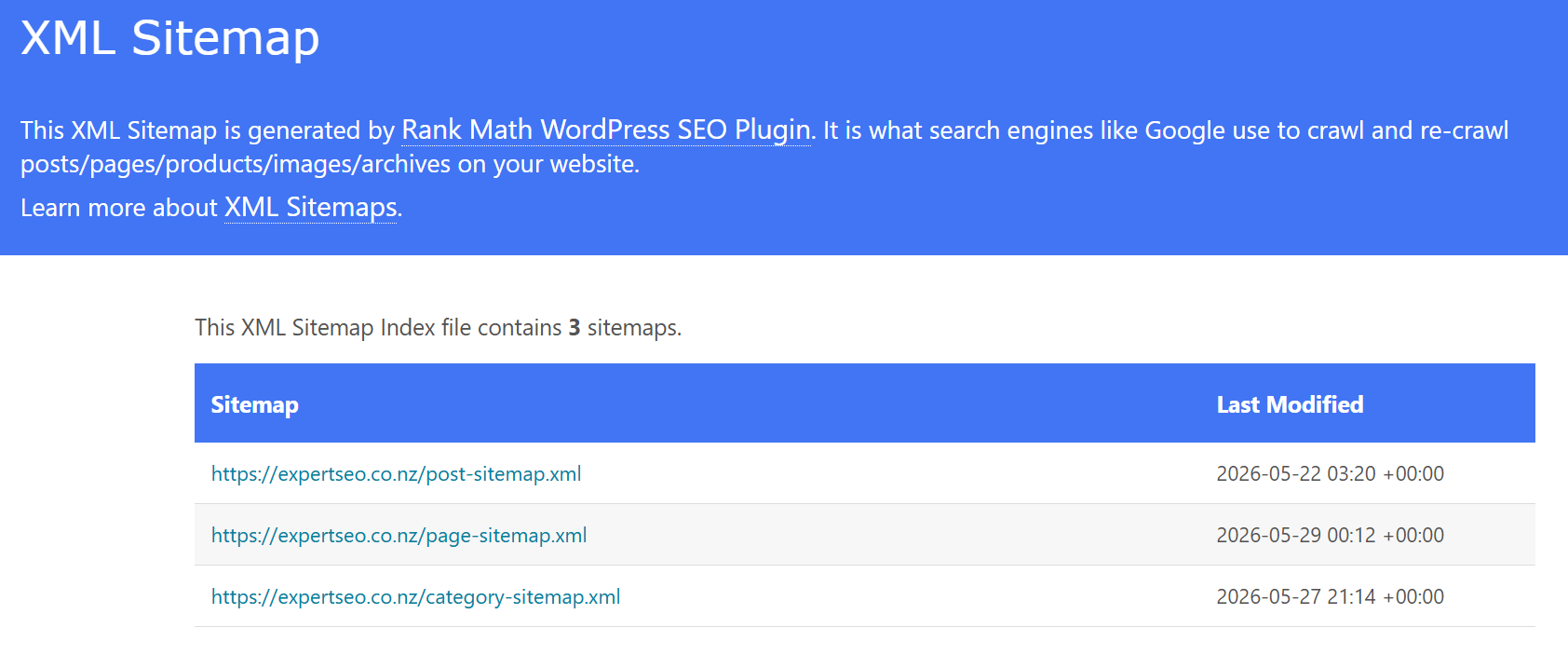
Sitemaps — confirm Google has your map
Back in Sitemaps, check your submitted sitemap shows Success.
If it says “Couldn’t fetch,” Google can’t read it — usually a URL typo or a blocked file. This is quick, but skip it and Google may be discovering your pages the slow way.
Core Web Vitals — the speed and experience signal
Under Experience → Core Web Vitals, Google grades your pages Good, Needs improvement, or Poor, split by mobile and desktop.
It’s judging loading speed, responsiveness, and how much the layout jumps around while loading. Mobile’s the one to watch in NZ, where most people search on their phone.
If pages are landing in “Poor,” that’s a job for the technical side of SEO — but GSC is where you spot it and, after you fix it, hit Validate Fix to ask Google to re-check.
Removals — kill a bad URL fast
Published something you shouldn’t have — wrong price, unfinished page, test content live in search? Indexing → Removals temporarily hides it from Google (about six months) while you sort a permanent fix. Handy in a pinch.
How I Use Google Search Console on My Own Site
Theory’s fine, so here’s the real version — how I actually open GSC on Expert SEO and what I do with it.
Expert SEO is a .co.nz site under a year old, competing against SEO agencies that have been at it for a decade. Despite that, it ranks #1 in New Zealand for “local SEO” — above Ahrefs and SEMrush.

That ranking didn’t come from guesswork. It came from reading this exact tool, week after week. Here’s the routine.
Every Monday I open the Performance report and look at movement first — which queries climbed, which slipped. A single number tells you nothing; the trend tells you everything.
Then I go hunting for two kinds of page.
The near-misses: pages sitting on page two with plenty of impressions but barely any clicks.
On a site this young, that’s where the fastest growth is — pages Google is already testing, one push away from the positions that actually get clicked. I pick one, strengthen it around the query feeding it impressions, and let it climb.
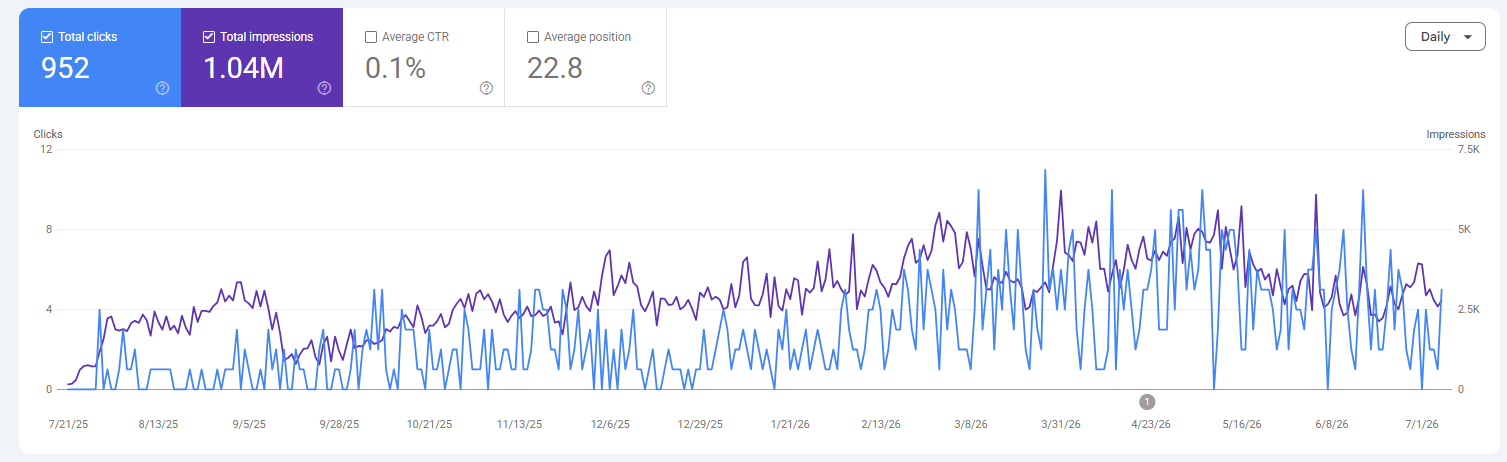
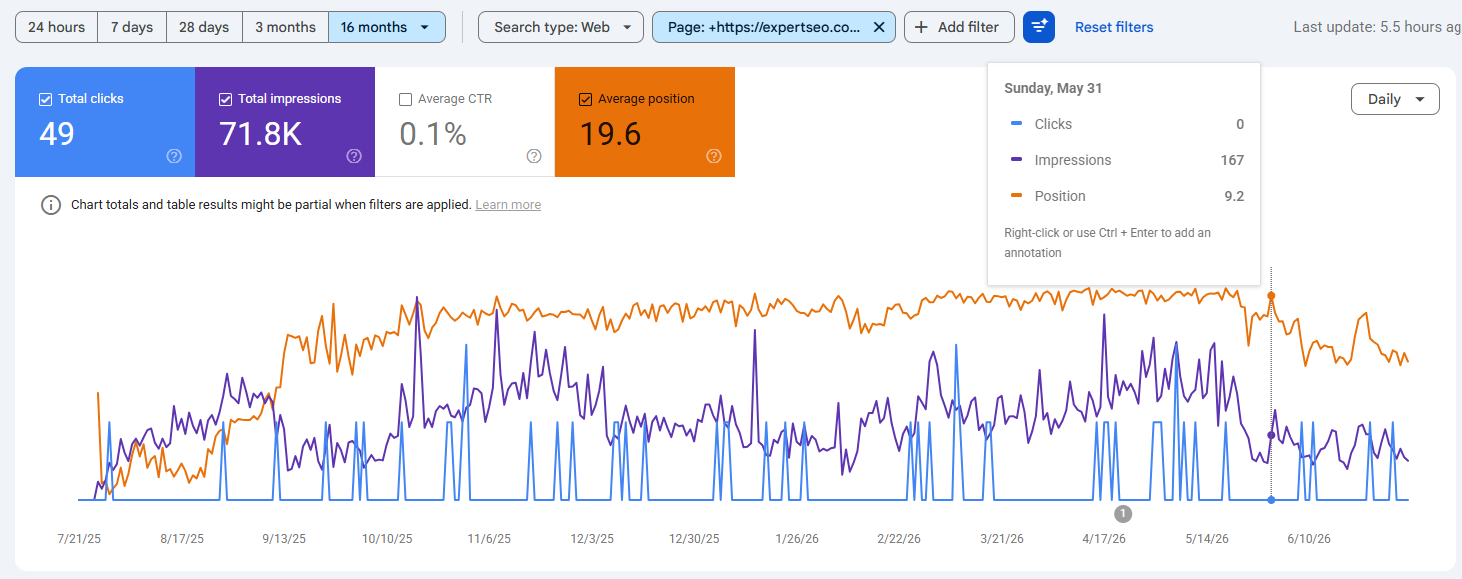
Then the faders — the ones most people never think to check. I widen the range right out to 16 months (you can’t spot a slow decline in a 28-day window), filter down to a single page, and look for a shape like this:

Twenty-two thousand impressions, eighteen clicks, and a line that’s been drifting down for months. That page used to do better than it does now.
When a page slides like that, there’s always a reason. Maybe a competitor has published something sharper and started eating my positions.
Maybe the page never had the authority behind it to hold that spot in the first place. Both are completely fine — because both are fixable, which is exactly why I go looking for them.
So I refresh it: update the content, tighten it against whatever’s outranking me now, and rebuild the case for that page.
A refresh on a page that already has history with Google usually moves faster than launching a brand-new one — Google knows the page already, it just needs a reason to trust it again.
Indexing gets a look too, because a page that isn’t indexed earns nothing. Every new guide runs through URL Inspection and Request Indexing the day it goes live, so I’m never waiting on Google to find it.
None of this is a secret button (and you can use the same strategy across all major cities like Auckland, Wellington, Christchurch, etc).
A sub-one-year-old site outranks ten-year-old competitors by treating GSC as a weekly decision: push the near-misses up, refresh the faders, keep everything indexed.
The data’s the same for everyone. What you do with it is the difference.
How to Fix Common Google Search Console Errors
Most of what goes wrong in GSC falls into three buckets. Here’s the bucket and the fix.
Indexing errors — your page won’t get indexed.
The usual culprits: a stray noindex tag telling Google to stay away, a robots.txt rule blocking the page, or the page returning a 404 or redirect it shouldn’t.
Use URL Inspection on the page — GSC tells you exactly why it’s excluded. Remove the noindex, fix the robots rule, or sort the broken link, then Request Indexing. This is core technical SEO territory, and it’s the kind of thing a proper site audit catches in minutes.
Redirect errors.
GSC flags pages caught in redirect chains or loops — URL A points to B points to C, and Google gives up. Fix it by pointing the original URL straight to the final destination in one clean 301. No chains.
“GSC isn’t working / showing no data.”
Nine times out of ten it’s one of three things: the property’s brand new and still gathering (wait a few days), your verification lapsed (re-verify), or you’re looking at the wrong property — a www vs non-www mismatch, or Domain vs URL-prefix confusion.
Check you’re in the property that actually matches your live site.
Coverage suddenly drops.
A cliff in indexed pages is an early-warning siren — often a site-wide issue like a bad deploy, a server outage, or an accidental noindex pushed across a template. Treat a coverage drop as urgent; it’s usually the first symptom of something bigger.
Google Search Console vs Google Analytics
People mix these two up constantly, so here’s the clean split: Search Console is everything that happens before the click; Google Analytics is everything after.
GSC shows you how you appear in search — impressions, rankings, clicks from Google. Analytics (GA4) shows you what people do once they land — pages viewed, time on site, conversions.
| Google Search Console | Google Analytics (GA4) | |
|---|---|---|
| Data source | Google Search itself | Behaviour on your website |
| What it tracks | Impressions, clicks, rankings, indexing | Sessions, users, conversions, engagement |
| The question it answers | How do I show up in Google? | What do visitors do on my site? |
| Best for | SEO, rankings, indexing health | User behaviour, conversions, traffic sources |
You want both, and they’re better together — GSC tells you which keywords bring people in, GA4 tells you whether those people actually did anything once they arrived.
Connect them and you can follow a searcher from the query all the way to the enquiry.
The Limits of Google Search Console
GSC is the best free SEO data you’ll ever get. It’s also not the whole picture, and pretending otherwise gets people stuck. Here’s where it stops.
It samples and caps the data. The interface limits how many rows you can export (historically around 1,000 per report), so on a big site you’re seeing the top slice, not everything. For the full dataset you’re into the API or a connected tool.
It only remembers 16 months. GSC holds roughly 16 months of history, then it rolls off. Want to compare this year to three years ago? It’s gone. If long-term trends matter to you, export and store the data yourself.
Its numbers won’t perfectly match what you see. A common gripe — “GSC says I’m position 4 but when I Google myself I’m not there.”
Both can be true: GSC reports an average across all searchers, locations, devices, and personalisation, while your own search is one personalised snapshot. It’s an average, not a live rank checker.
It shows you your data — and only yours. This is the big one. GSC can’t tell you a thing about your competitors: what they rank for, where their backlinks come from, which keywords they’re beating you on.
For that you need Ahrefs or SEMrush. GSC tells you how you’re doing; the paid tools tell you how you’re doing against the field. You graduate to them when “am I improving?” turns into “am I winning?”
None of this is a knock on GSC. It’s free, it’s first-party, and it should be the first tool you set up. Just know its edges so you’re not asking it questions it was never built to answer.
When to Do It Yourself vs Hire an SEO Expert
Setting up Search Console and reading the basics is genuinely DIY. If you can follow the steps above, you can verify your site, submit a sitemap, watch your Performance report, and get new pages indexed — no agency required. Every business owner should be doing at least that much.
Where it tips into a job is scale and interpretation.
Reading one page’s data is straightforward. Turning a whole site’s worth of GSC signals — hundreds of queries, indexing quirks, striking-distance opportunities, ranking movements — into a prioritised SEO strategy that actually moves revenue, month after month, is a different sport.
That’s the difference between owning a stethoscope and being a doctor.
I’ve spent a decade doing this across some of the most competitive markets on the planet, and I bring that to NZ businesses now — reading the data most owners don’t have time to, and acting on the wins hiding inside it.
If you’d rather someone turned your Search Console data into rankings and leads while you run your business, that’s exactly what an SEO consultant does.
Or outsource the job completely with our professional SEO services.
Either way, open the tool. It’s free, it’s Google’s own truth about your site, and right now it’s sitting there waiting — with every answer you need to start climbing.
Google Search Console: FAQ
Is Google Search Console free?
Yes — completely free, with no paid tier. Every report (performance, indexing, sitemaps, Core Web Vitals) comes at no cost, and it always has.
Do I need Google Search Console?
If you care how your site performs in Google, yes. It's the only place you see Google's own data on what you rank for and which pages it can't index — everything else is a third-party estimate.
What's a good average position in Google Search Console?
Anything in the top 10 (page one) is solid, and positions 1–3 are where the clicks really land. But average position is an average across every query a page shows for, so read it next to impressions rather than on its own.
Can I check my SEO rankings with Google Search Console?
Yes — in the Performance report, filter to a page or query and check its average position. Just remember it's an average across searchers and locations, not a live rank tracker like Ahrefs or SEMrush.
Why is my Google Search Console not working or showing no data?
Usually one of three things: the property is brand new and still gathering (give it a few days), your verification has lapsed, or you're on the wrong property — a www vs non-www or Domain vs URL-prefix mismatch.
Why is my Google Search Console data different from what I see when I Google myself?
Because GSC reports an average across all searchers, devices and locations, while your own search is one personalised result. The two rarely match exactly — GSC is the more reliable picture.
How long does Google Search Console take to show data?
A day or two after you verify, with reports filling out over the following weeks. There's also a two-to-three-day lag on the freshest data, so today's numbers won't appear until later in the week.
Recommended Reading
The Complete SEO Checklist for NZ Businesses (2026)
Every step from setup to tracking, in one ordered checklist you can work straight down.
How To Rank Higher on Google (in 2026)
What actually moves the needle for NZ sites — and what's just noise.

How to Improve Website SEO: A Guide For NZ (2026)
A prioritised, no-fluff plan to turn the data you just found into rankings.